Introduction
FacilityBot now includes a Reports feature that enables users to save, view, and manage reports across different modules. This feature enhances data visibility, strengthens access control, and improves the overall reporting experience for facility managers and administrators.
Accessing the Reports Feature
To access the Reports feature:
- Log in to the FacilityBot Web Portal.
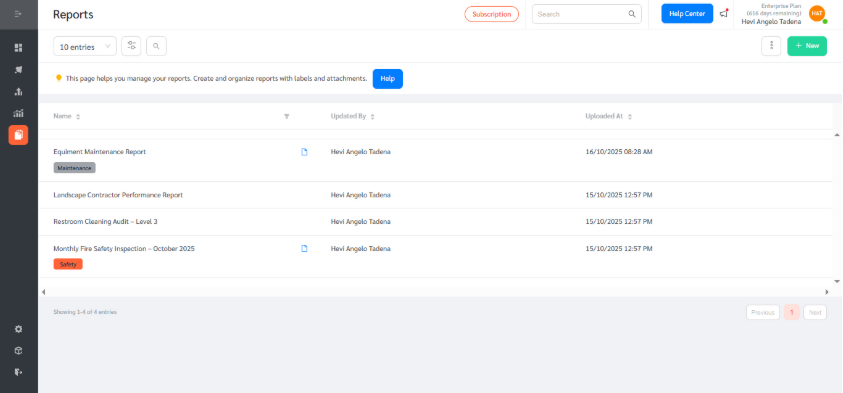
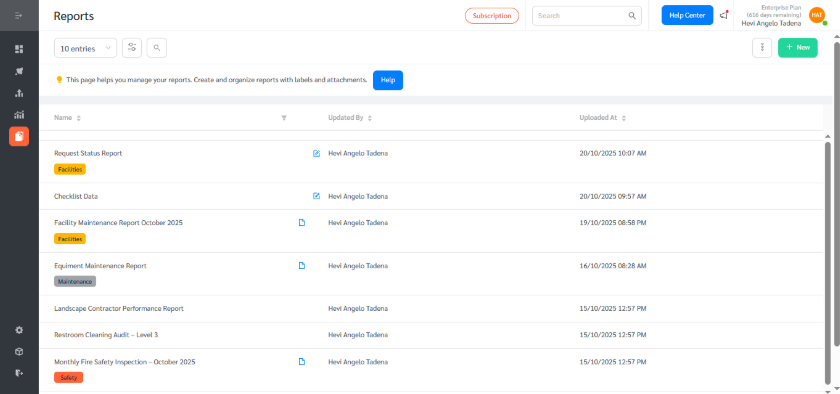
- Navigate to Reports from the sidebar. From here, you can view all existing reports or create new ones.
Creating a New Report
To create a new report:
- Click the + New button on the top right.
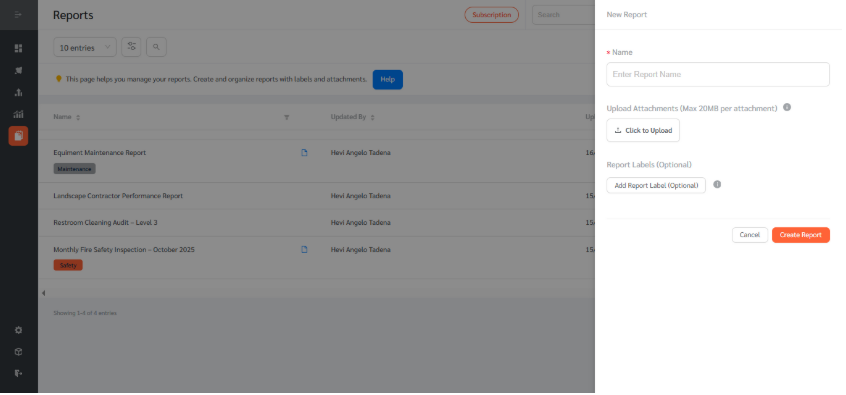
- Enter a report name, then upload attachments (max 20MB each) in Image, PDF, Excel, or CSV format. Add labels to categorize and filter reports easily. Then click Create Report to save.
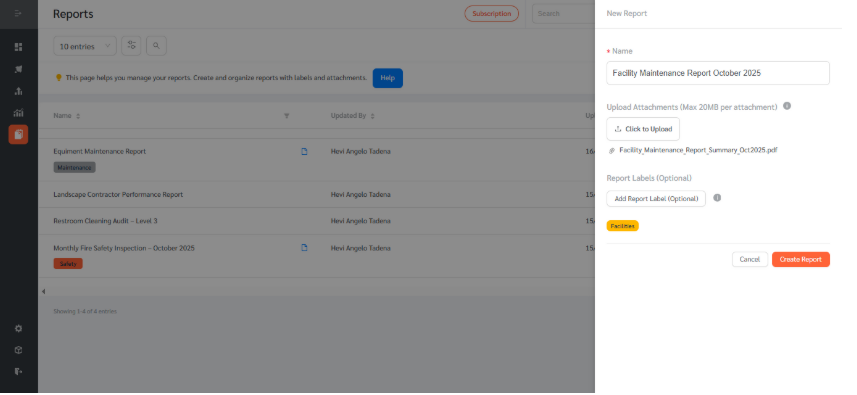
- Users can view and manage all previously saved reports in the Reports page.
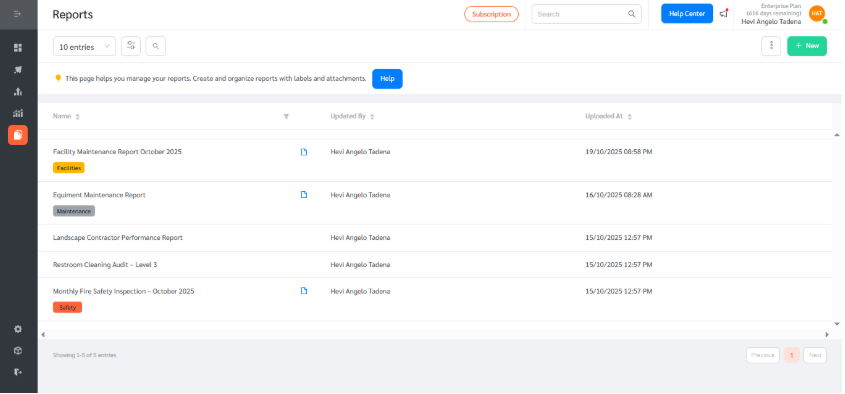
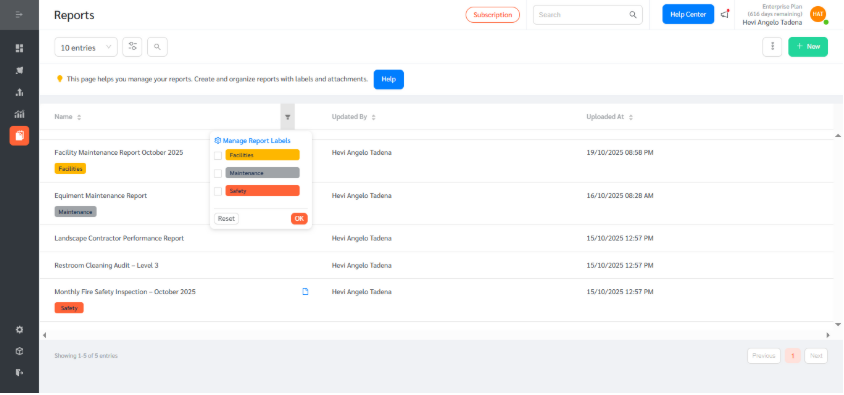
- Use label-based filters or search by report name to locate a specific report.
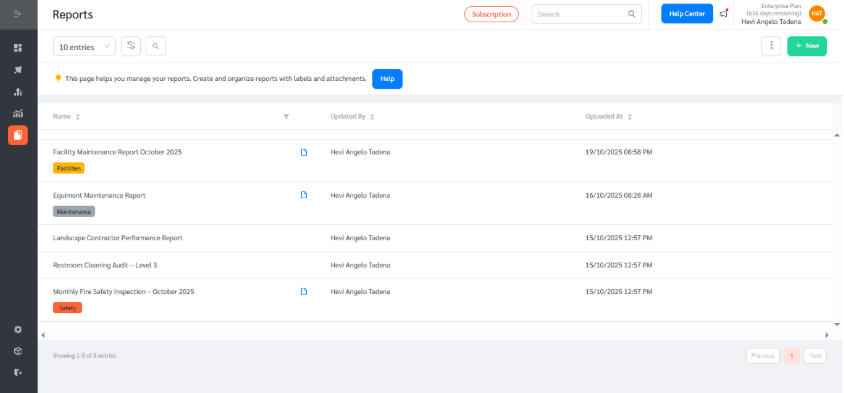
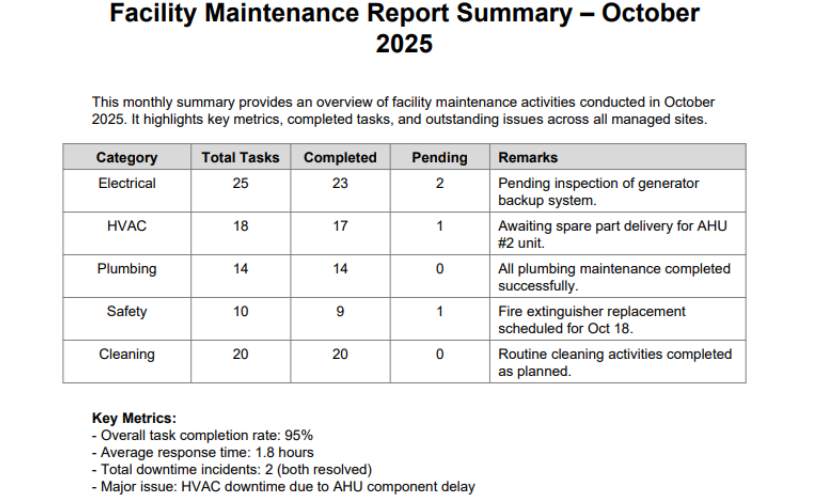
- You may also view the report by clicking on the document icon
Saving Custom Dashboards as Reports
In addition to uploaded reports, users can now save custom dashboards as reports for ongoing reference or audits. This allows you to preserve live analytics snapshots from modules like Requests, Checklists, Assets, and Energy Monitoring.
To save a dashboard as a report:
- Go to Dashboards, then Custom Dashboard.
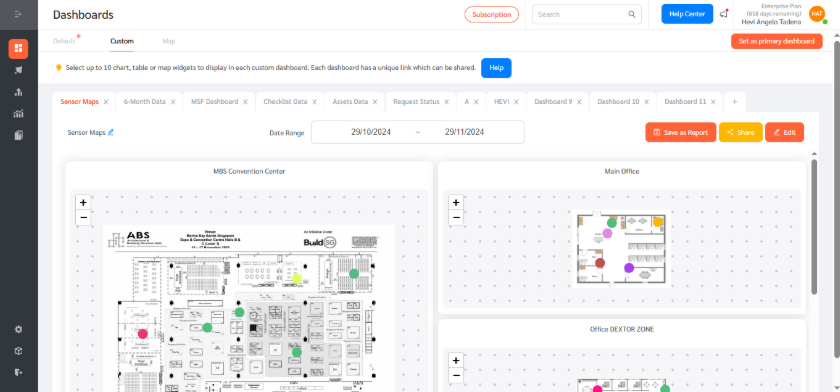
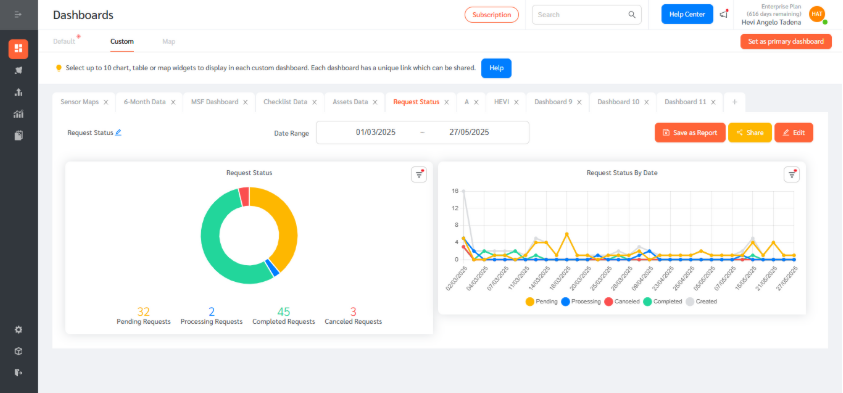
- Navigate to the desired Dashboard view. Apply your preferred filters, date ranges, or groupings.Then, click Save as Report from the top-right menu.
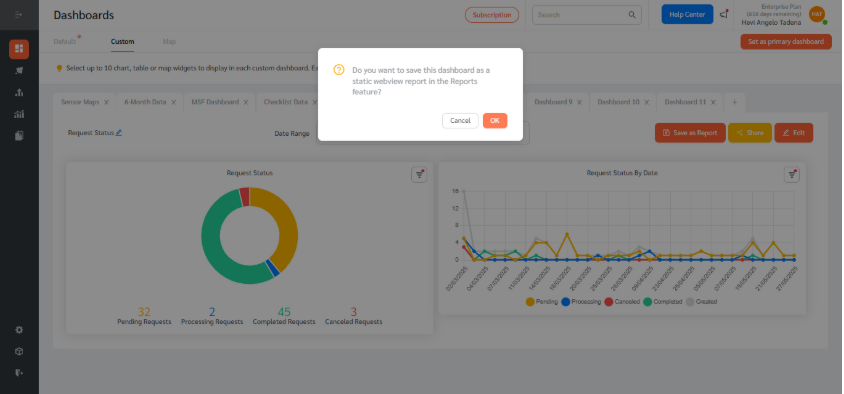
- Confirm by clicking OK to generate the report.
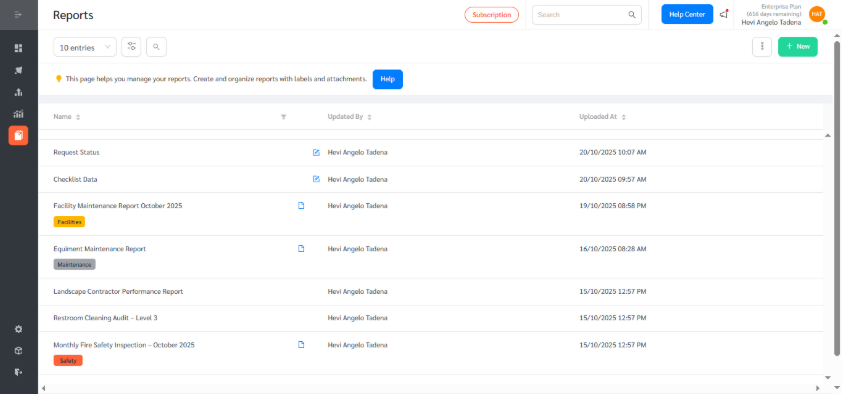
- This will save a report under the Reports Page. You may click on the file icon to view the report. Saved dashboards will automatically appear under the Reports section, retaining your selected filters and visualization layout for future use.
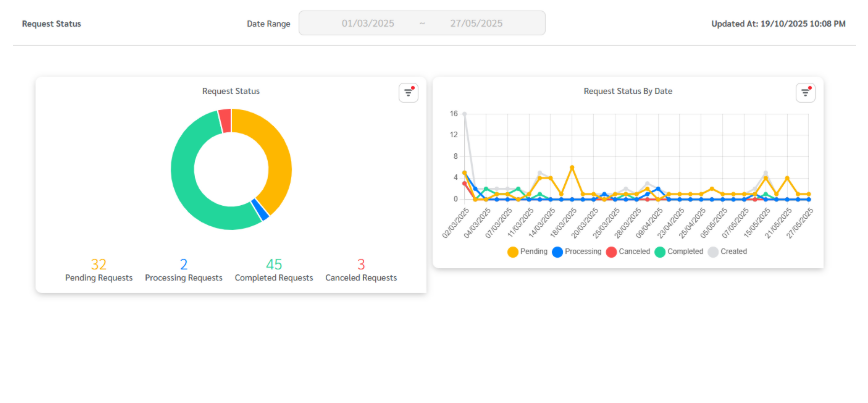
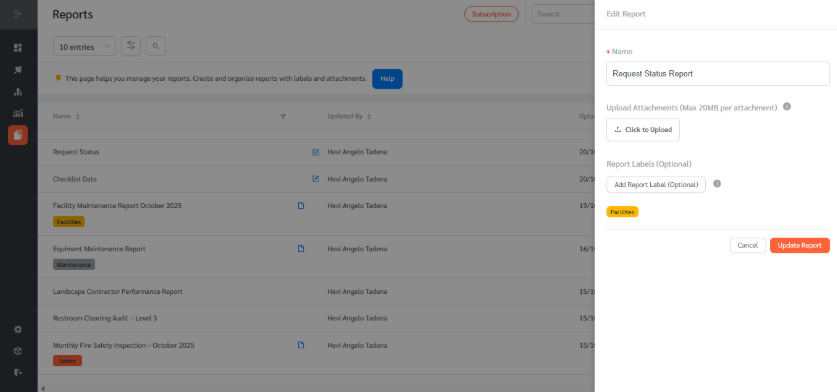
- You may edit the details, assign a report name, add labels, and click Update Report.
Managing Access to Reports via Custom Manager Accounts
Report visibility can be restricted or shared based on user roles and custom manager accounts. This ensures sensitive data remains accessible only to authorized personnel.
To manage report access:
- Go settings, accounts then custom manager roles
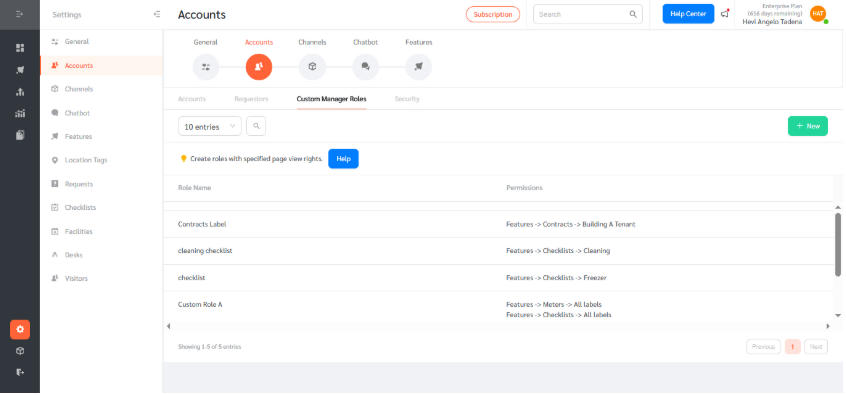
- Click on + New or edit a custom role.
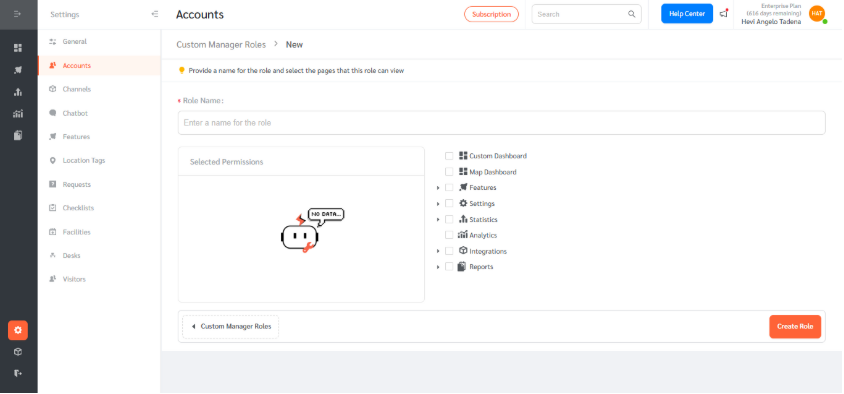
- Give the role a name and click on arrow right beside reports to customize the access of the role in the Reports Feature. You may limit their access whether they can read, create, edit or delete the report or have access to reports with specific labels. Then click create role to save.
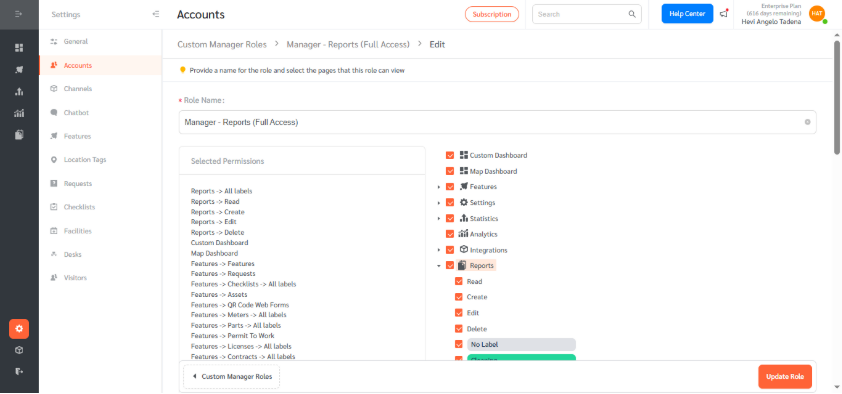
Administrators can also assign view-only or edit permissions, ensuring compliance with internal reporting and audit controls.
Reports feature enhances FacilityBot by centralizing data management, improving visibility, and empowering facility teams to make informed, data-driven decisions with greater efficiency and control.