
Introduction
FacilityBot allows admins to attach geographic coordinates to Location Tags, enabling location-based visibility across Attendance, Requests, Assets, and Permit to Work (PTW), ensuring accurate map display, precise mobile check-in locations, and improved on-site visibility, auditing, and location-based reporting.
How to Get Coordinates from Google Maps
- Open Google Maps in your browser.
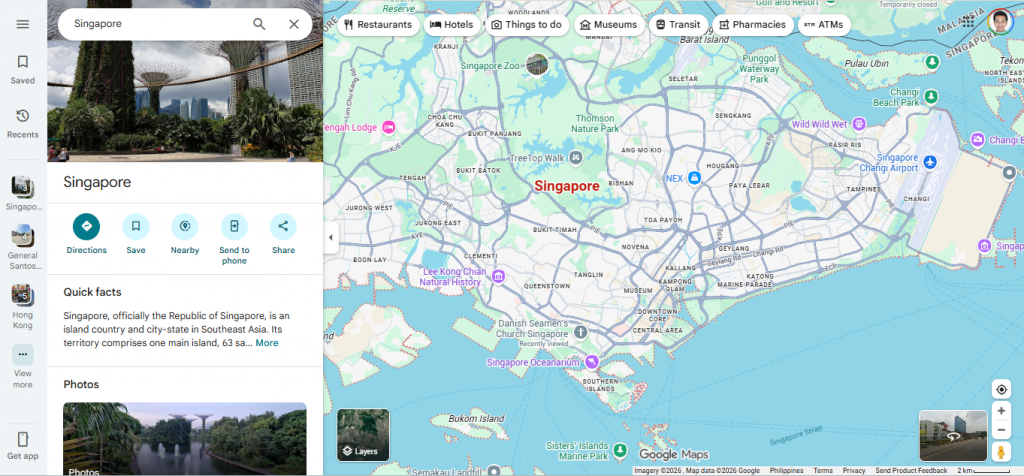
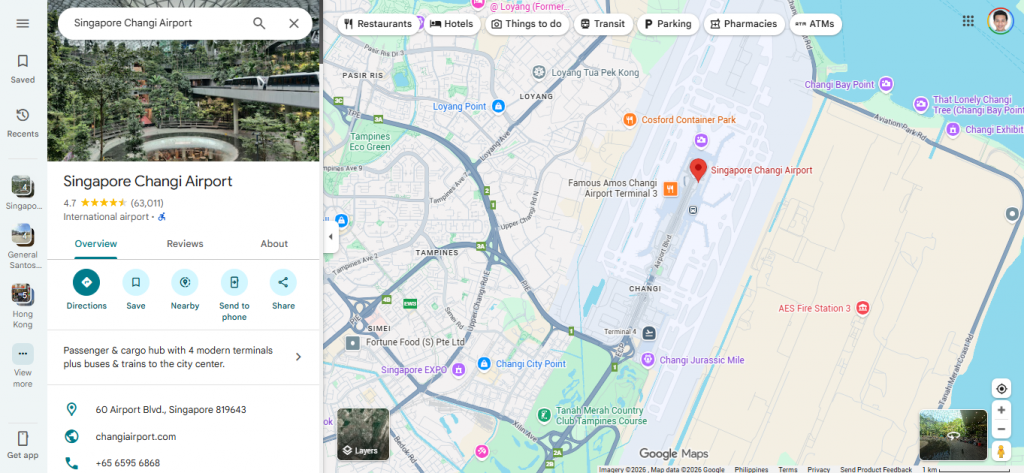
- Search for the exact site or address you want to tag.
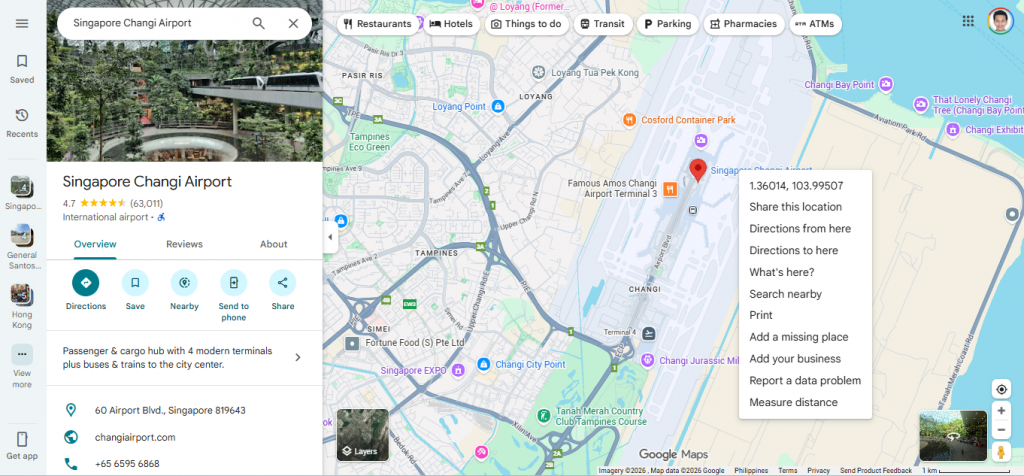
- Right-click on the location pin and select What’s here?
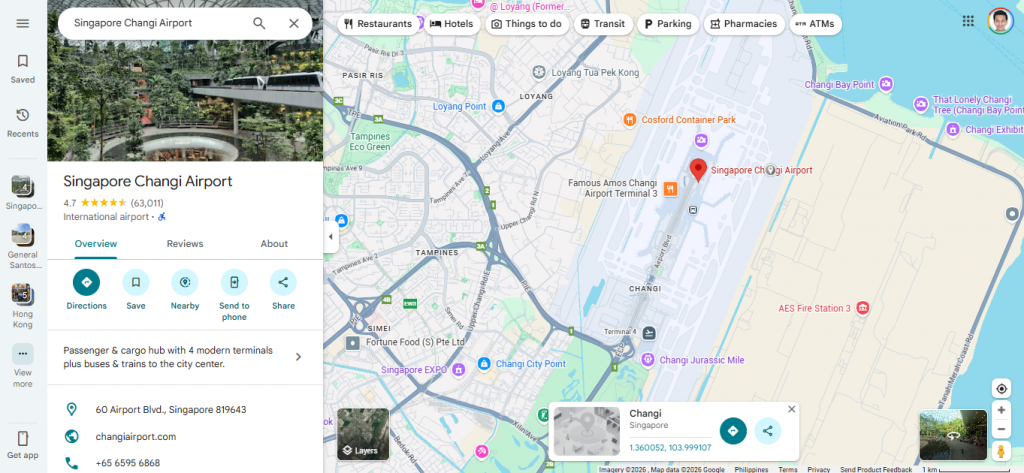
- Copy the displayed latitude and longitude (e.g., 1.3601378285495185, 103.9950727831279).
Adding Coordinates to a Location Tag
To add coordinates in FacilityBot:
- Log in to the FacilityBot Web Portal.
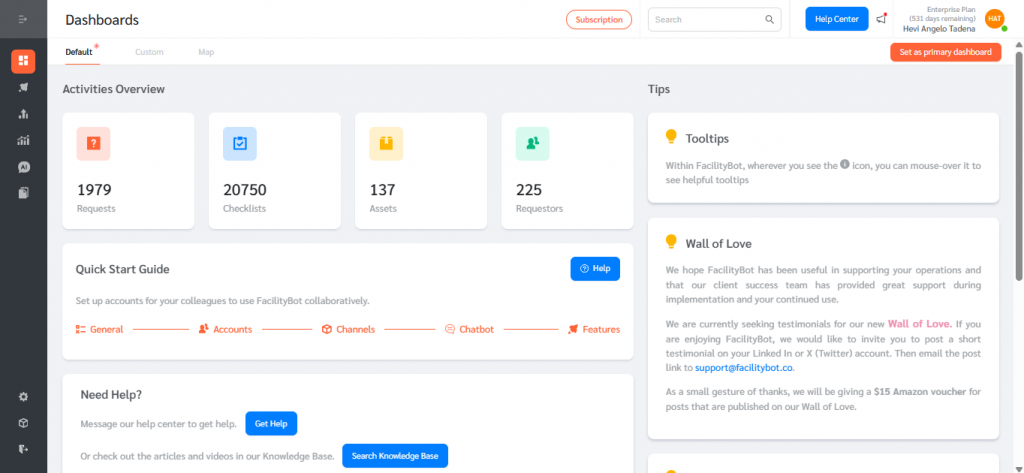
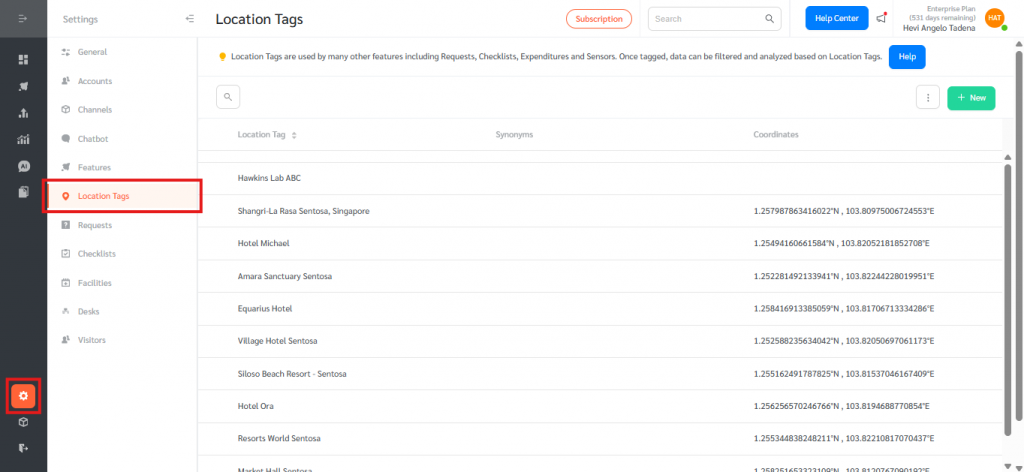
- Navigate to Settings → Location Tags.
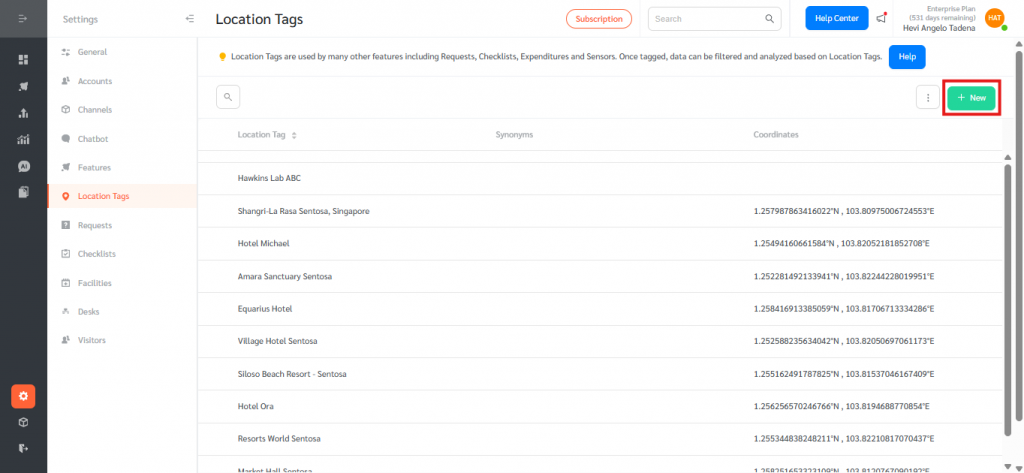
- Select an existing Location Tag or click + New to Add a new Location Tag.
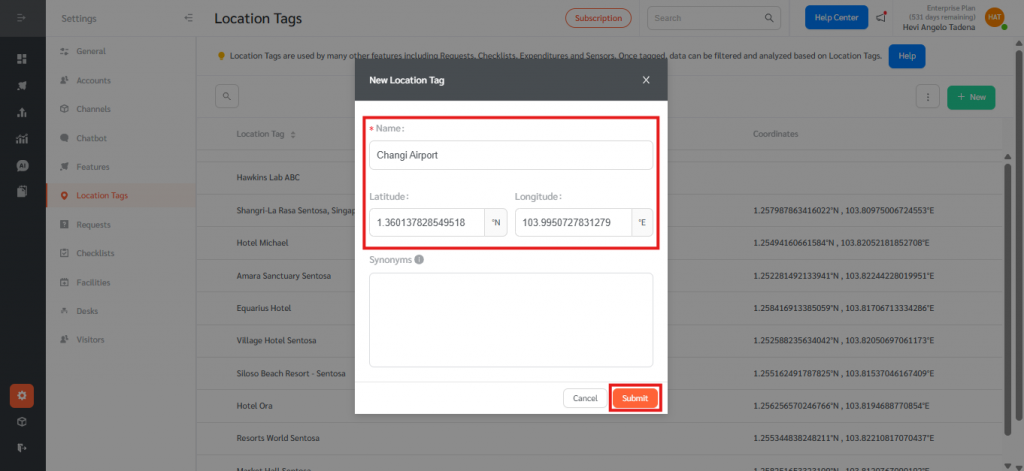
- Name the location tag. Paste the copied Latitude and Longitude into the Coordinates fields. Then click Save
When a Location Tag with latitude and longitude is assigned to a request, assets or PTW, FacilityBot uses those coordinates to place the request accurately on the Map Dashboard.
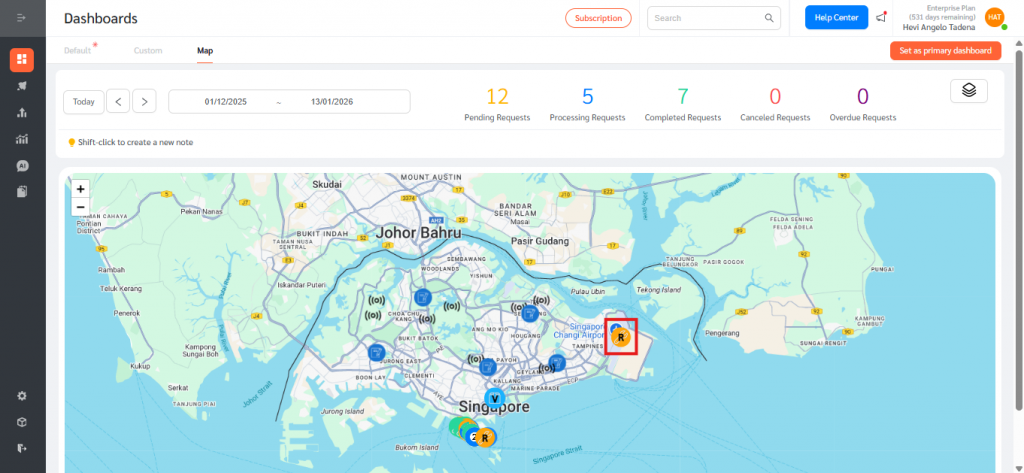
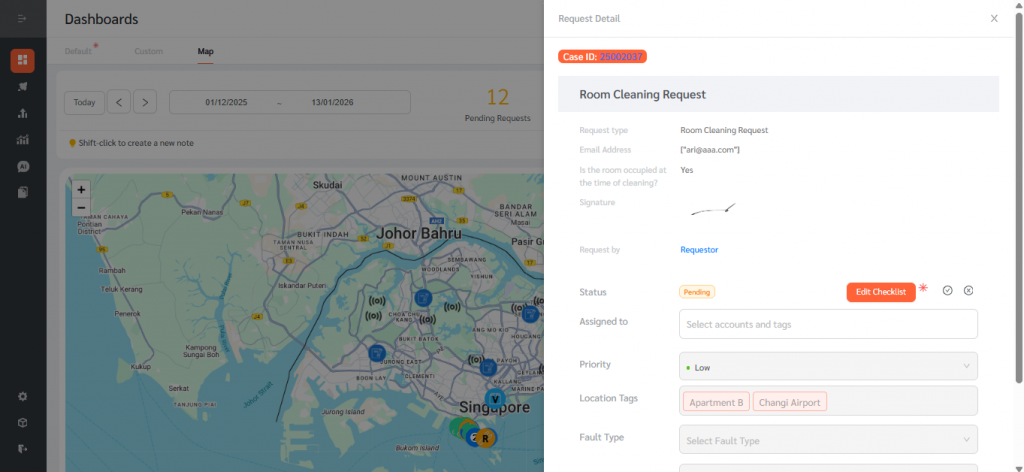
Adding Google Maps coordinates to Location Tags enables accurate GPS-based tracking and map visibility across FacilityBot, ensuring mobile check-ins capture real locations while manual entries are clearly distinguished.