
Introduction
The Auto Create Corrective Requests feature allows Facility Managers to automatically generate corrective requests based on specific checklist responses. This ensures that issues identified during inspections or maintenance checks are immediately logged as requests—without requiring manual follow-up—improving response time, accountability, and workflow efficiency.
With this feature, corrective requests are pre-configured at the checklist level and are automatically created when the checklist reaches Complete status and the defined response condition is met.
To use this feature, log in to the FacilityBot Manager Portal, then navigate to Settings → Checklists.
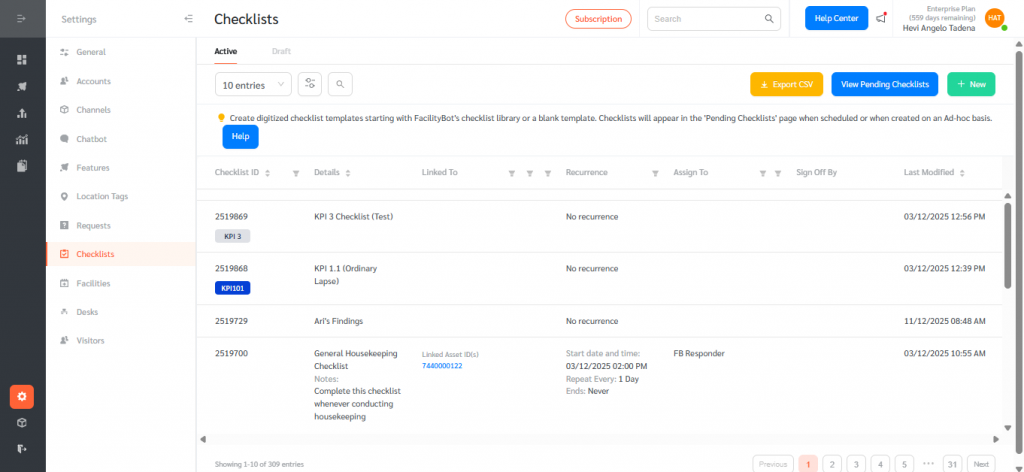
Creating a Checklist with Auto-Created Corrective Requests
Step 1: Create a New Checklist
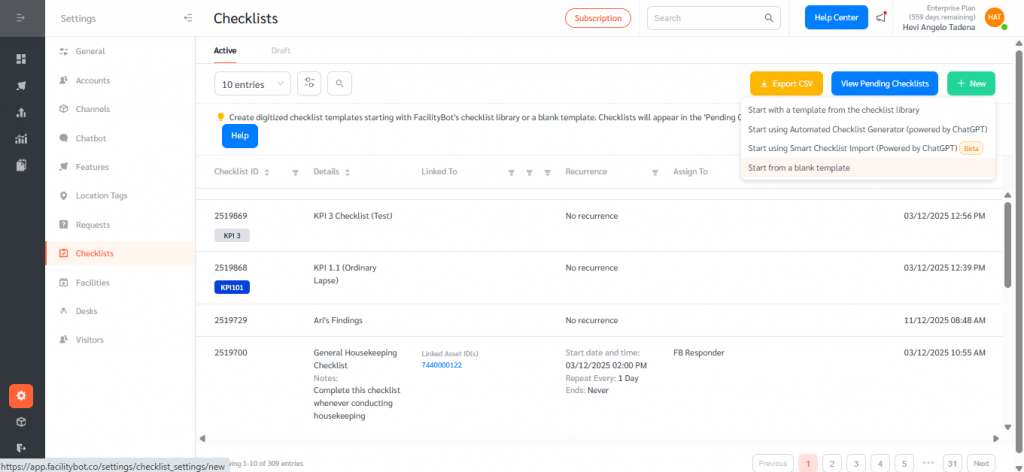
- Click + New, and select Start from a blank template to create a new checklist.
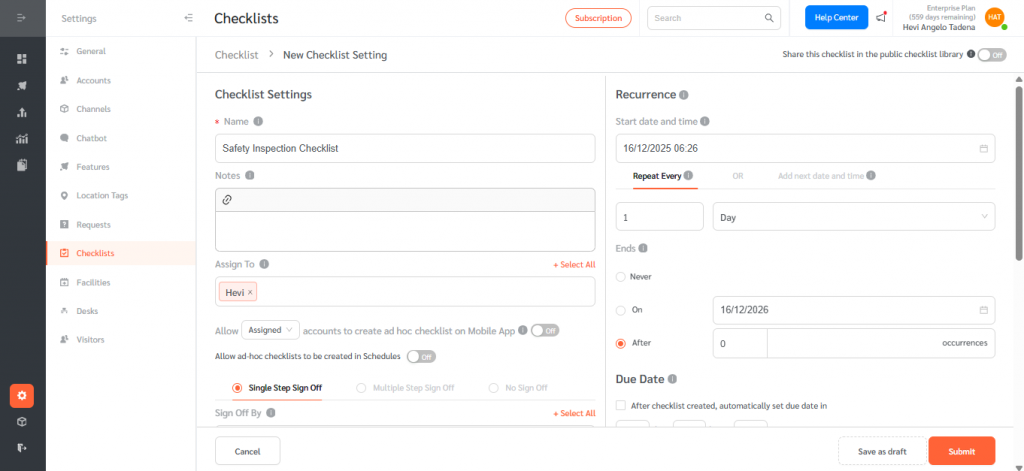
- Name the checklist, assign responders and managers, and configure any recurrence settings as needed.
Step 2: Add a Check Row with Choice Responses
- Scroll down and click + Add New Check Row.
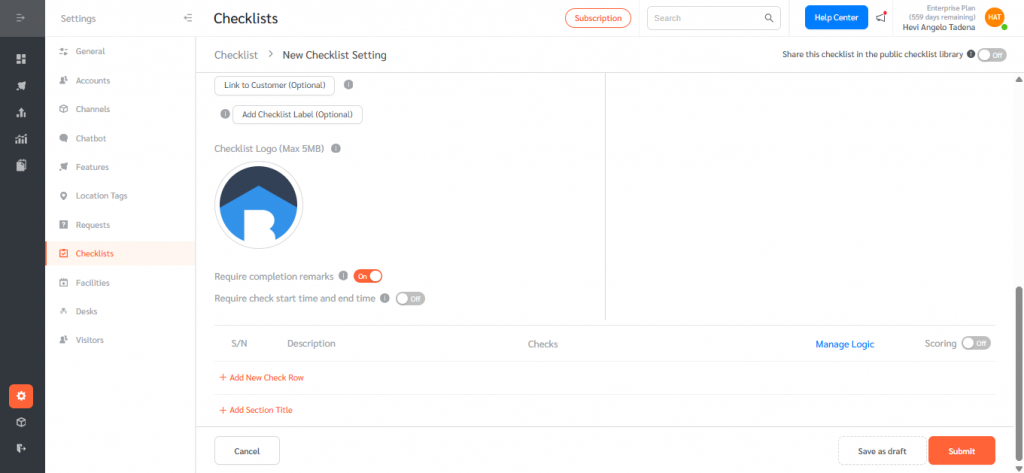
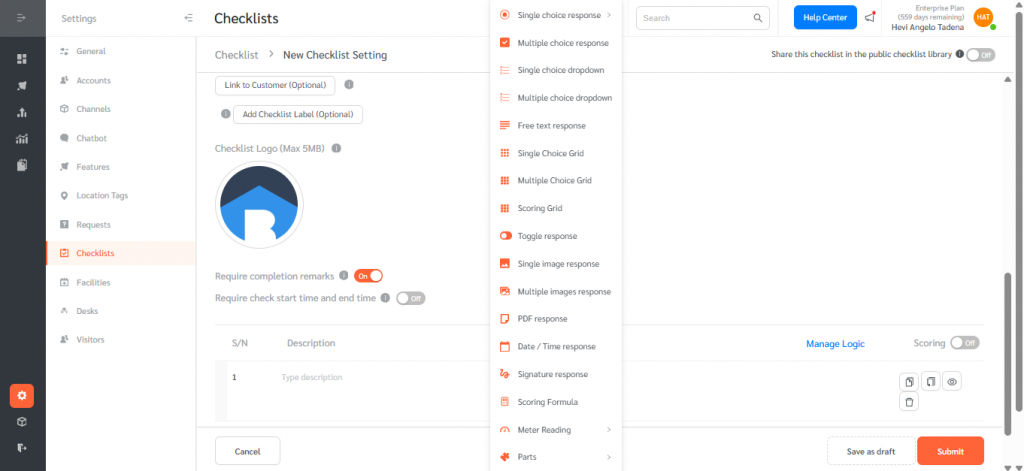
- Add a check and choose a Choice Response type (such as Single Choice or Multiple Choice)
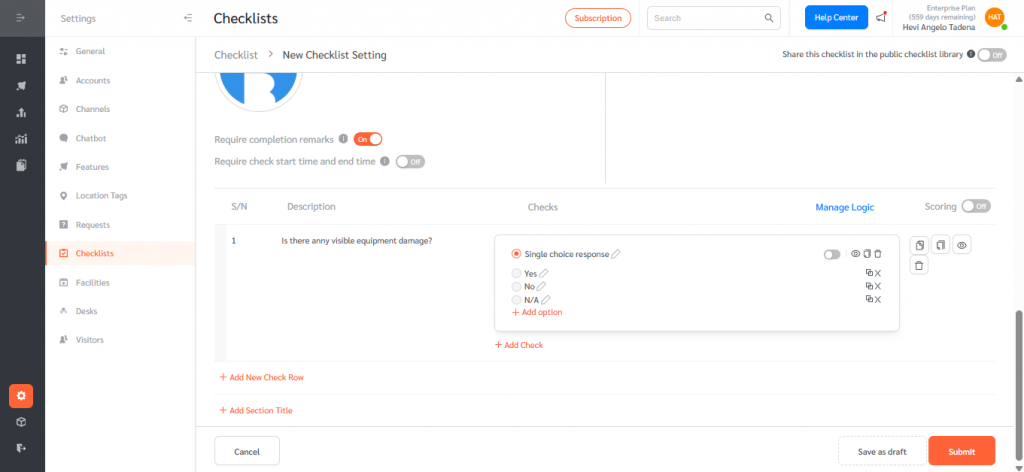
- Define the available options (e.g., Yes / No, Pass / Fail, or issue types). Only choice-based checks support auto creation of corrective requests, as requests are triggered by selecting a specific option.
Step 3: Configure Auto Create Corrective Request
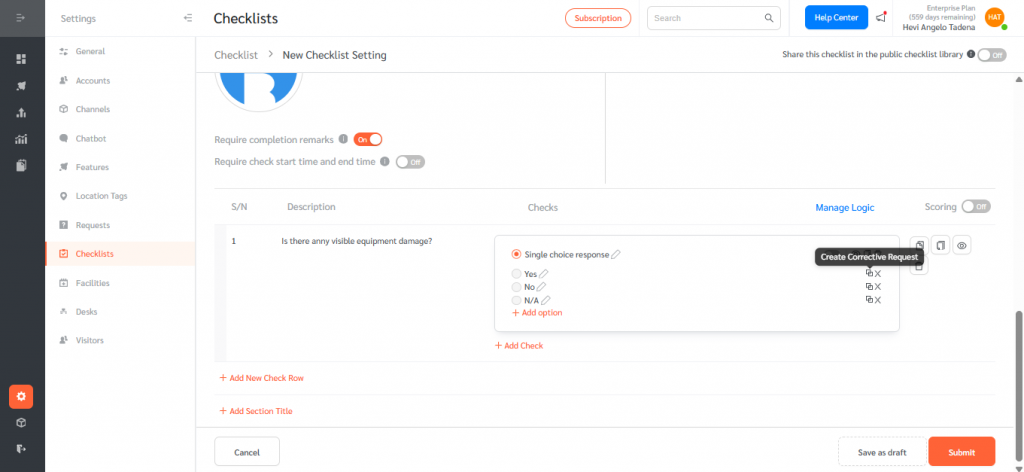
- For the relevant check row, click Create Corrective Request.
- A configuration panel will open where you can predefine the corrective request details, including required fields such as request type, priority, assignee, and description. This configuration determines what request will be created automatically when the selected option is chosen. After filling in all required (*) fields, click Submit / Apply to save the automation.
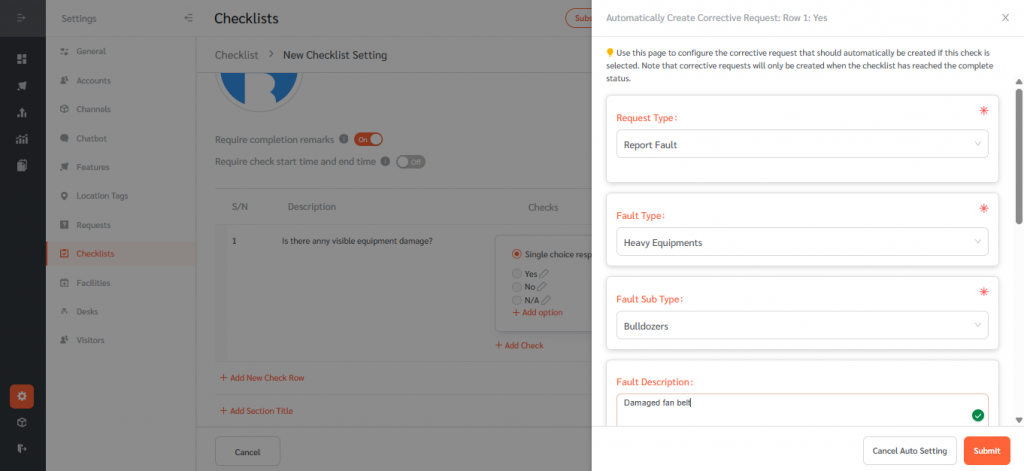
Note: The configuration does not immediately create a live request. It only defines what should be created later when the checklist is completed.
Step 4: Duplicate Checks if Needed
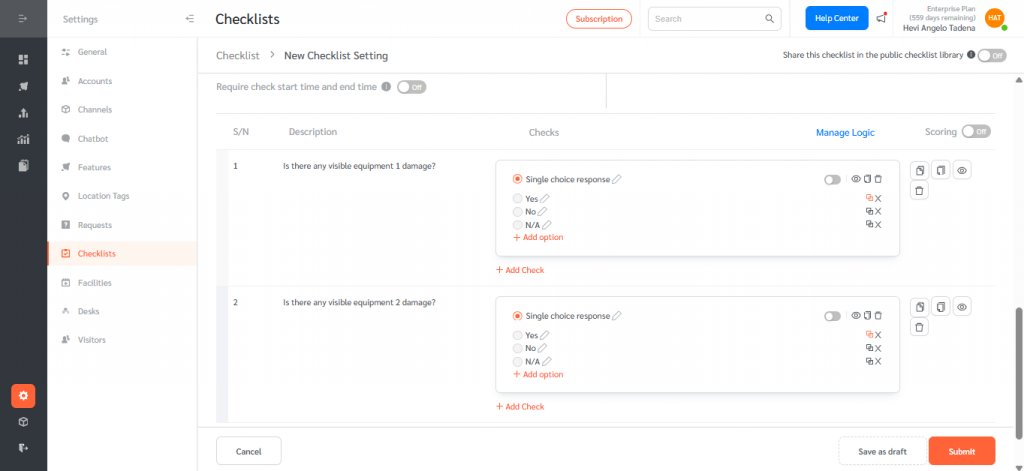
- If you duplicate a check row, the corrective request automation is duplicated as well. This makes it easy to reuse the same logic across multiple checks without reconfiguring each one.
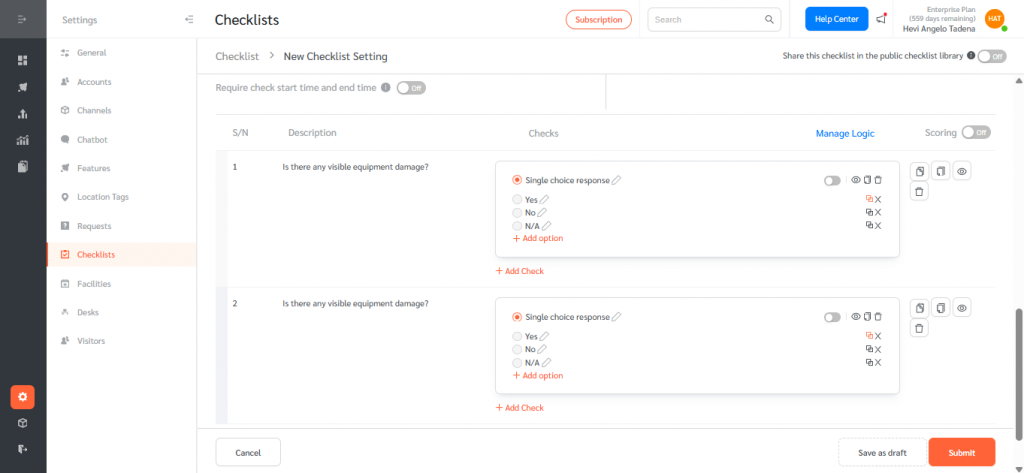
- Once all checks are configured, click Submit to save the checklist.
Testing the Auto-Creation Workflow
Step 5: Create an Ad-hoc Checklist
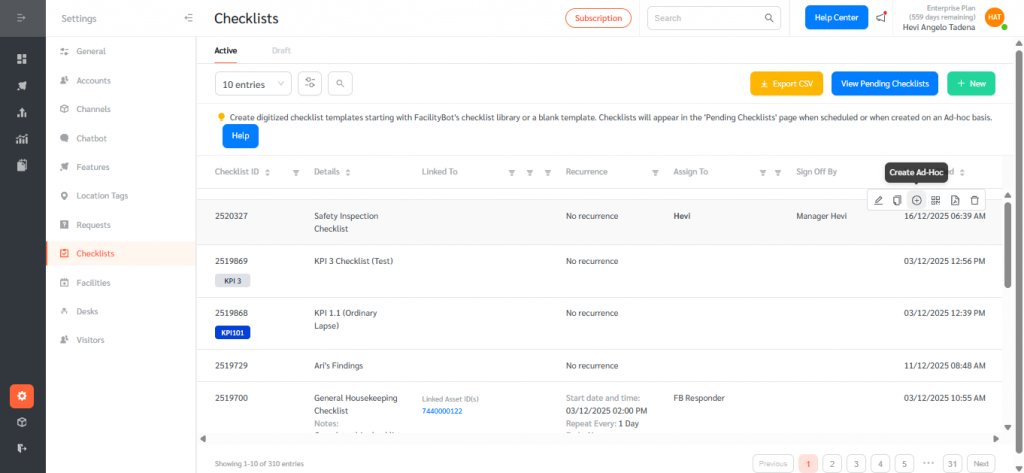
- Hover over the newly created checklist and click Create Ad-hoc to generate a pending checklist.
- Open the pending checklist using Edit.
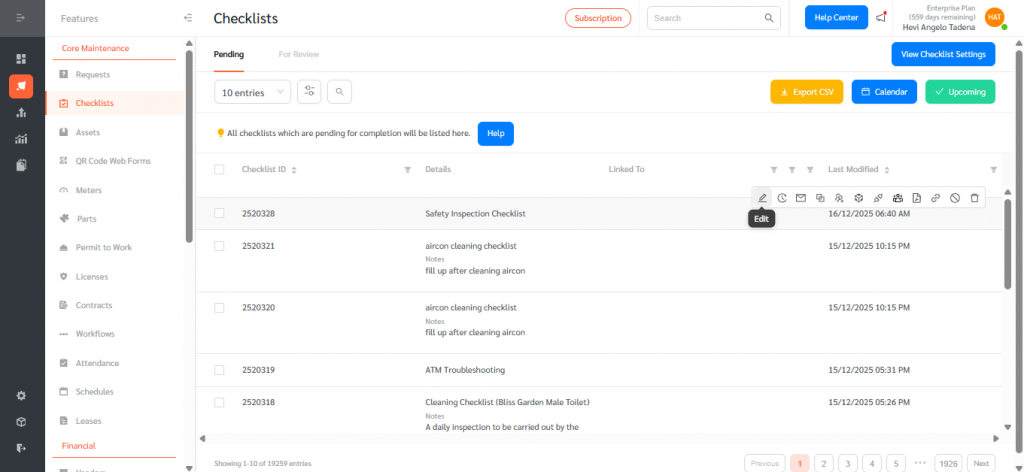
- Complete it by selecting the option that has Auto Create Corrective Request configured.
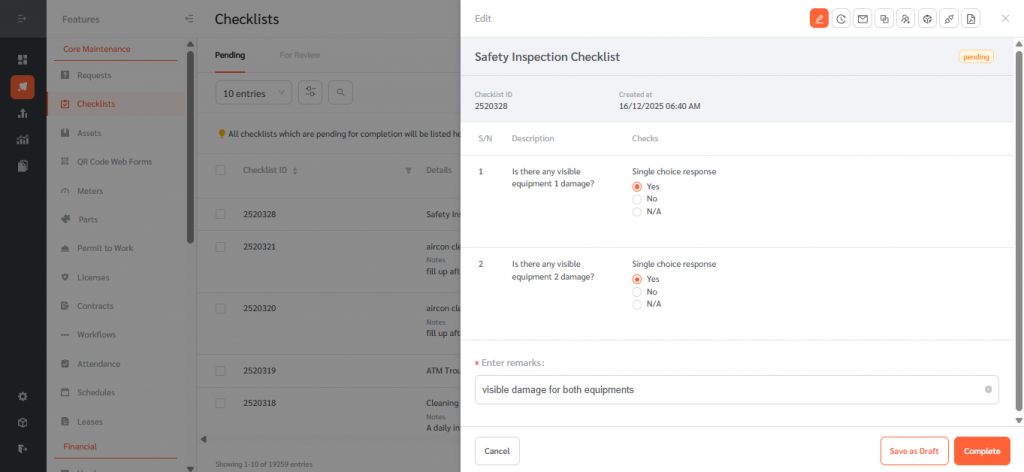
Step 6: Verify the Auto-Created Request
- Mark the checklist as complete, under for review.
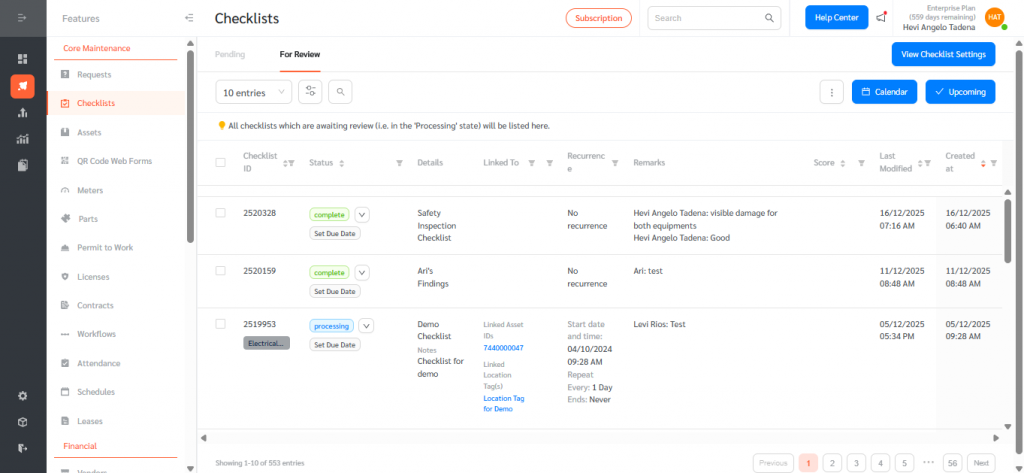
- After the checklist reaches Complete status, navigate to the Requests page.You will see a new corrective request automatically created and linked to the completed checklist—just as if it had been created manually.
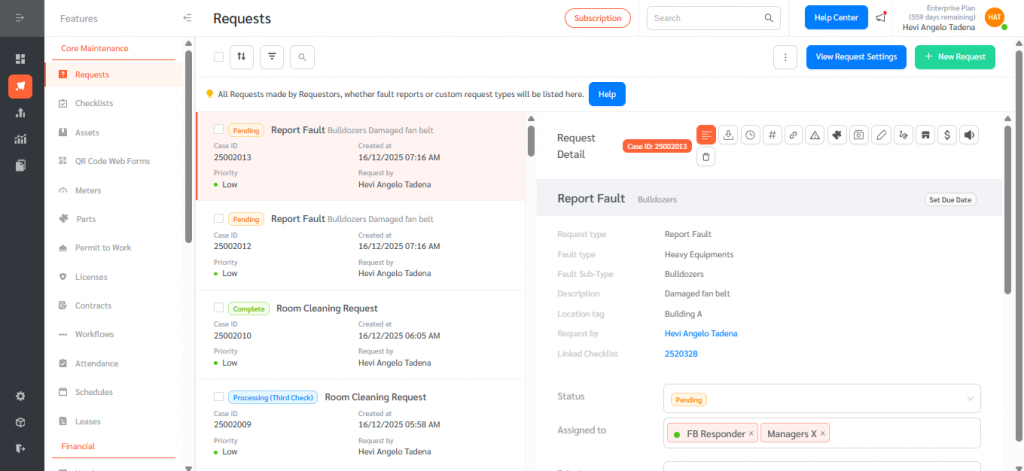
Each auto-created request is logged individually, ensuring traceability between the checklist and the corrective action.
Auto Create Corrective Requests streamlines inspections by automatically turning critical checklist responses into linked corrective actions, eliminating manual follow-up while improving accountability, response time, and compliance.