Introduction
FacilityBot allows users to configure CSV Export for Requests, giving teams full control over which fields are included in CSV exports and in what order. This feature is useful when different stakeholders (operations, finance, audits, reporting) require specific datasets, column arrangements, or custom fields for analysis and record-keeping.
Once configured, users can export request data with consistent structure, reduce manual cleanup in spreadsheets, and ensure exports align with internal reporting standards. This article explains how to configure CSV export fields, save default settings, and generate CSV files using the configured layout.
Configuring CSV Export Fields
To configure CSV Export for Requests:
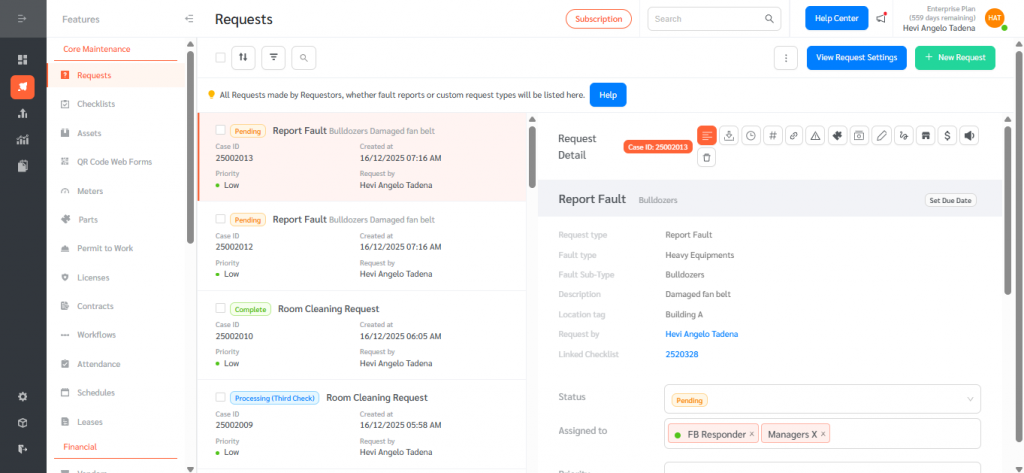
- Log in to the FacilityBot Web Portal and navigate to Requests and click the three-dot (⋮) menu on the top-right of the Requests page.
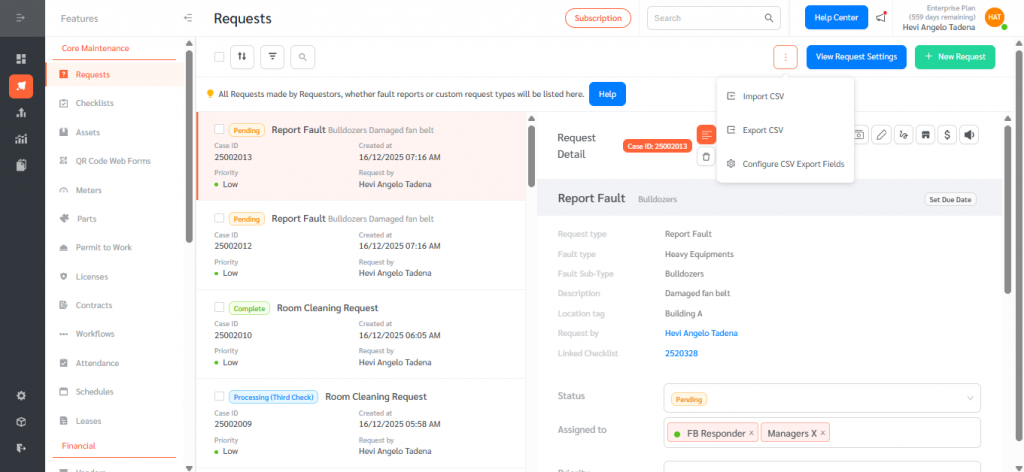
- Select Configure CSV Export Fields.
You will be taken to the CSV Export Headers configuration screen, where you can manage included fields and their order.
Managing CSV Export Fields
Adding Fields
- Click Add Field to include new columns in the CSV export. You can add both System Fields (e.g., Request ID, Status, Created At) and Custom Fields from Request Forms.
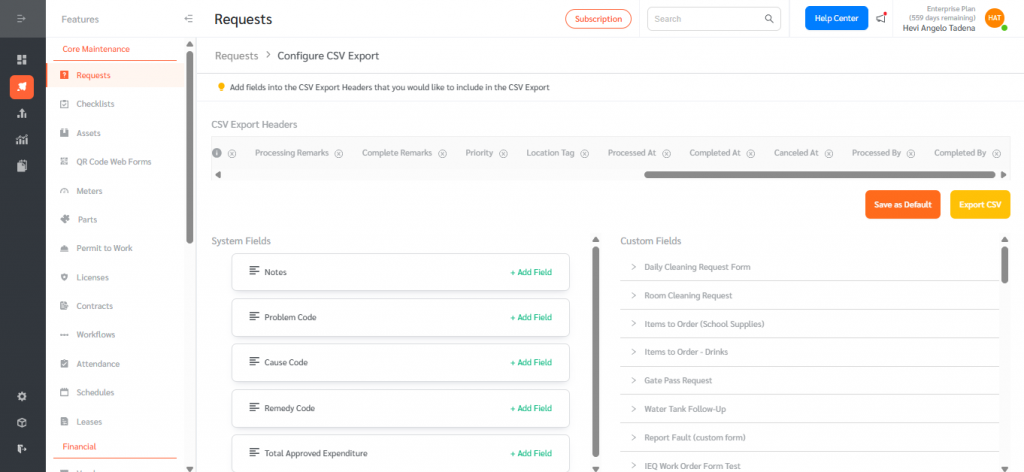
- For Custom Fields, select a Request Type, then click Expand to view all related form fields.
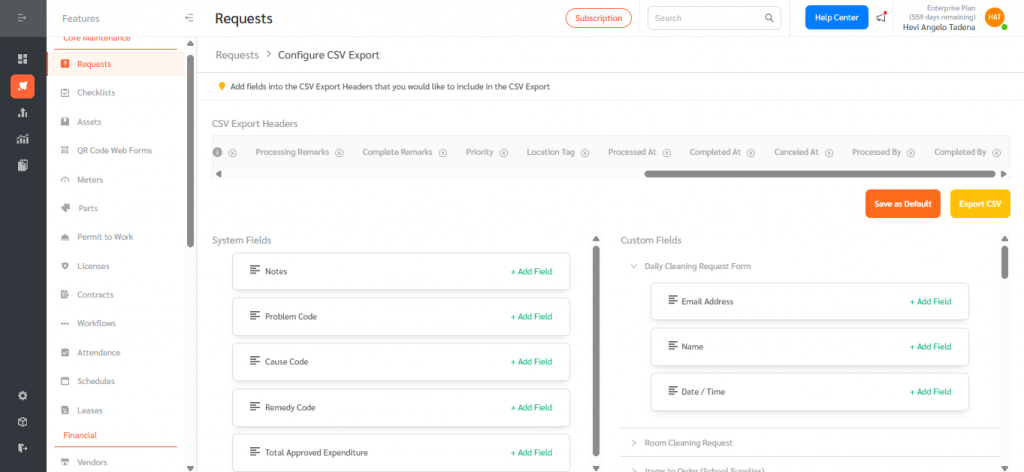
Newly added fields appear on the far right of the selected columns list for easy identification.
Removing Fields
- Click the X icon next to any selected field to remove it from the export. Removed fields are automatically returned to the System Fields or Custom Fields list and can be re-added later if needed.
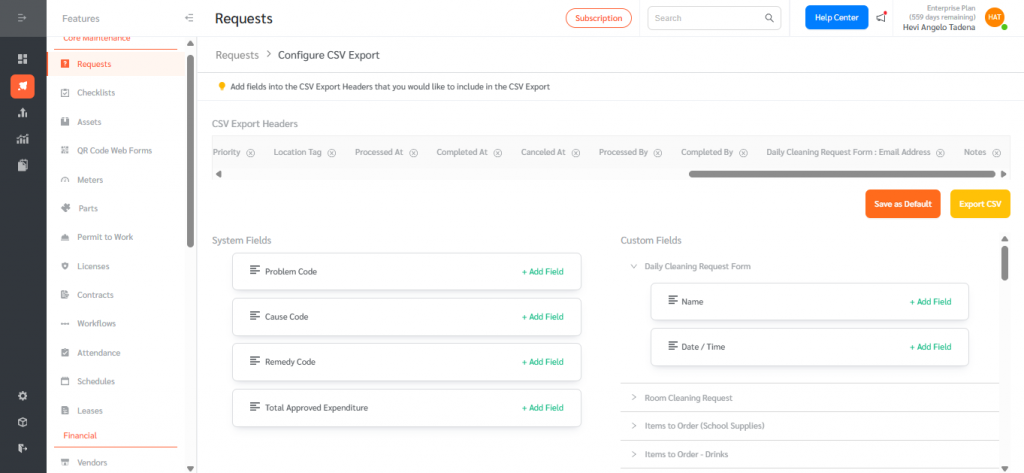
Reordering Fields
- Fields can be rearranged using drag and drop to control the column order in the exported CSV file. The column order shown in the configuration screen determines the order in the exported CSV.
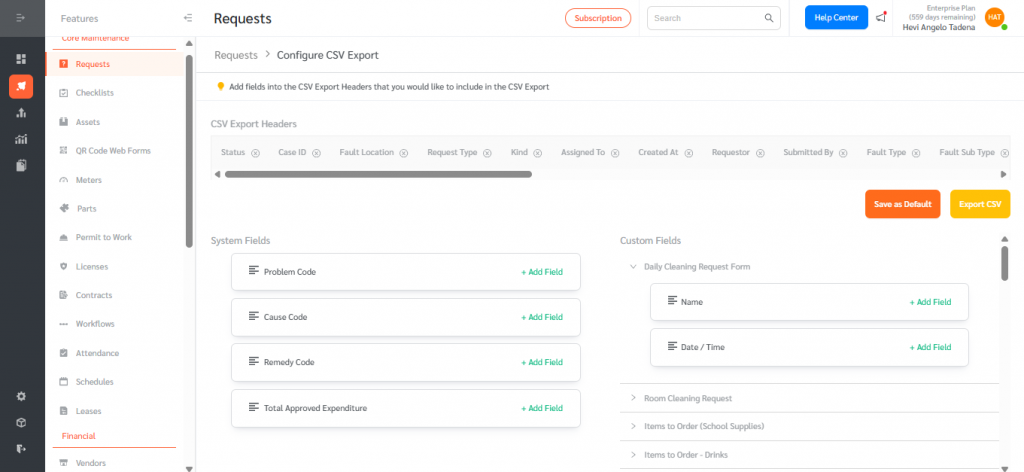
Saving and Using Default Export Settings
After configuring your desired fields and order:
- Click Save as Default to store the configuration.

- Click Export CSV to download a CSV file using the updated configuration.
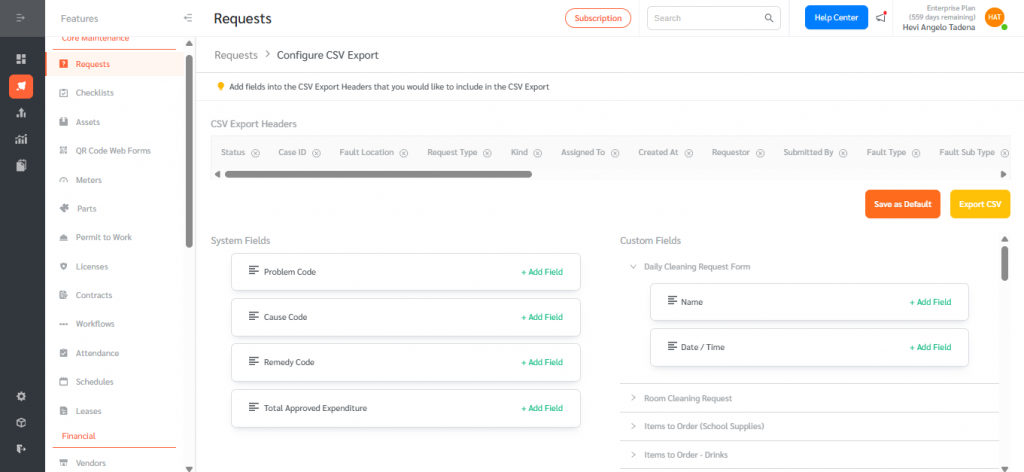
Once saved as default, using Export CSV directly from the Requests page will automatically follow the same field selection and column order.
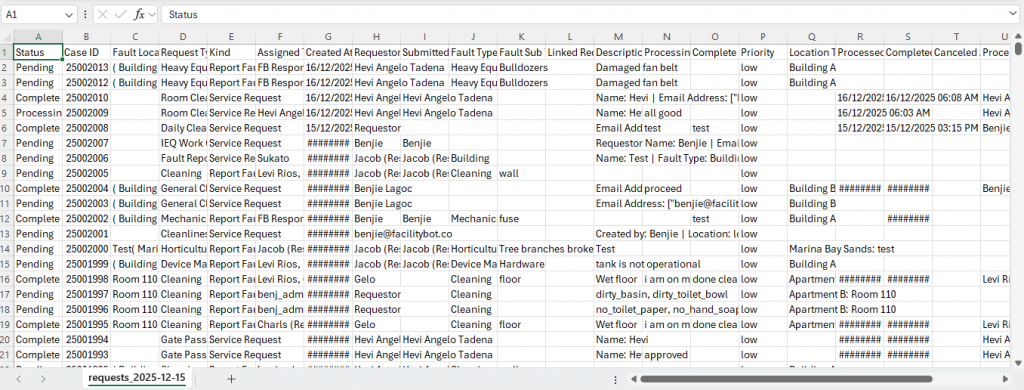
Configurable CSV Export in FacilityBot gives teams flexibility and consistency when exporting request data. By allowing users to select, reorder, and standardize export fields, the feature reduces manual spreadsheet work, improves reporting accuracy, and ensures CSV outputs are tailored to operational, financial, and compliance needs across the organization.