Introduction
FacilityBot’s Ad Hoc Checklist feature in the Mobile App allows responders to instantly create and complete a checklist when a scheduled instance is not available. This ensures operational flexibility while maintaining proper documentation, accountability, and compliance tracking.
Ad hoc checklists can be created in two ways:
- By scanning a designated QR code
- By enabling Ad Hoc creation in Checklist Settings (no QR code required)
Once created, the checklist can be completed directly within the app and is automatically logged in the system for proper record keeping.
Method 1: Creating an Ad Hoc Checklist via QR Code
This method is ideal for on-site execution where QR codes are placed at specific locations.
Steps:
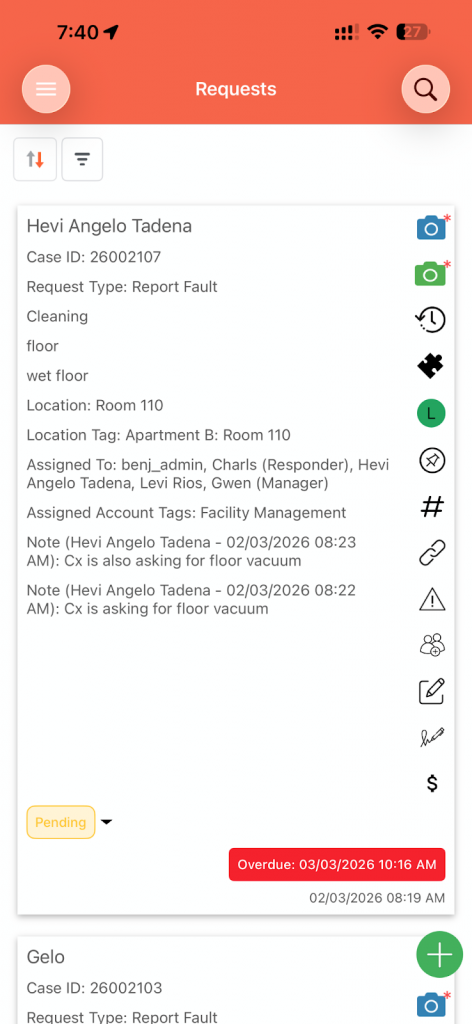
- Open the FacilityBot Mobile App. Tap the three-bar (☰) menu icon located in the upper-left corner of the screen.
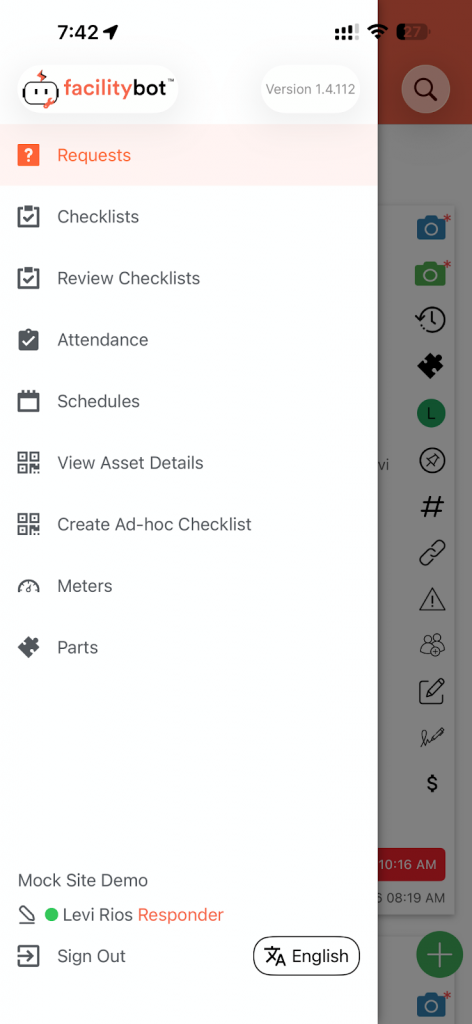
- Then tap “Create Ad Hoc Checklist.”
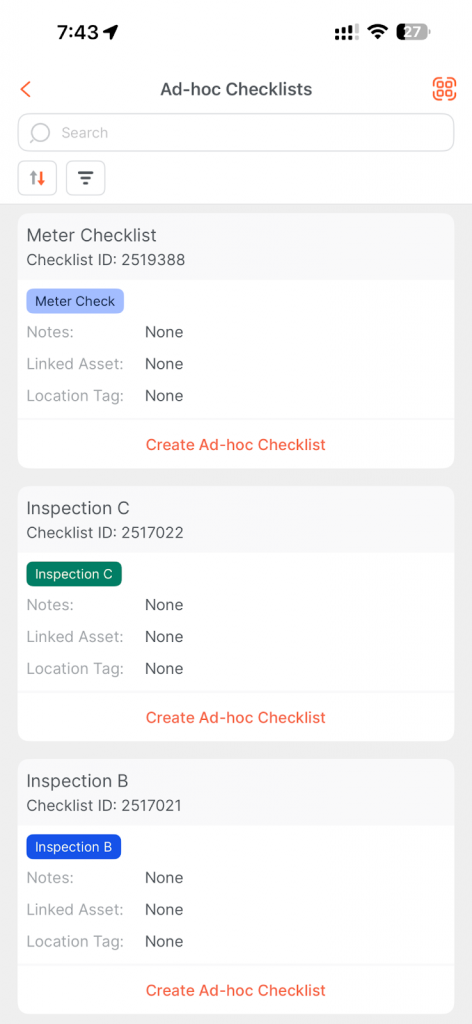
- Next, tap the QR Code icon located in the upper-right corner of the screen.
- Scan the QR code associated with the checklist.
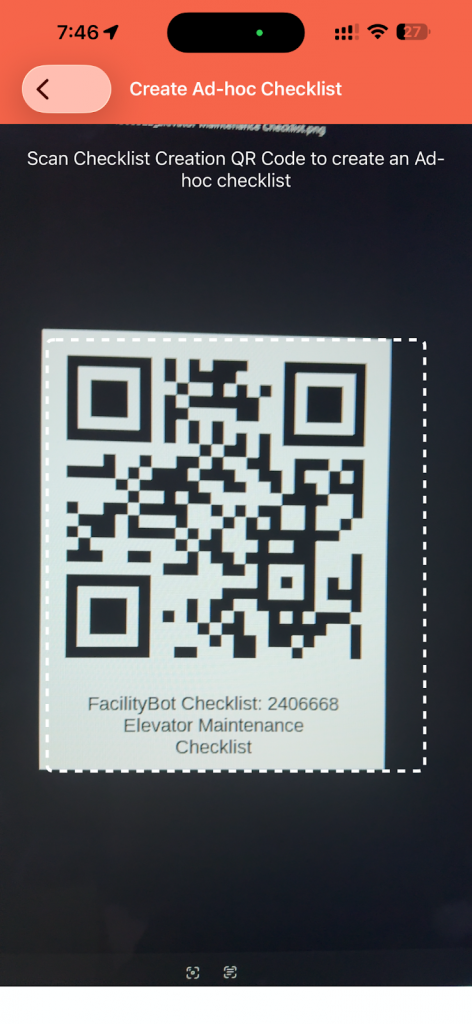
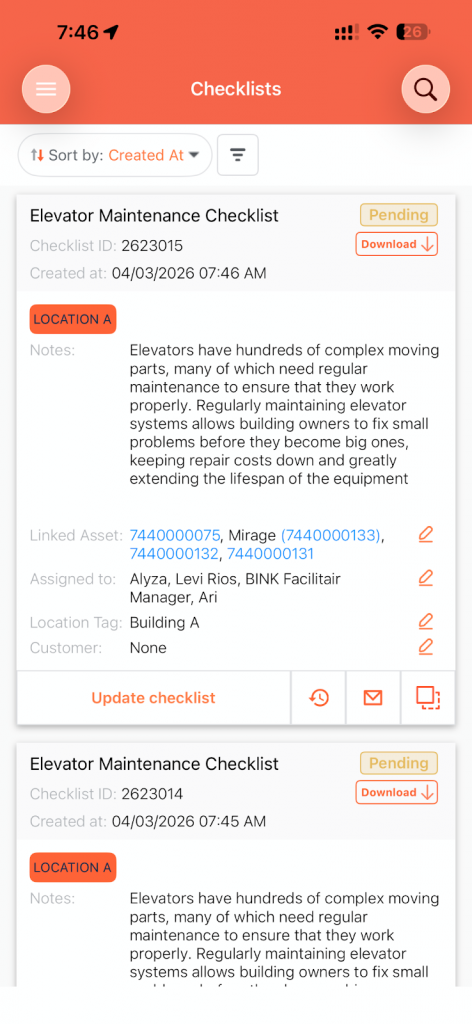
- Upon scanning, the system automatically generates a new Ad Hoc checklist instance linked to that QR code. The newly created checklist will appear in your checklist list for completion.
Method 2: Enabling and Creating Ad Hoc Checklist via Mobile App (No QR Code)
This method allows selected users to create Ad Hoc checklists directly from the Mobile App without scanning a QR code.
How to Enable Ad Hoc Creation (Admin Setup Required)
To allow accounts to create Ad Hoc checklists from the Mobile App:
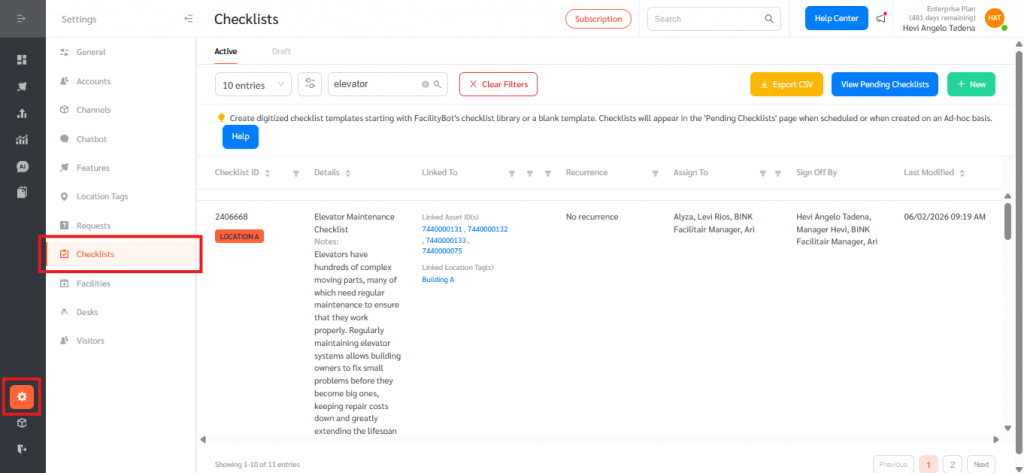
- Go to Facilitybot Web Portal Settings. Click on Checklists.
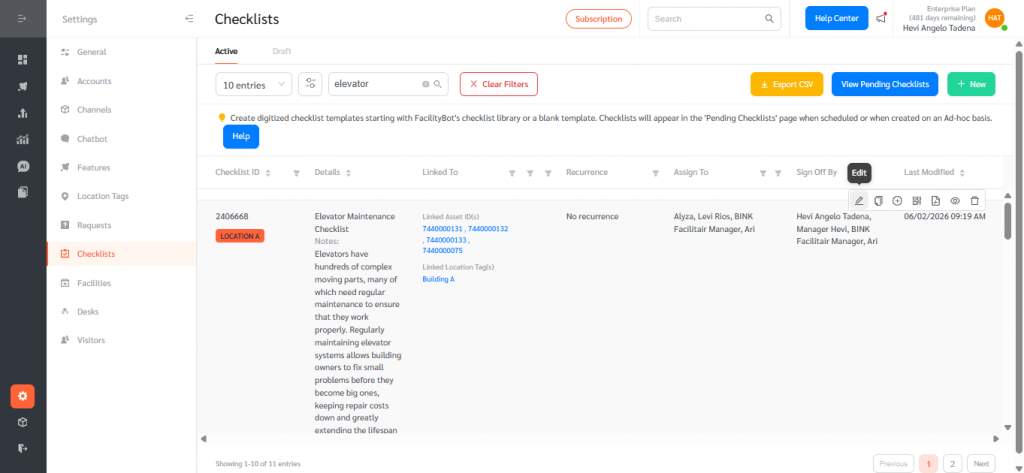
- Hover over and edit the existing checklist you want to enable for ad hoc creation.
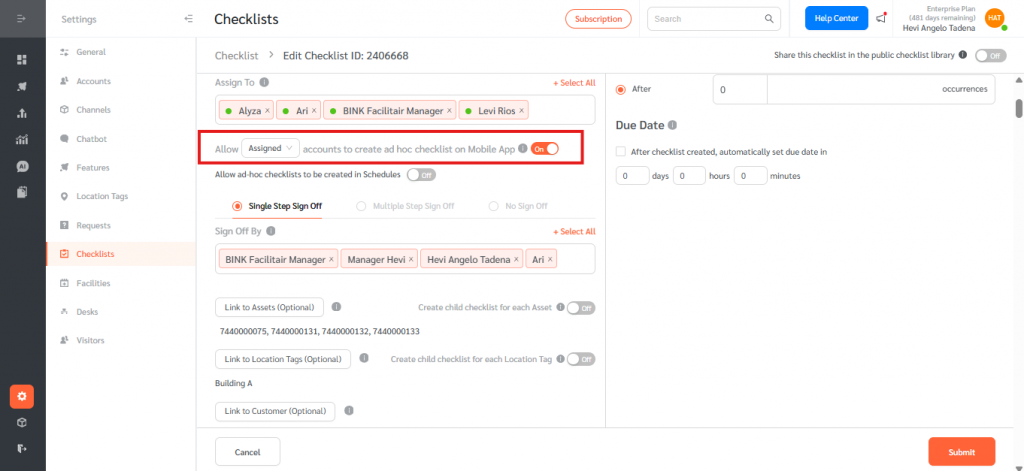
- Scroll down to locate the option: “Allow assigned/all accounts to create ad hoc checklist on Mobile App.”
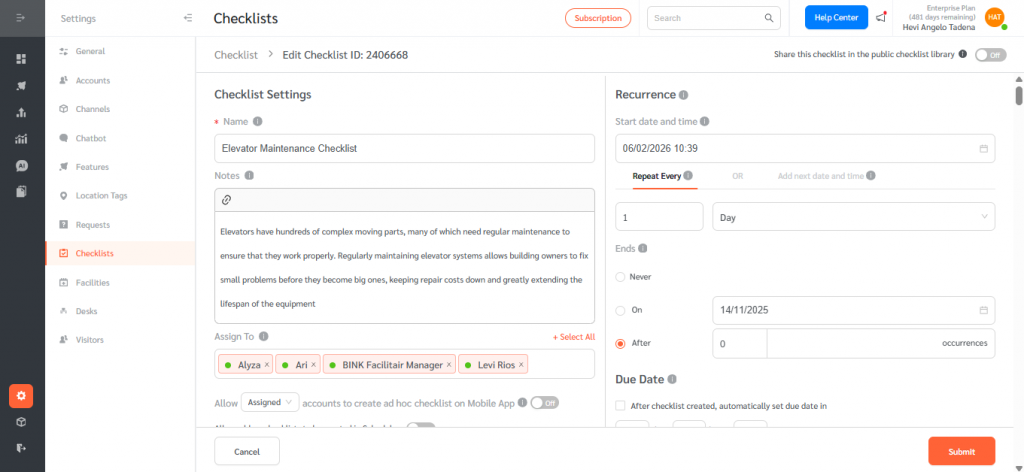
- Toggle this option ON.
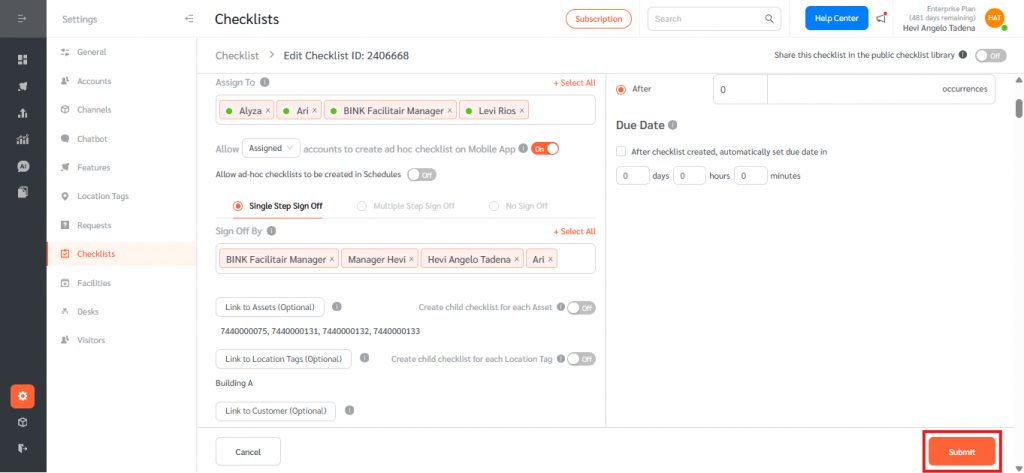
- Submit the checklist.
What Happens When the Toggle Is ON
When this setting is enabled:
- The checklist will be listed in the FacilityBot Mobile App for ad hoc checklist creation.
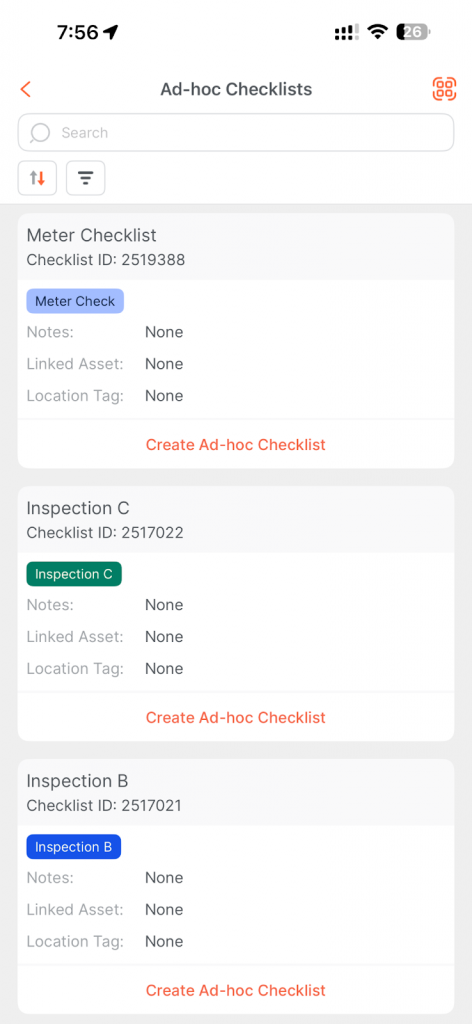
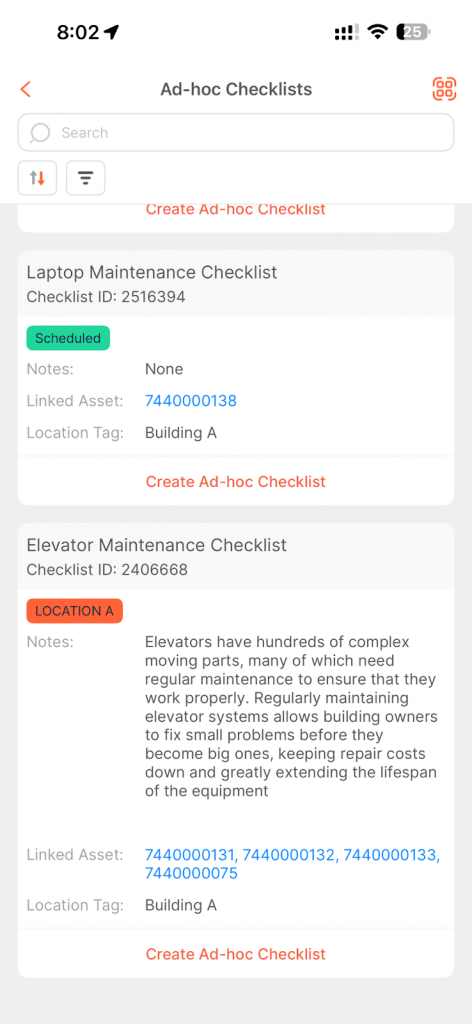
- Tap “Create Ad Hoc Checklist” to generate a new ad hoc checklist instance.
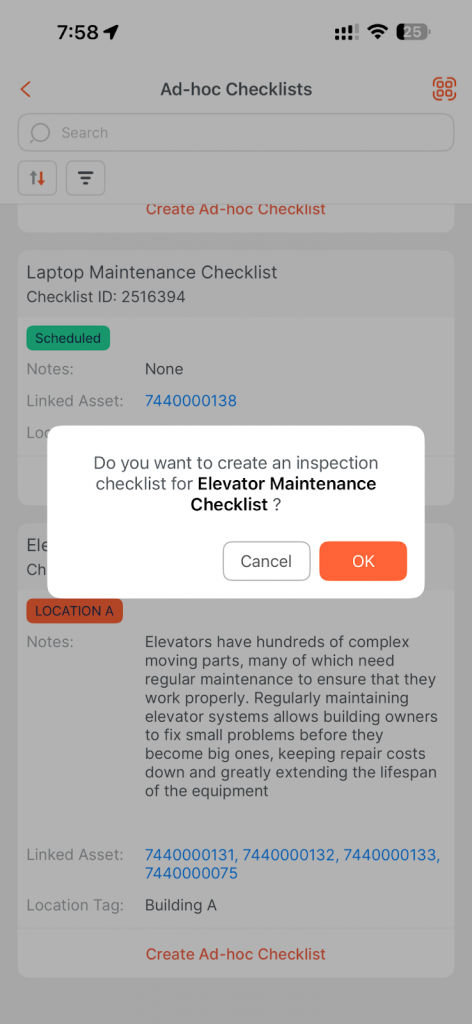
- Tap “OK” to confirm the creation.
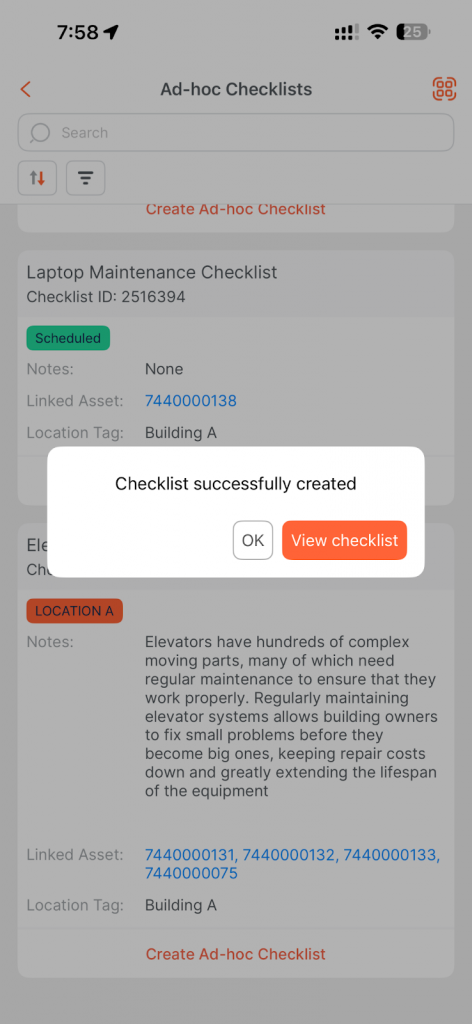
- Then select “View Checklist” to open and begin updating it.
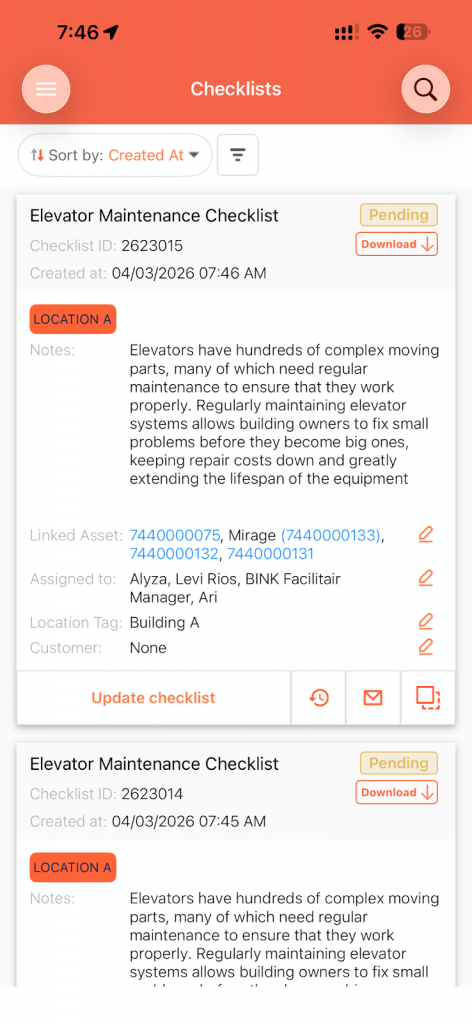
- The newly created checklist will appear in your checklist list for completion.
This setup is especially useful for:
- Remote documentation
- Back-office compliance recording
- Situations where QR codes are unavailable
- Operational flexibility across teams
Completing the Ad Hoc Checklist
Once the ad hoc checklist has been created (via either method):
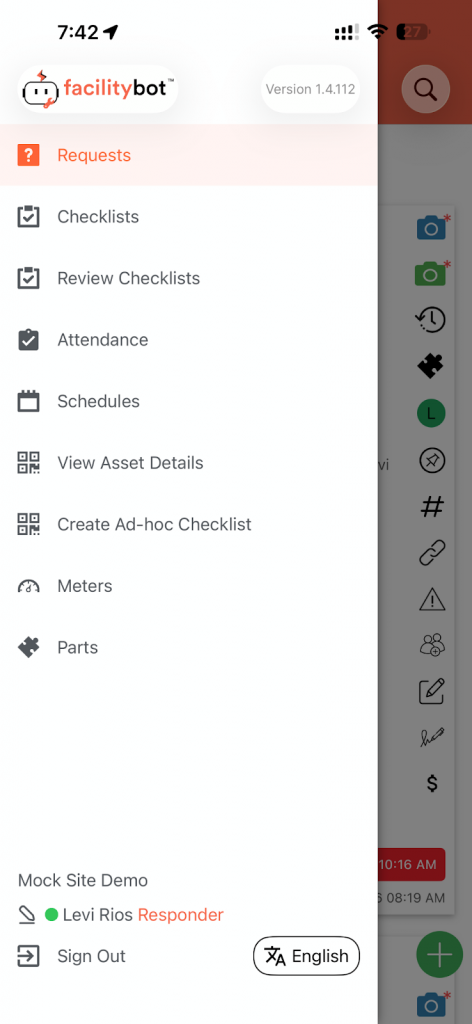
- Tap the three-bar (☰) menu icon located in the upper-left corner of the screen in FacilityBot Mobile app.
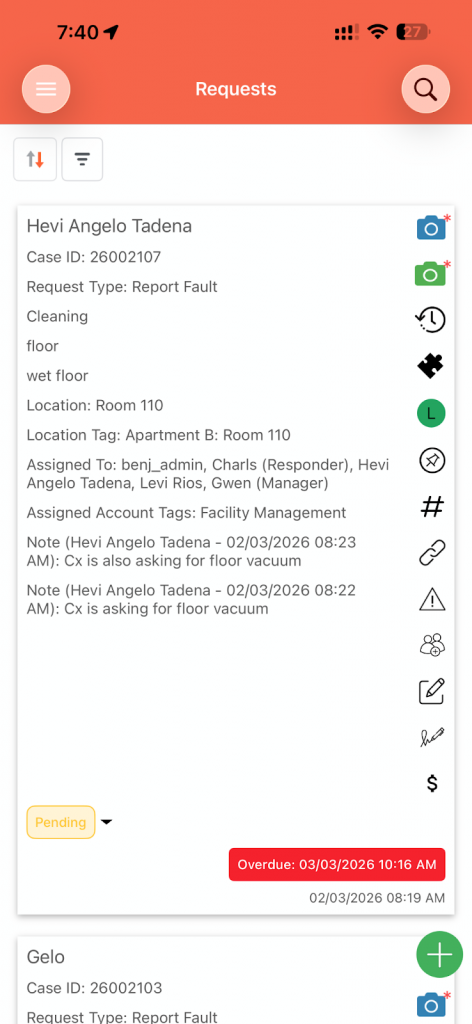
- Go to Checklists.
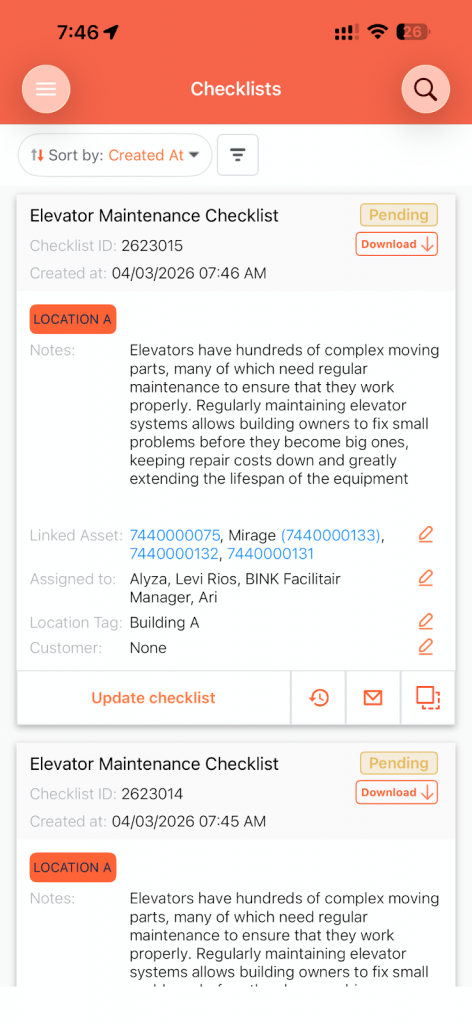
- Choose the generated checklist from your list. Click the “Update Checklist” button to begin completing the checks.
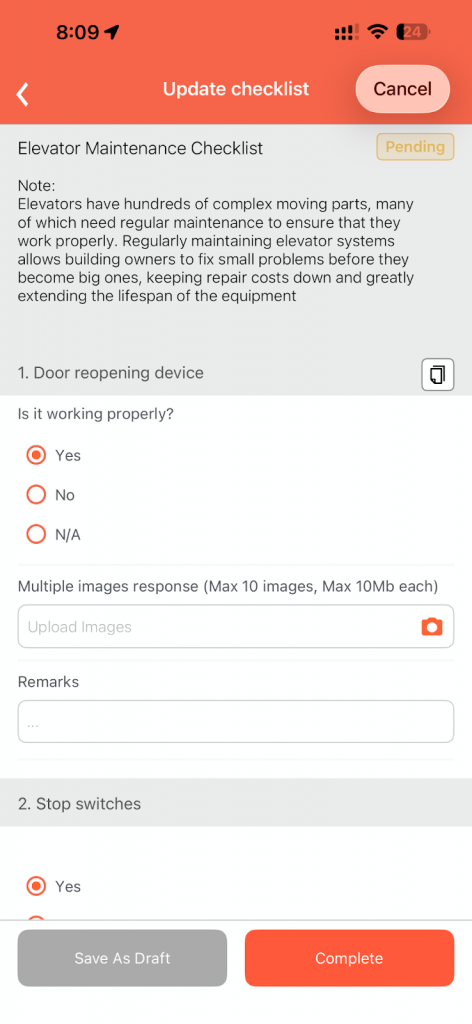
- Fill in all required fields accordingly. Fields marked with an asterisk (*) are mandatory and must be completed before submission. Click the “Complete” button to save and submit the checklist.
The Ad Hoc Checklist feature ensures operational continuity even when scheduled checklists are unavailable. Whether created through QR code scanning or direct mobile creation (with the toggle enabled), all submissions are properly recorded within the system — maintaining accuracy, accountability, and compliance across FacilityBot’s mobile workflow.