Introduction
FacilityBot’s People Counter Data page provides centralized visibility into footfall and occupancy trends for spaces equipped with multiple entrance and exit people-counting sensors. It consolidates data across sensors to give facility teams a complete view of traffic flow, enabling better space planning, manpower allocation, and safety monitoring.
With flexible filtering by date range, site, and level—as well as an enhanced tab search feature—users can quickly locate and analyze specific monitored spaces without manually reviewing raw sensor logs.
Using People Counter Data
To access and analyze People Counter Data in FacilityBot:
- Log in to the FacilityBot Web Portal.
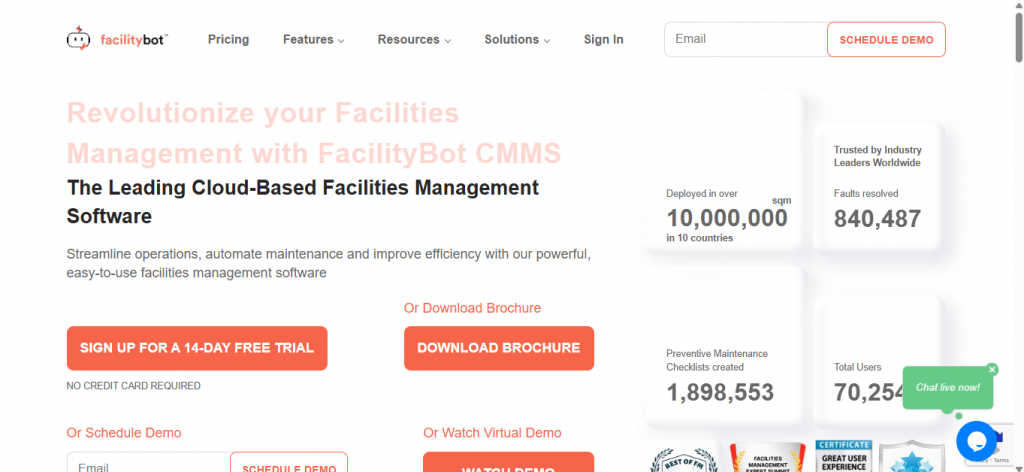
- Navigate to Statistics, then select People Counter Data.
Creating a New Space
If you need to configure a new monitored space:
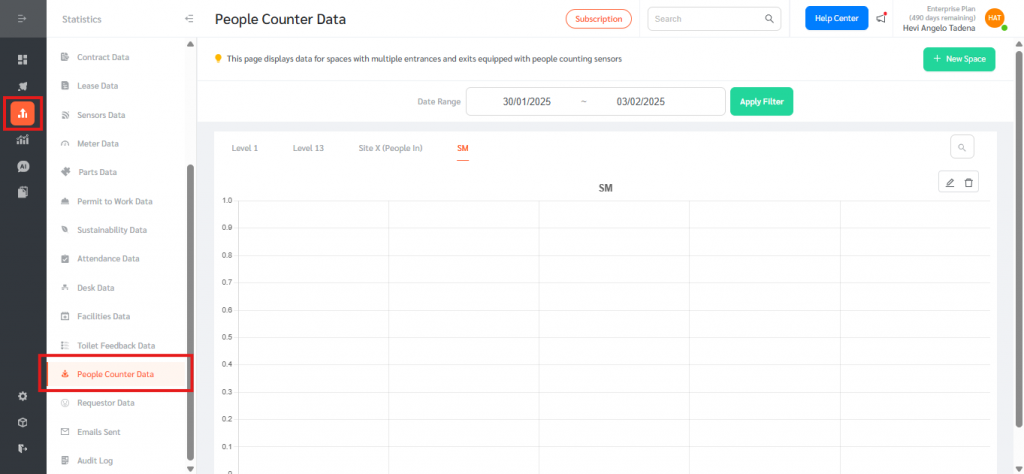
- Click + New on the People Counter Data page.
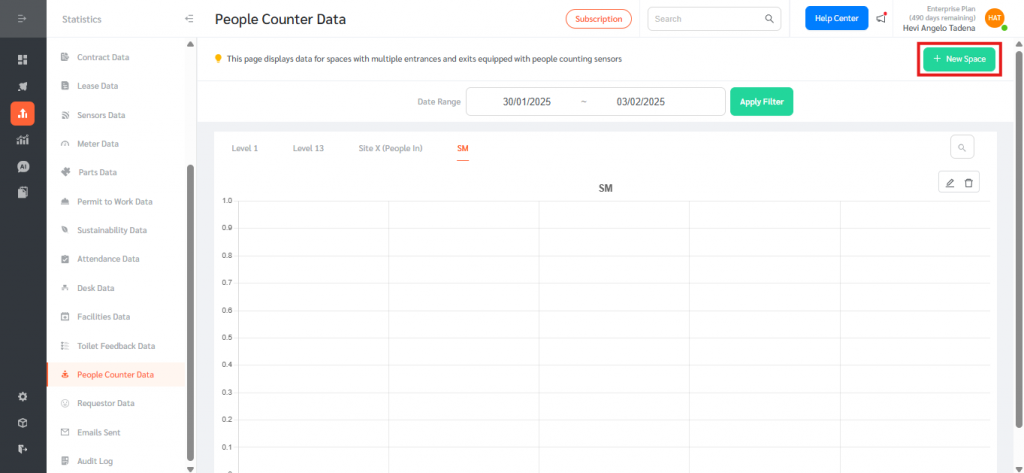
- In the Create New Space form, enter the Space Name, select the relevant People In Meters and corresponding People Out Meters, then submit the configuration.
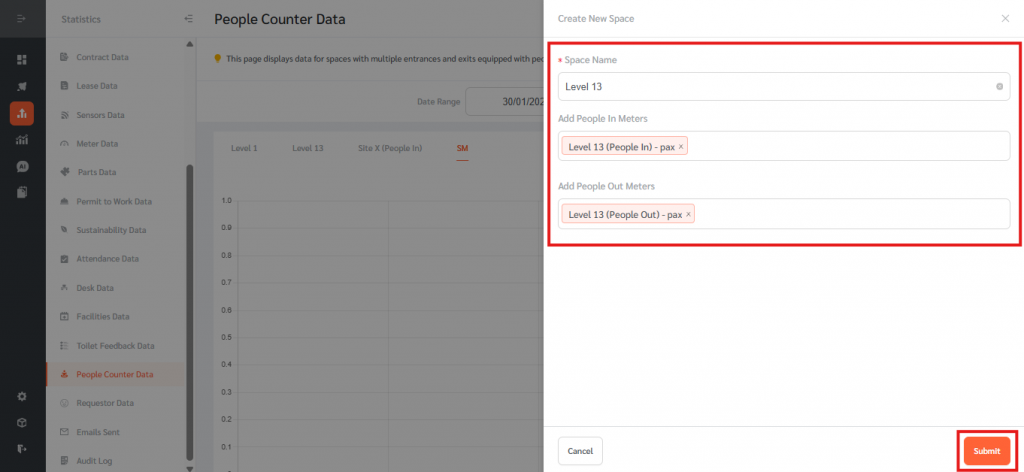
- Once created, the new space will appear as a tab within the People Counter Data page, allowing you to monitor aggregated footfall data for that specific area.
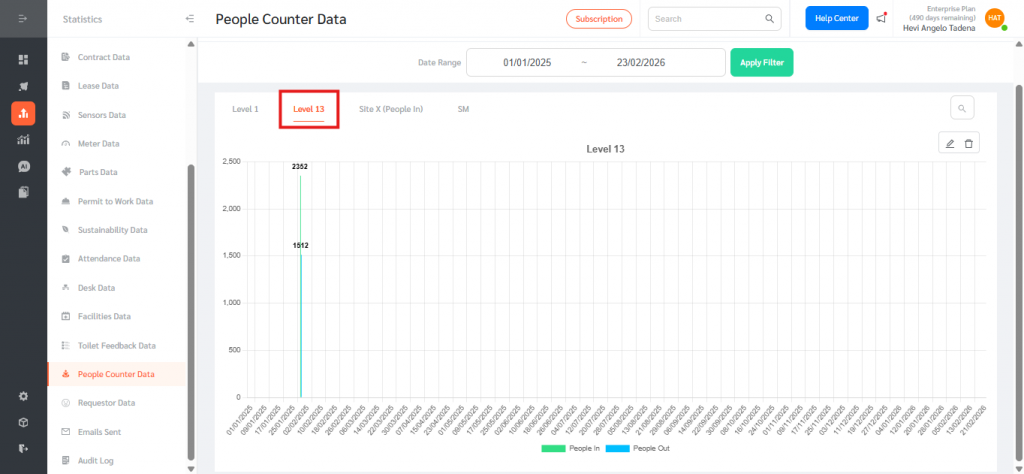
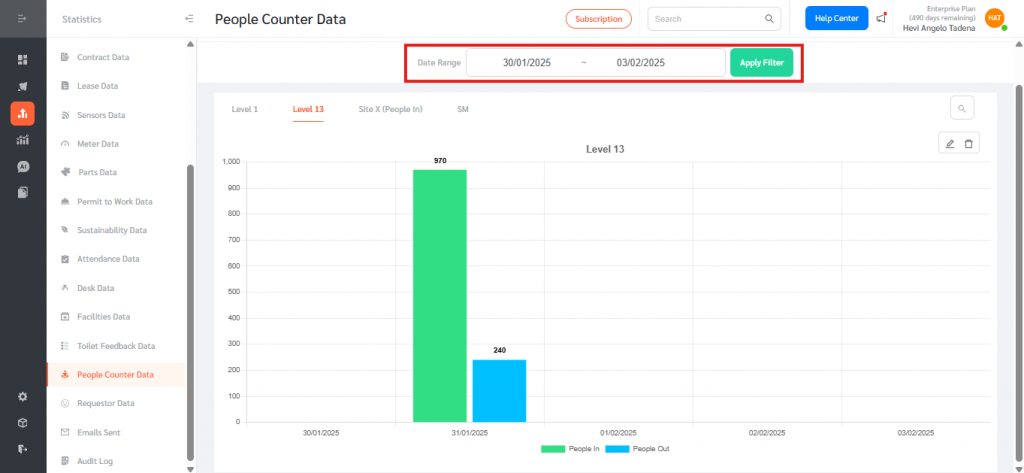
- Use the Date Range selector to define your analysis period by selecting a start date and end date, then click Apply Filter to refresh the data.
- To improve navigation—especially for clients managing many monitored spaces—the People Counter Data page includes an expandable search icon aligned on the right-hand side (RHS) of the tabs.
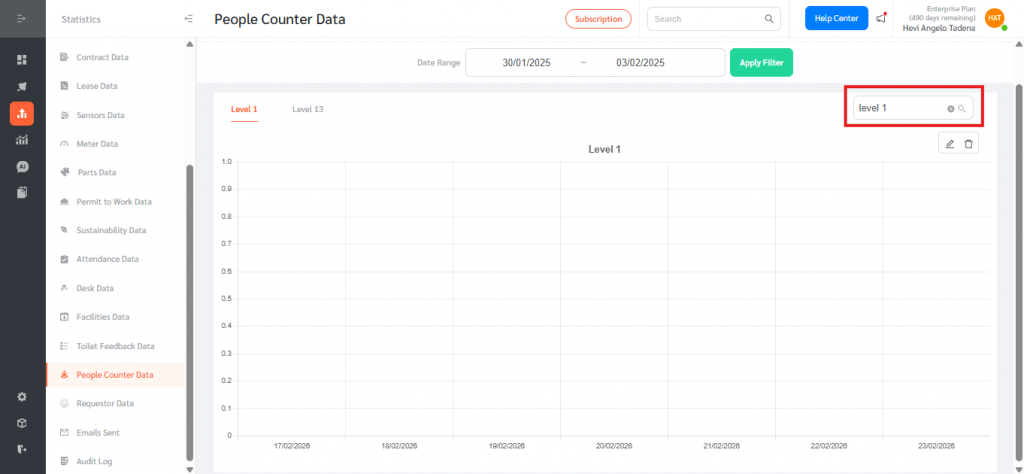
People Counter Data aggregates multi-sensor people-in and people-out readings with flexible date filtering, site and level segmentation, and searchable tabs, enabling teams to monitor occupancy trends, optimize operations, enhance safety compliance, and make data-driven decisions within FacilityBot.