
Introduction
FacilityBot’s Data by Parent page under Checklist Data centralizes responses from all child checklists under a selected Parent Checklist, allowing teams to view aggregated data—similar to Survey → Results—without reviewing individual records. It displays donut charts and detailed tables for Single and Multiple Choice (including Dropdown) responses, consolidating data from Processing and Completed checklists for better operational and compliance insights.
Accessing Data by Parent
To access Data by Parent in FacilityBot:
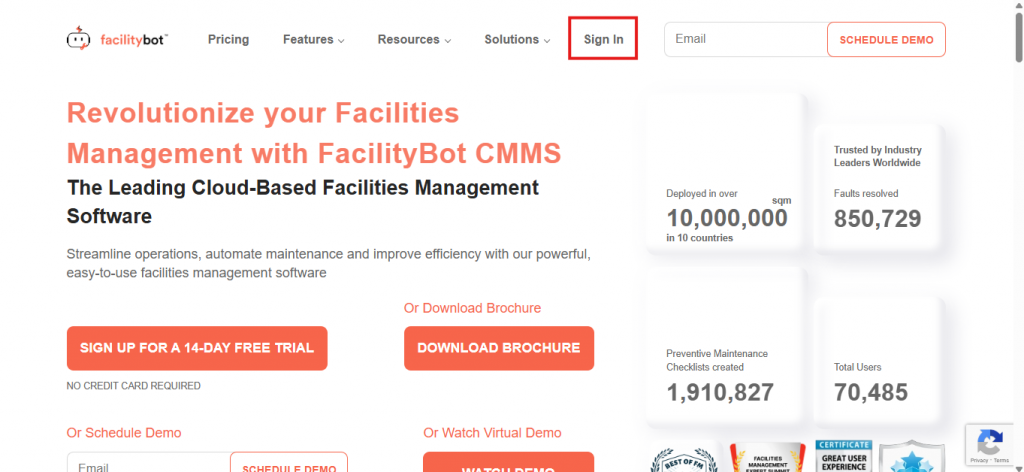
- Log in to the FacilityBot Web Portal.
- Navigate to Statistics, then Checklist Data.
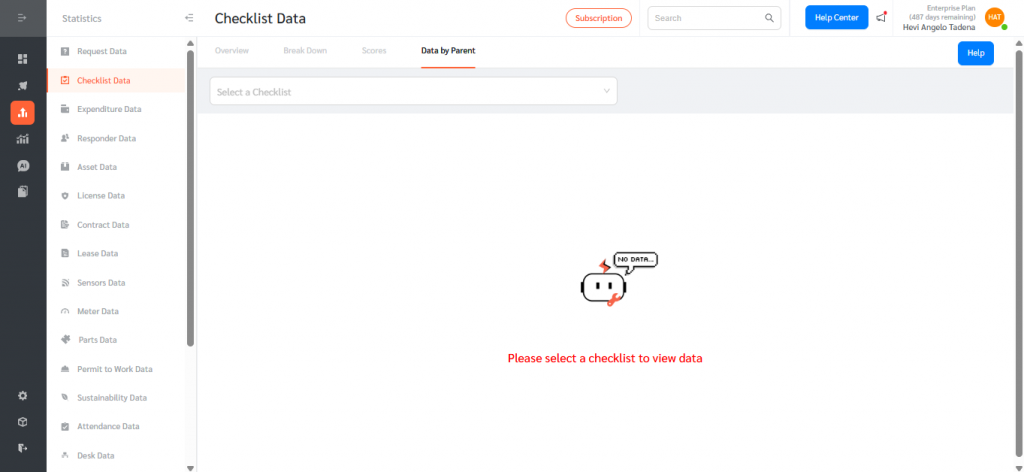
- Select the Data by Parent tab.
Selecting a Parent Checklist
At the top of the Data by Parent page:
- Use the Parent Checklist dropdown field to select the desired Parent Checklist.
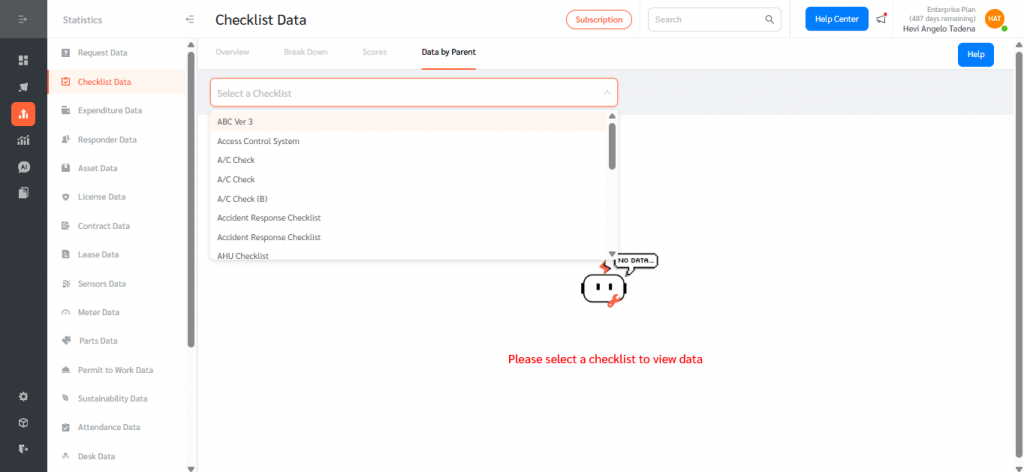
- Once selected, the system automatically loads all relevant aggregated response data from its associated child checklists.
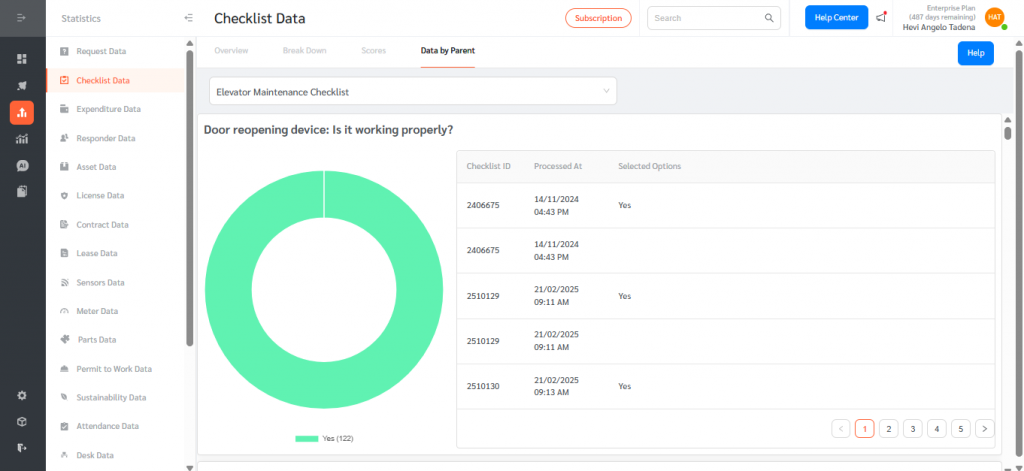
- The page automatically generates sections for each eligible check. Each section displays a donut chart on the left showing aggregated response distribution from related child checklists, and a data table on the right listing Checklist ID, Processed At, and Response—providing both a visual summary and detailed audit view in one page.
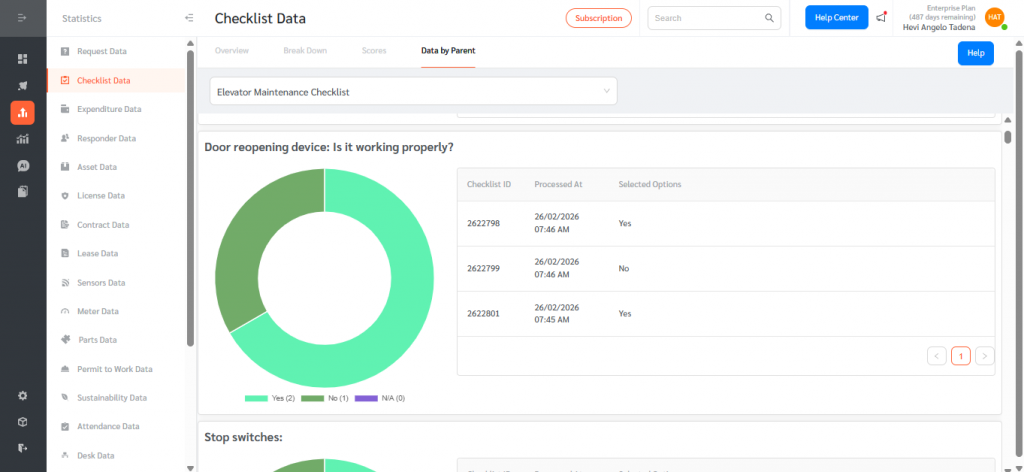
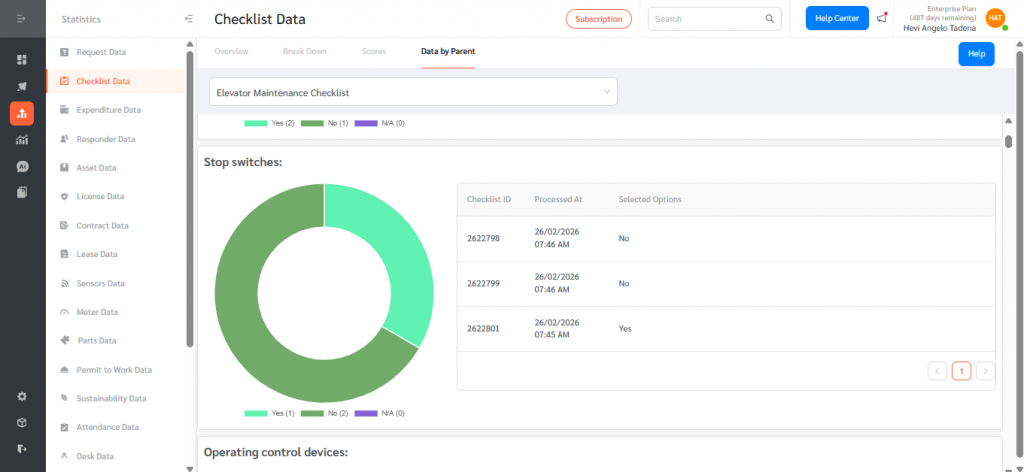
The Data by Parent feature centralizes response aggregation across child checklists, provides donut chart visualizations for supported response types, and displays detailed response tables with standardized date formatting.By combining visual analytics with detailed records, Data by Parent enables teams to monitor checklist performance, identify trends, ensure compliance, and make informed, data-driven decisions efficiently within FacilityBot.