Introduction
FacilityBot’s RFID Scanning feature lets you register RFID tags, link each one to a location or an asset, and automatically log scan events whenever the tags are scanned. Tags are scanned from the FacilityBot mobile app using a compatible NFC-enabled device, and every scan is recorded in the web portal, where you can view the full scan history across all registered tags.
How It Works
Register an RFID Tag
- Log in to the FacilityBot Web Portal.
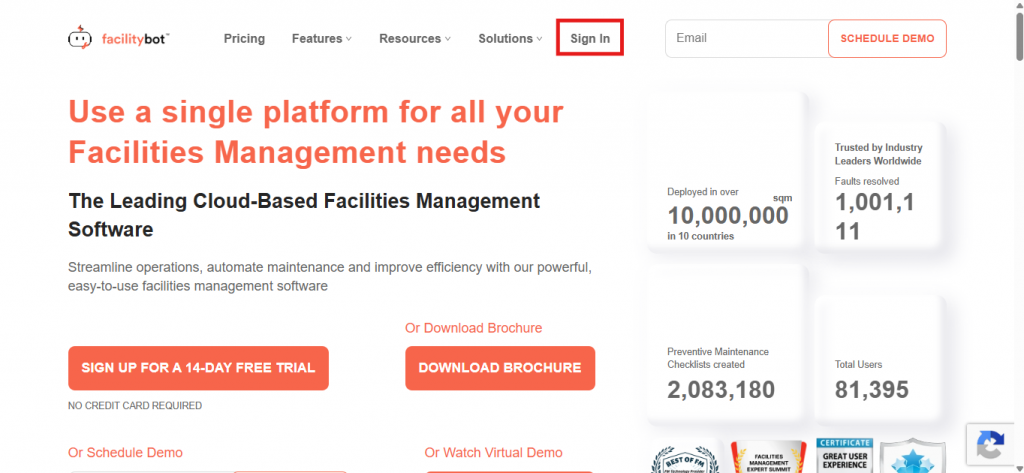
- Go to Features, then RFID Scans under Core Maintenance.
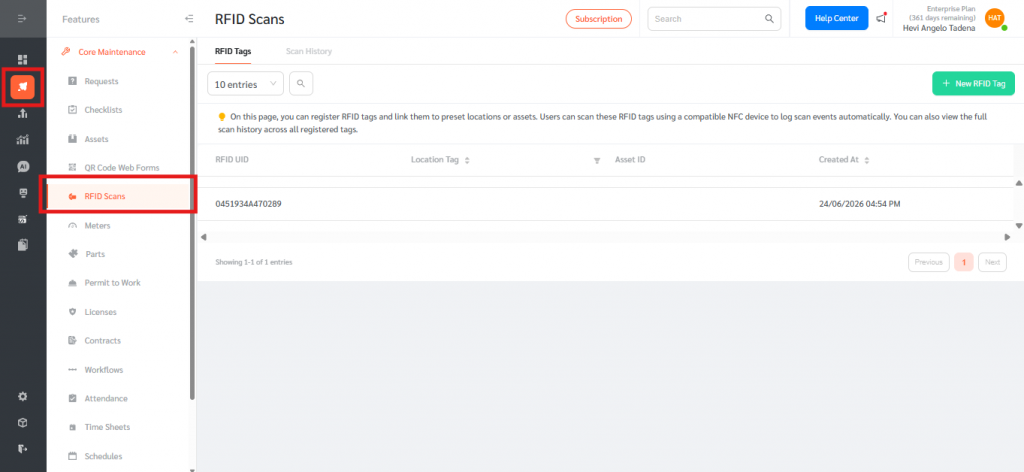
- On the RFID Tags tab, click + New RFID Tag at the top right.
- In the RFID UID field, enter the unique identifier printed on or programmed into the physical RFID tag. This field is required. NOTE: Enter the RFID UID numbers only (without any colons)
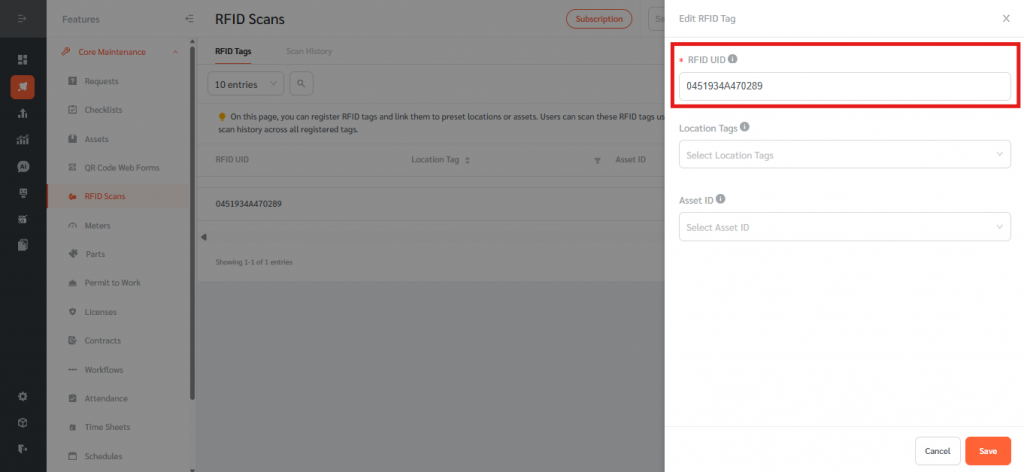
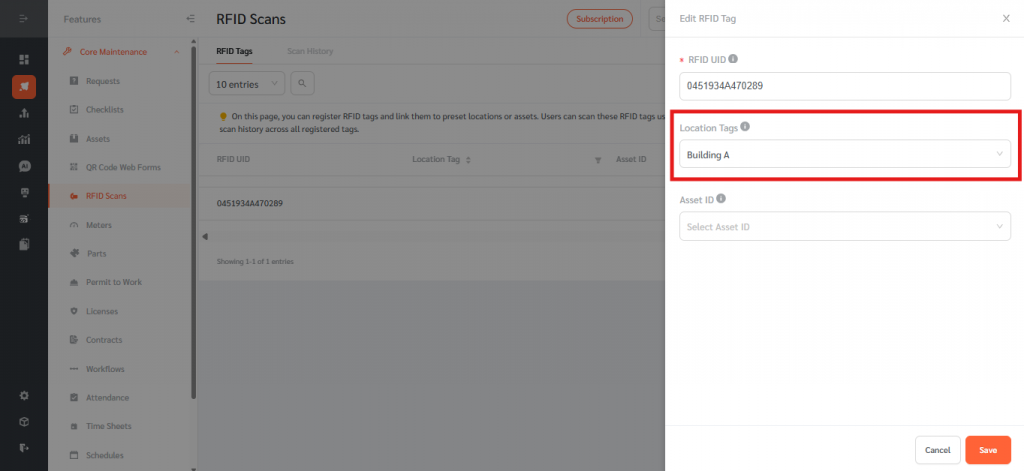
- Under Location Tags, optionally select a location to link the tag to. When scanned, the scan event will be associated with this location.
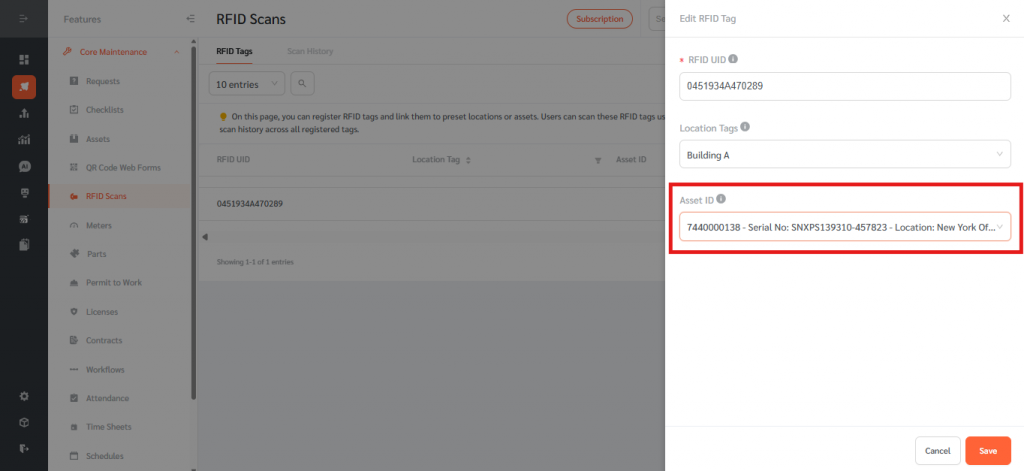
- Under Asset ID, optionally select an asset to link the tag to. When scanned, the scan event will be associated with this asset.
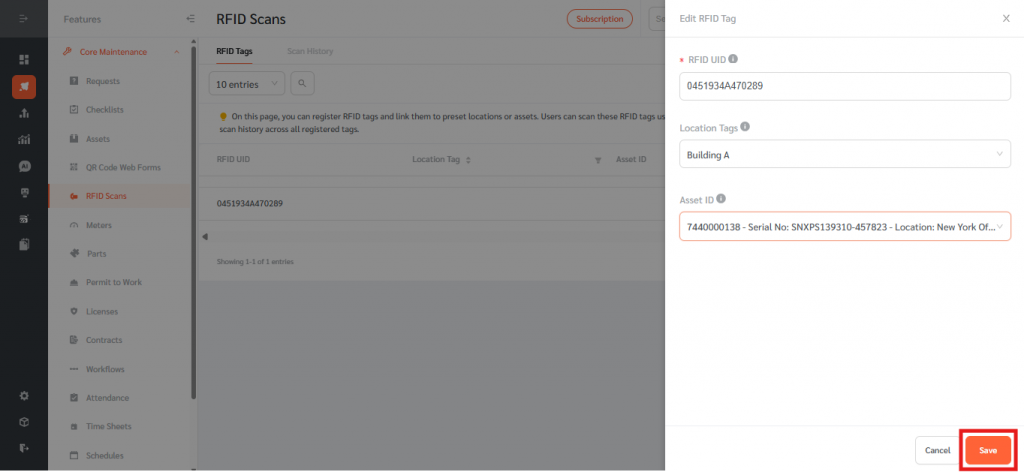
- Click Save. The tag now appears on the RFID Tags tab with its RFID UID, linked Location Tag, Asset ID, and the date it was created.
Finding the RFID Tag UID
- Download a NFC scanning app on your phone, such as NFC Tools (available on iOS and Android).
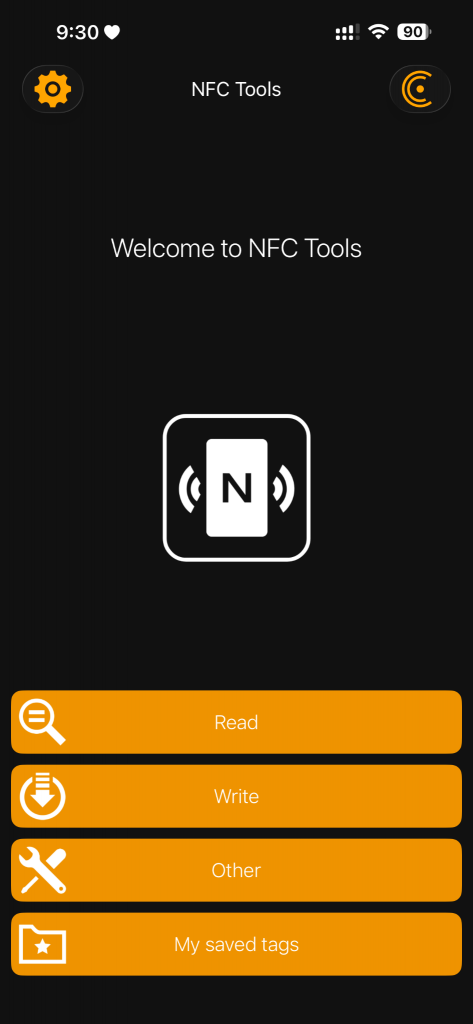
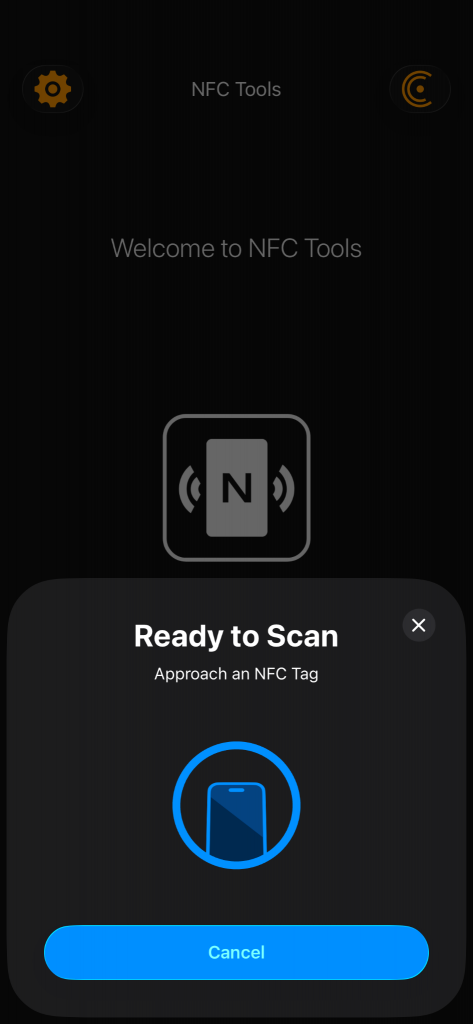
- Hold your phone near the RFID tag and tap Read.
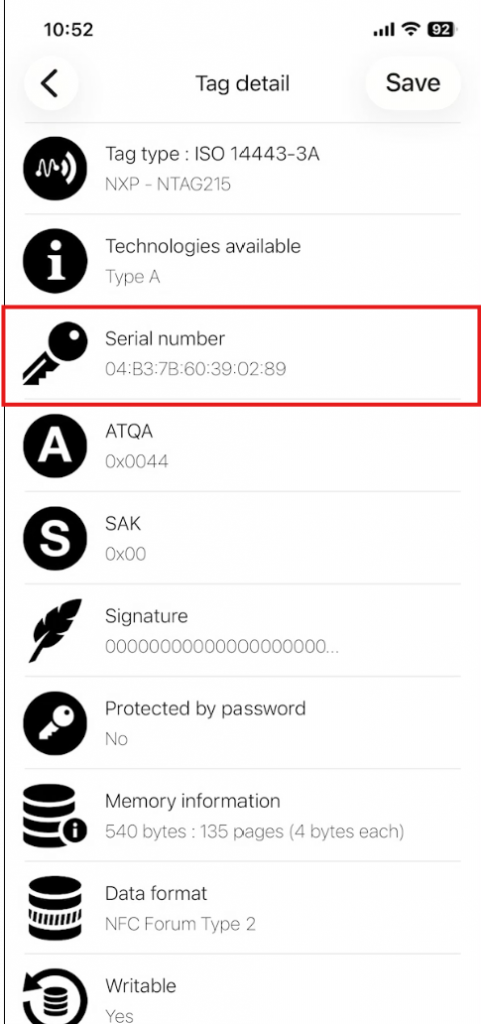
- The RFID UID is displayed as the Serial Number in the app. Enter this value (without colons) into the RFID UID field when registering the tag in FacilityBot.
Scan an RFID Tag (Mobile App)
- Open the FacilityBot mobile app on a compatible NFC-enabled device (iOS or Android).
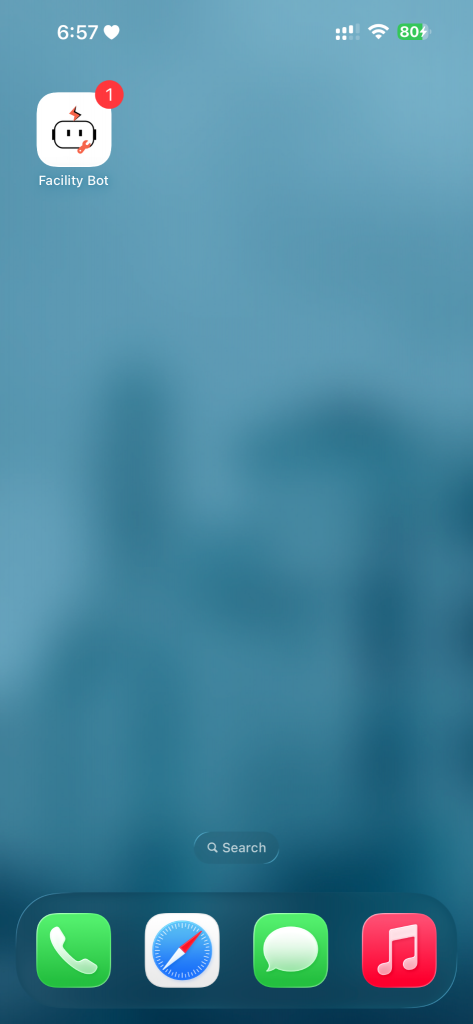
- Select the Scan RFID option.
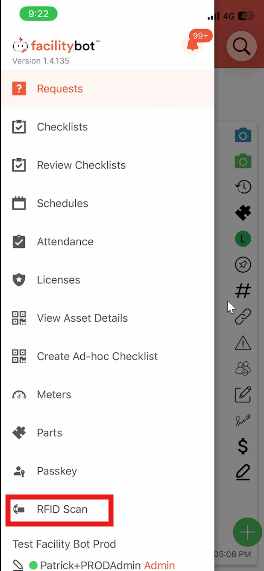
- Hold the device near the RFID tag to scan it. FacilityBot reads the tag’s RFID UID and displays the linked asset and location details.
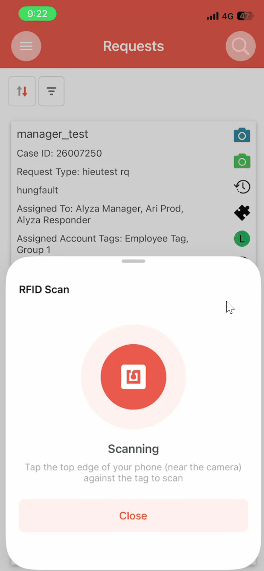
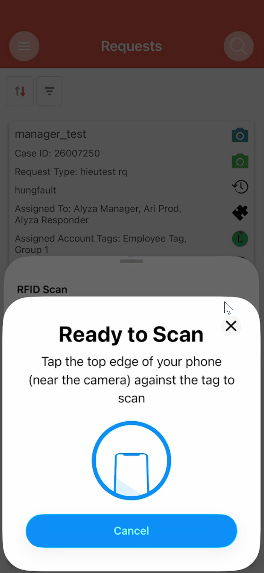
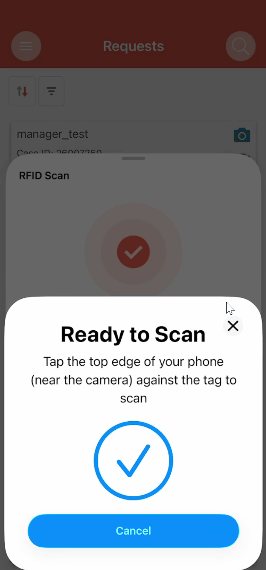
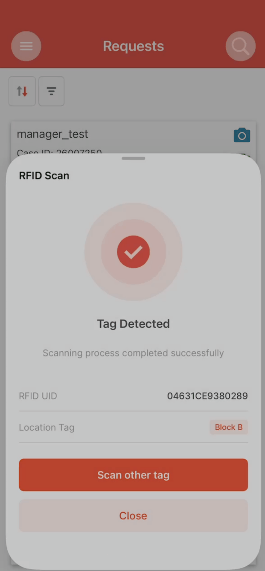
- The scan is logged automatically and appears in the web portal’s Scan History.
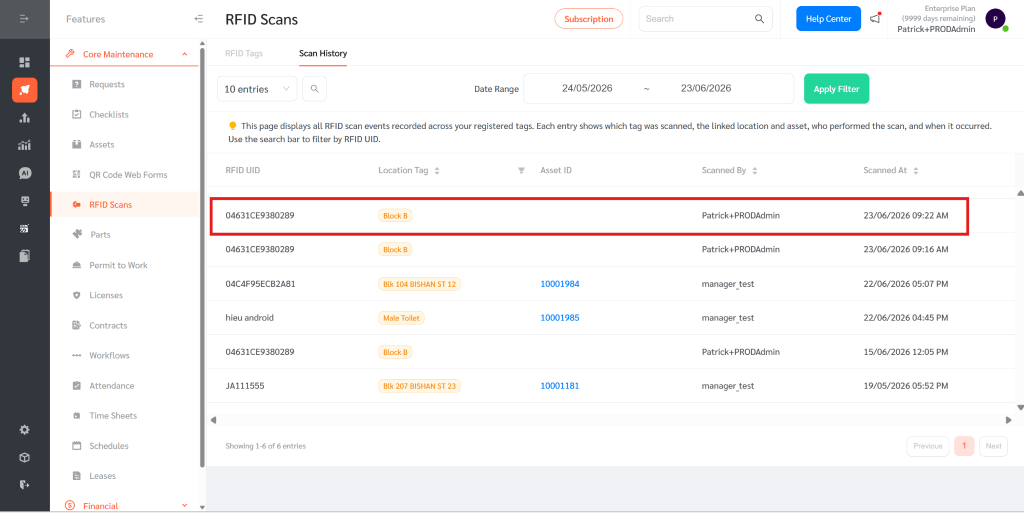
View Scan History
- Go to Features, then RFID Scans, and select the Scan History tab.
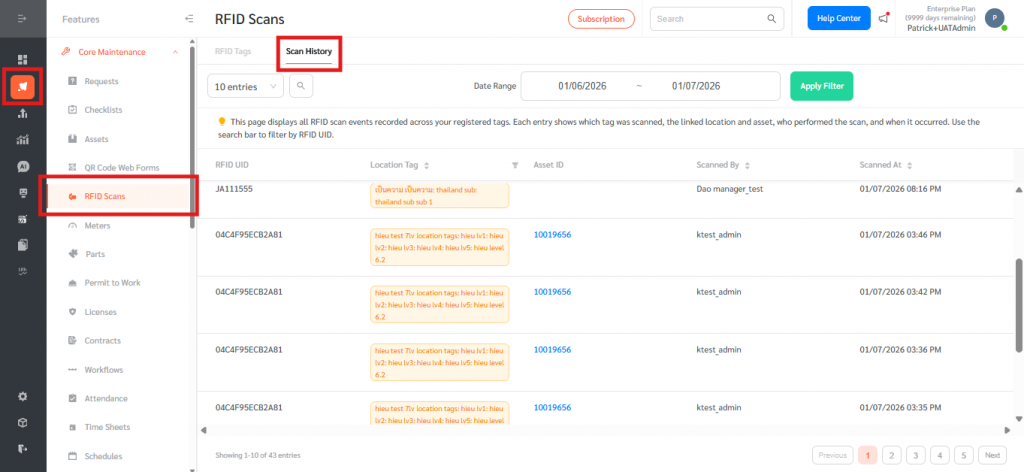
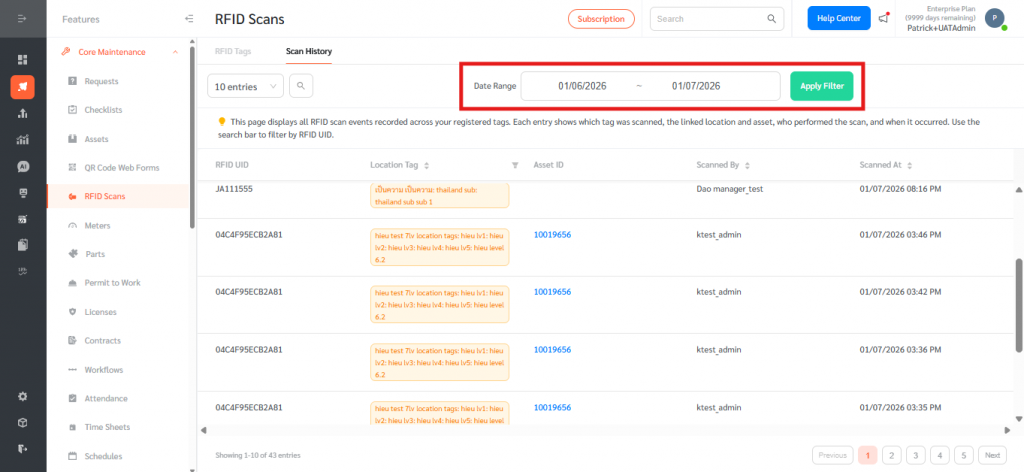
- Review the recorded scan events. Each entry shows the RFID UID, the linked Location Tag and Asset ID, who performed the scan (Scanned By), and when it occurred (Scanned At).
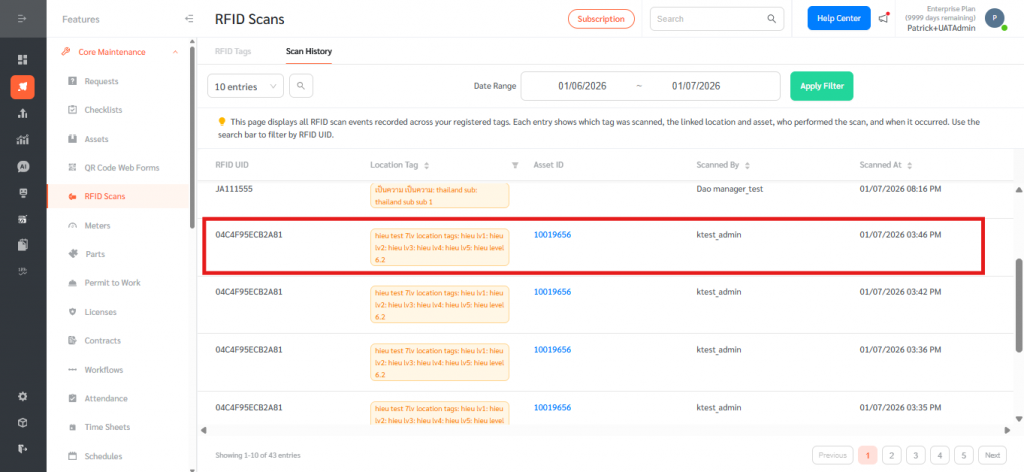
- Use the Date Range filter and click Apply Filter to narrow the results to a specific period.
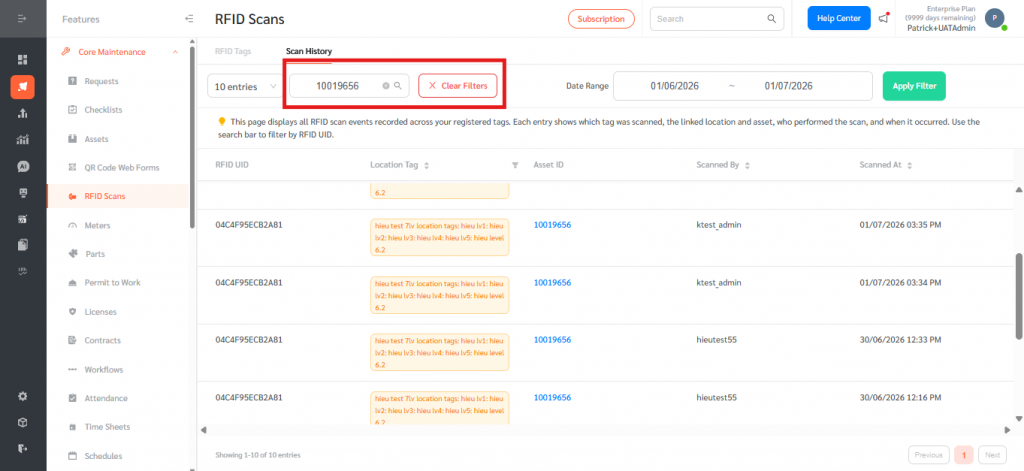
- Use the search bar to filter the list by a specific RFID UID.
The RFID Scanning feature streamlines on-site verification by tying physical RFID (NFC) tags to specific locations and assets in FacilityBot. Registering tags in the web portal and scanning them from the mobile app creates an automatic, time-stamped record of who scanned each tag and where, all viewable in the Scan History. This improves accountability for inspections, patrols, and asset checks, and gives administrators a reliable audit trail across every registered tag.