
Introduction
FacilityBot’s Attendance feature lets administrators define the sites where Responders can check in and out, and configure how check-ins and check-outs behave. From the Attendance Settings page, administrators can Manage Sites — setting each site’s coordinates and the radius within which a check-in is counted — and adjust the Other Settings toggles, such as requiring remarks or images, enabling biometric check-in, recording altitude, and showing Responders’ live location. Together these settings give organisations control over where and how attendance is recorded.
How It Works
Access Attendance Settings
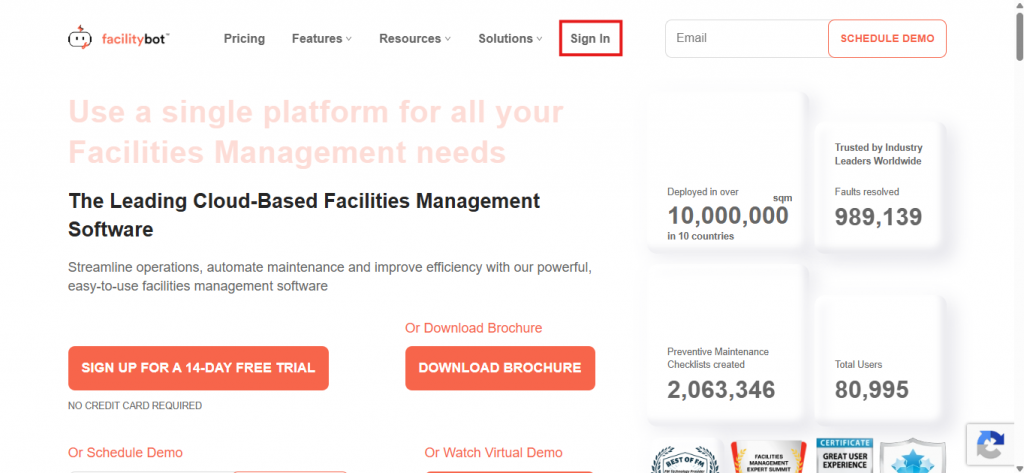
- Log in to the FacilityBot Web Portal.
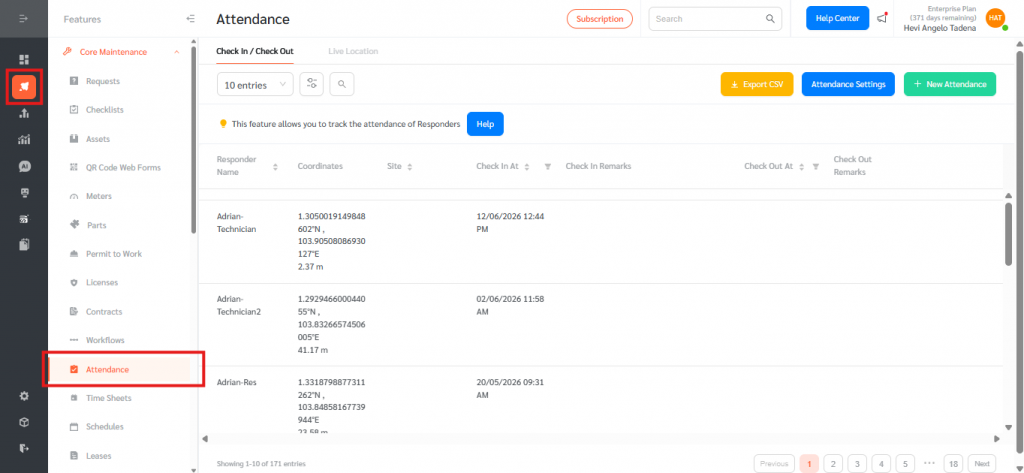
- Go to Features, then Attendance under Core Maintenance.
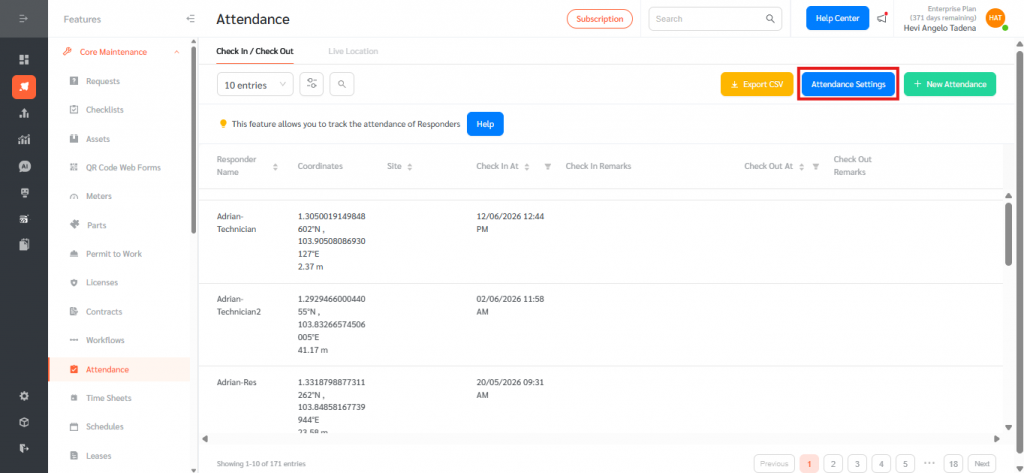
- Click Attendance Settings at the top right of the Attendance page.
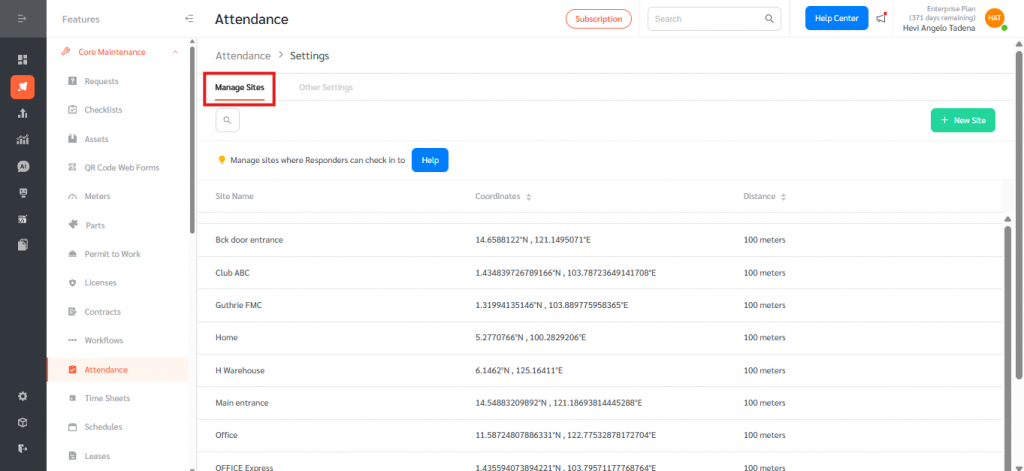
- The Settings page opens with two tabs: Manage Sites and Other Settings.
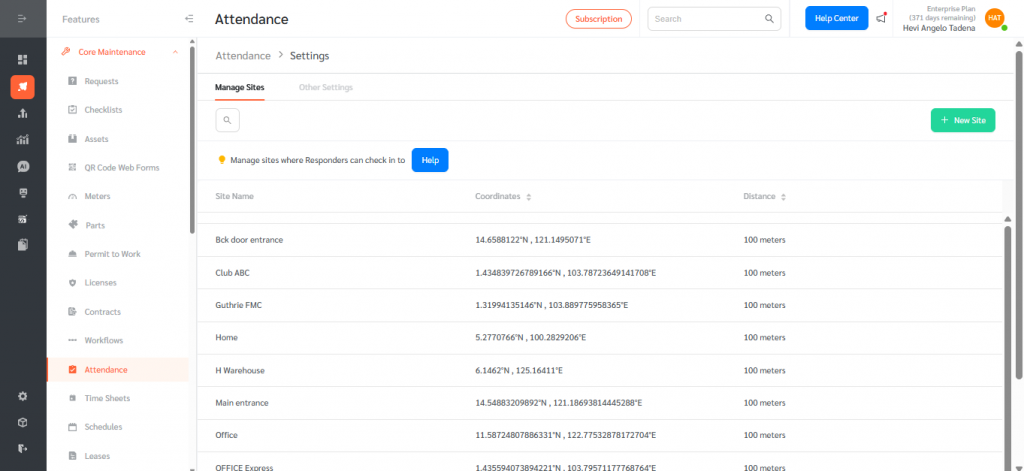
Manage Sites
- Select the Manage Sites tab. This is where you manage the sites that Responders can check in to. Each site is listed with its Site Name, Coordinates, and Distance.
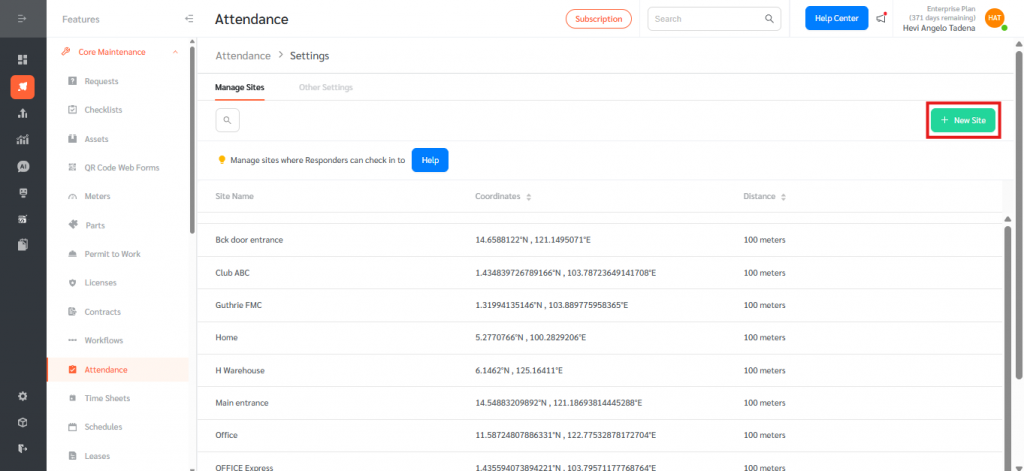
- To add a site, click + New Site at the top right.
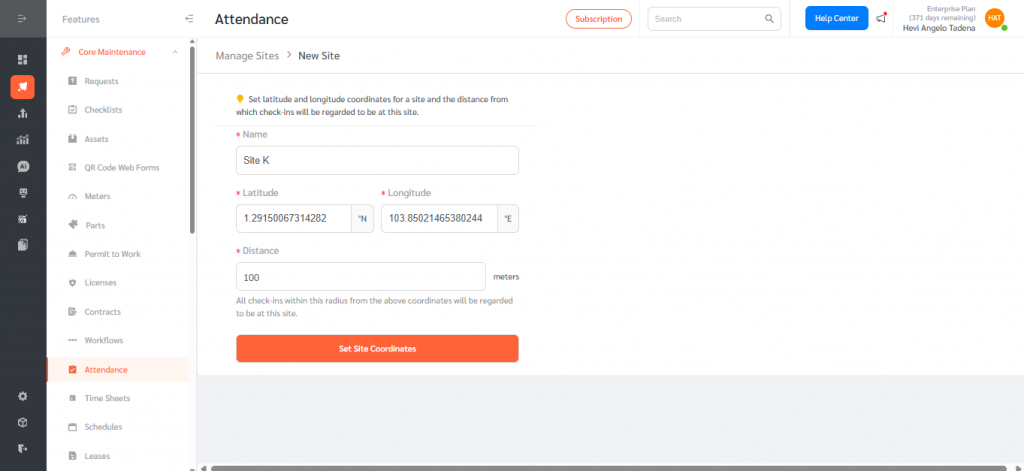
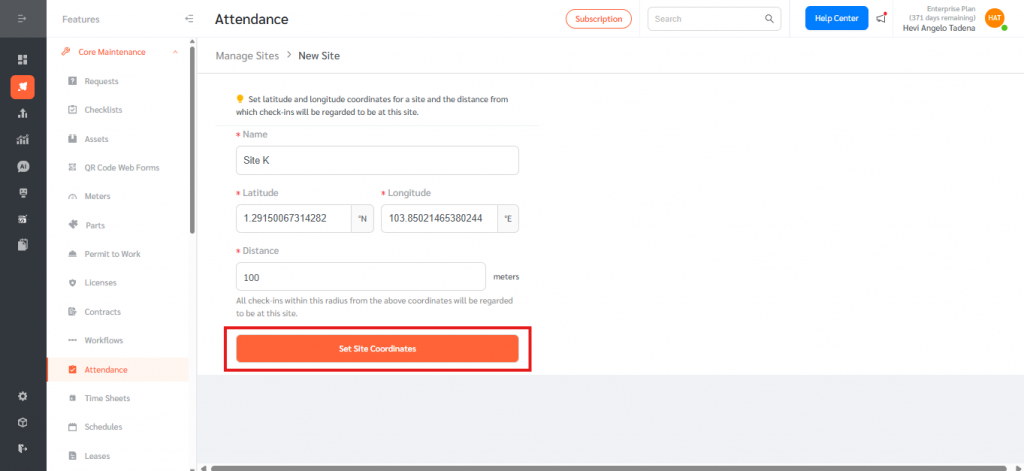
- Enter the site Name, then set the Latitude and Longitude coordinates of the site.
Set the Distance in meters. This is the radius from the coordinates within which a check-in will be regarded as being at this site; the default is 100 meters.
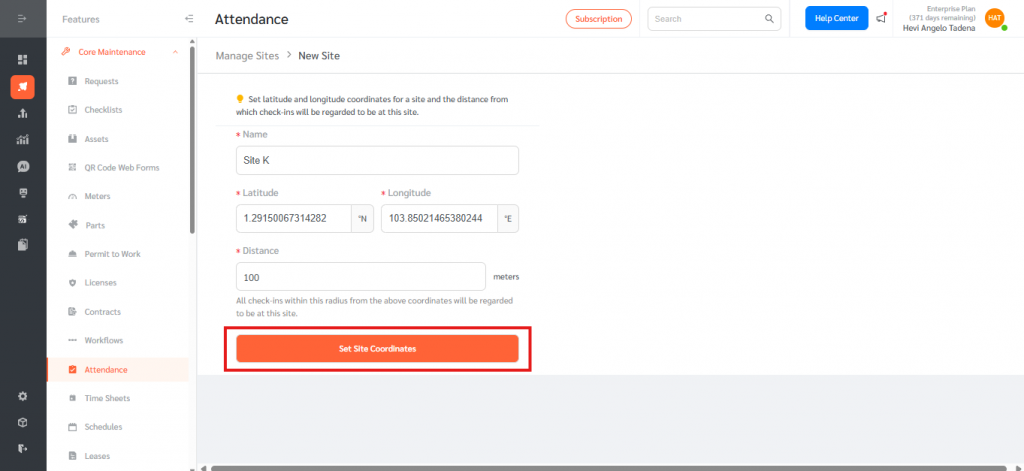
- Click Set Site Coordinates to save. The site then appears in the Manage Sites list with its coordinates and distance.
- To update or remove an existing site, select it from the Manage Sites list, then edit its details or delete it.
Configure Other Settings
- Select the Other Settings tab. Each option is a toggle that you switch to Yes or No, and changes take effect immediately.
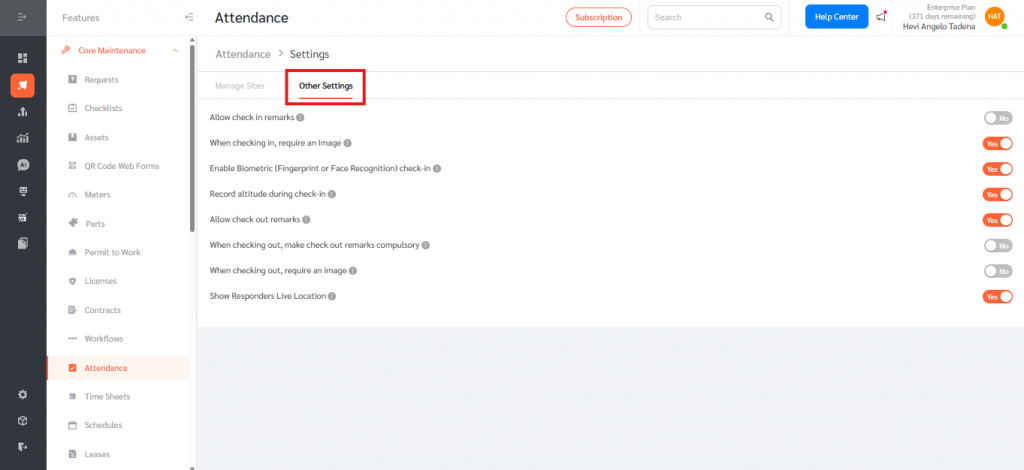
- Allow check in remarks. When set to Yes, Responders can add remarks when checking in.
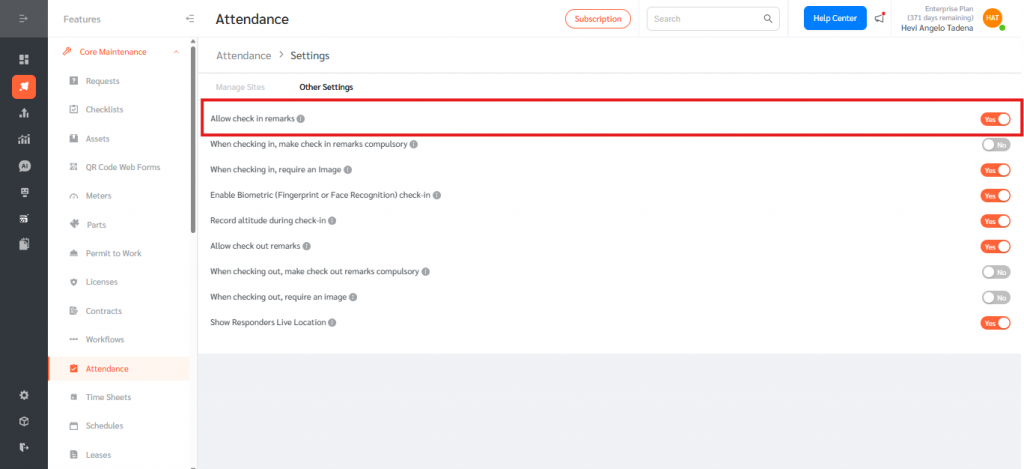
- Make Check-In Remarks Mandatory. When set to Yes, Responders must enter remarks when checking in. When set to No, check-in remarks remain optional.
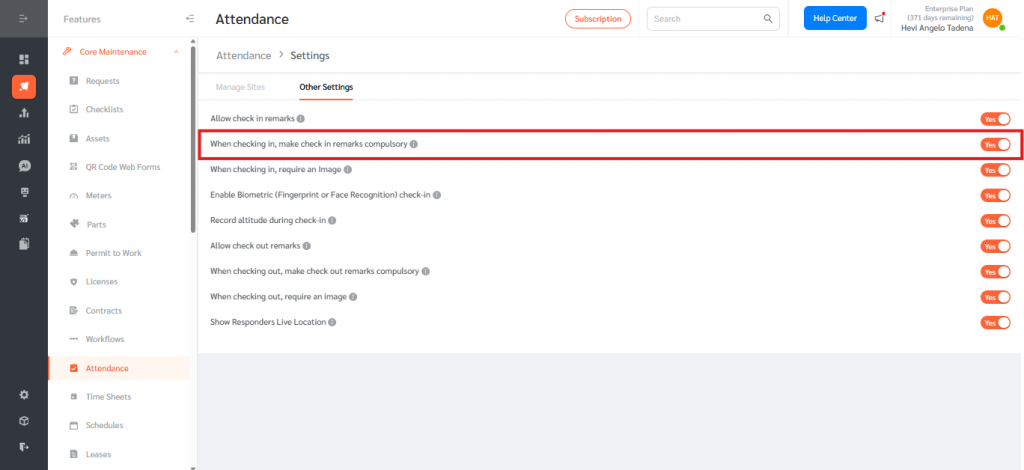
- When checking in, require an image. When set to Yes, Responders must capture an image in order to check in.
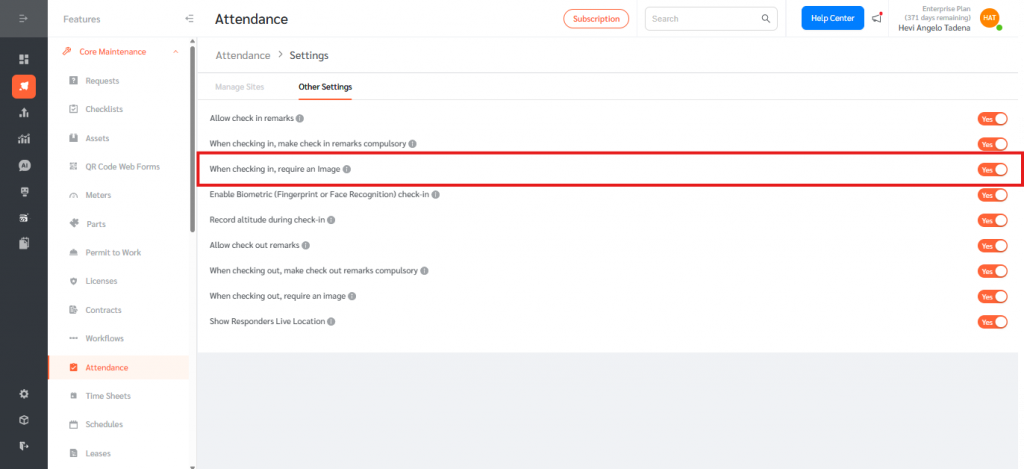
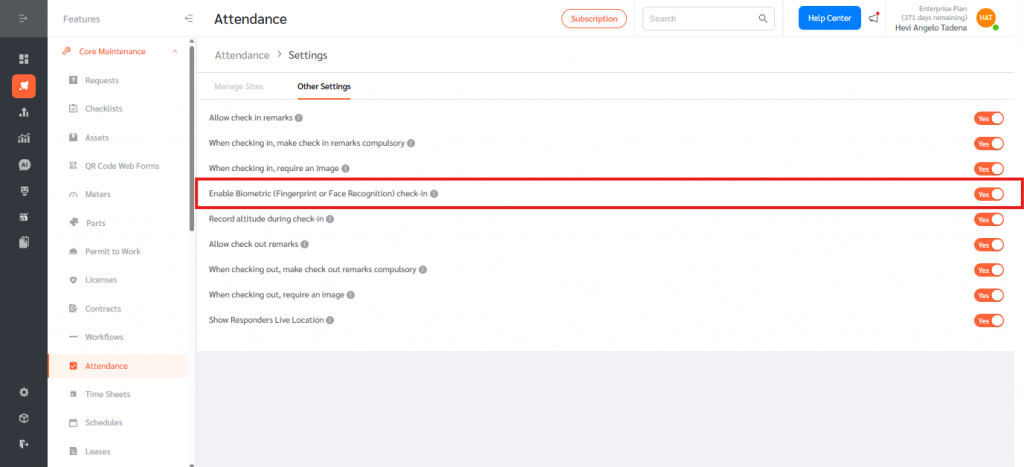
- Enable Biometric (Fingerprint or Face Recognition) check-in. When set to Yes, Responders verify their identity using biometrics when checking in.
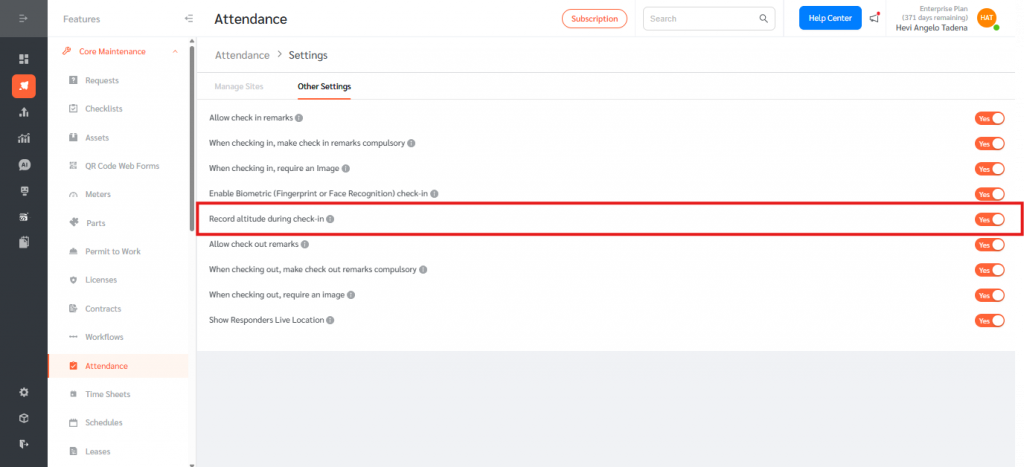
- Record altitude during check-in. When set to Yes, the Responder’s altitude is recorded together with their coordinates at check-in.
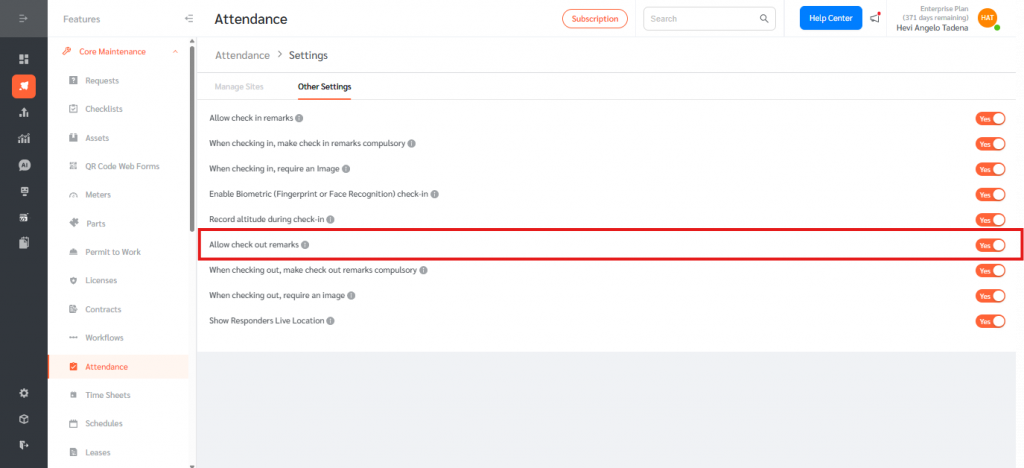
- Allow check out remarks. When set to Yes, Responders can add remarks when checking out.
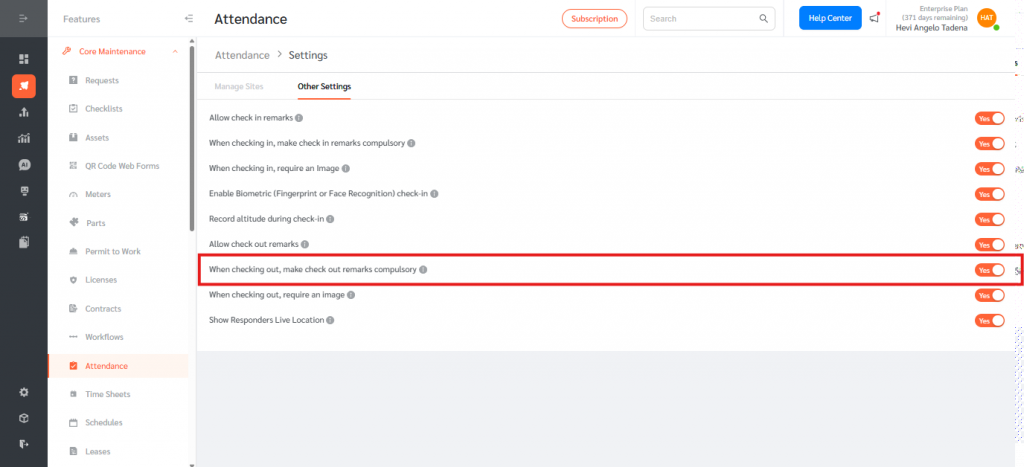
- When checking out, make check out remarks compulsory. When set to Yes, Responders must enter remarks before they can check out.
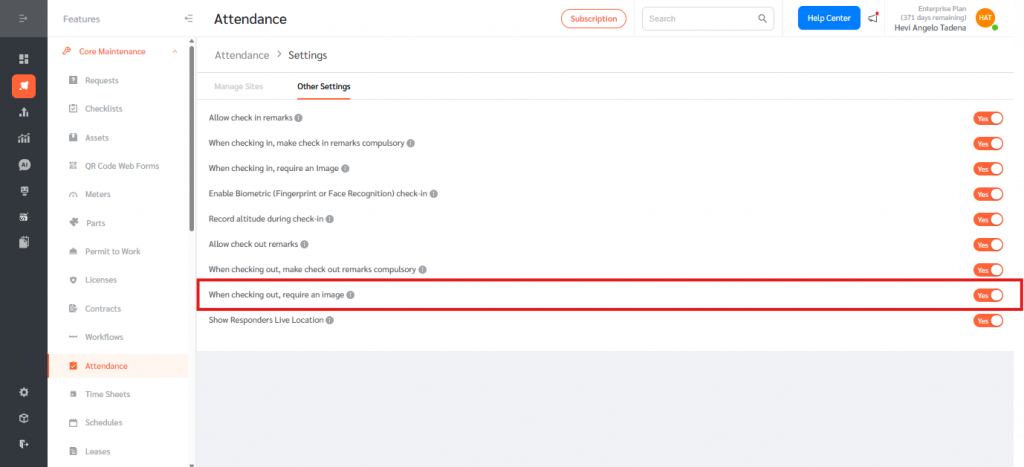
- When checking out, require an image. When set to Yes, Responders must capture an image in order to check out.
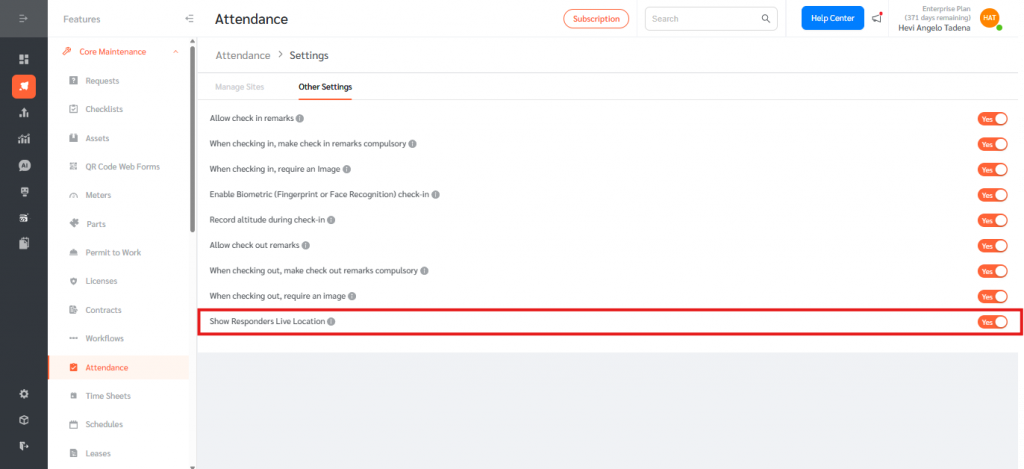
- Show Responders Live Location. When set to Yes, Responders’ live location is displayed on the Live Location tab of the Attendance page.
The Attendance Settings page gives administrators full control over where and how attendance is recorded in FacilityBot. By managing sites with precise coordinates and check-in radii, organisations ensure check-ins are tied to the correct locations, while the Other Settings toggles let them tailor the check-in and check-out experience — requiring remarks or images, enabling biometric verification, recording altitude, and surfacing live location. Configuring these settings correctly improves the accuracy and accountability of attendance tracking and ensures the feature reflects each organisation’s operational and compliance requirements.