
Introduction
FacilityBot now tracks the direct costs associated with an asset through Expenditures, including payments made to vendors. Asset Man-Hours and Cost Tracking adds the internal costs your team incurs, including the labor hours technicians spend on an asset and the parts consumed from your own inventory. Once an Hourly Rate is set for each account and a Cost per Unit is set for each part, FacilityBot automatically calculates Labor Cost from Time Sheets and Parts Cost from parts usage. It then combines Labor Cost, Parts Cost, and Explicit Cost into a single Asset Maintenance Cost summary, including a Grand Total, in every asset’s history.
How It Works
Set Up Cost Inputs
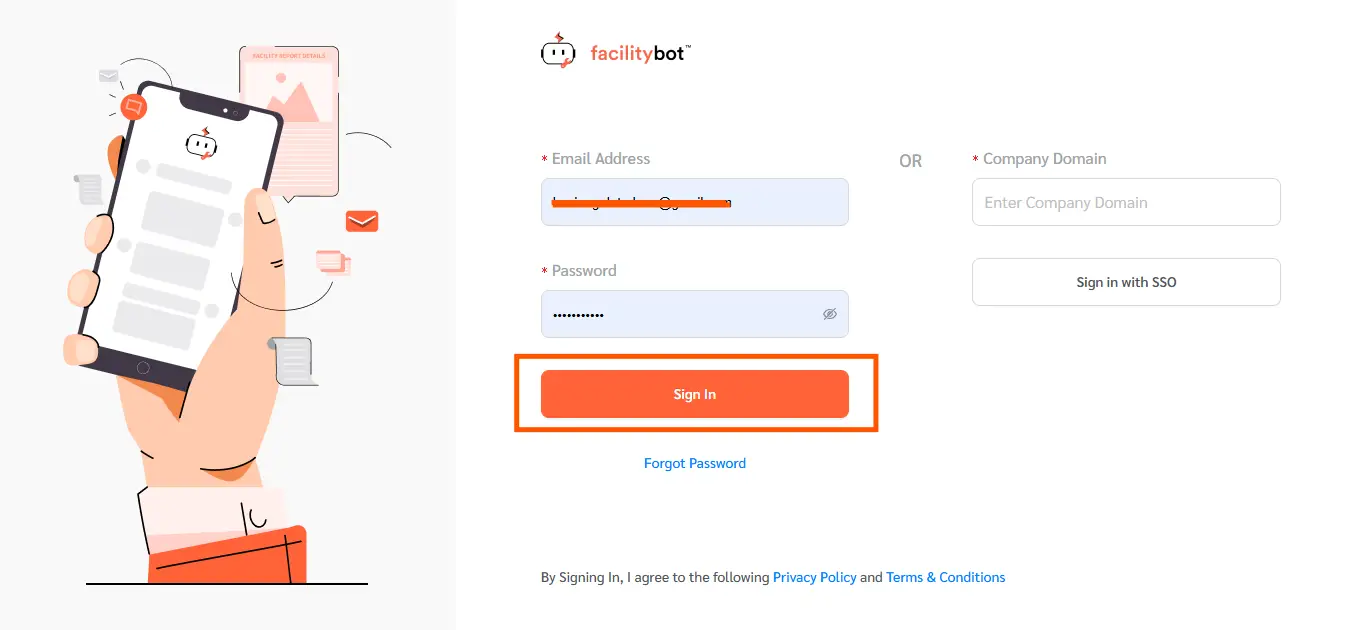
- Log in to the FacilityBot Web Portal.
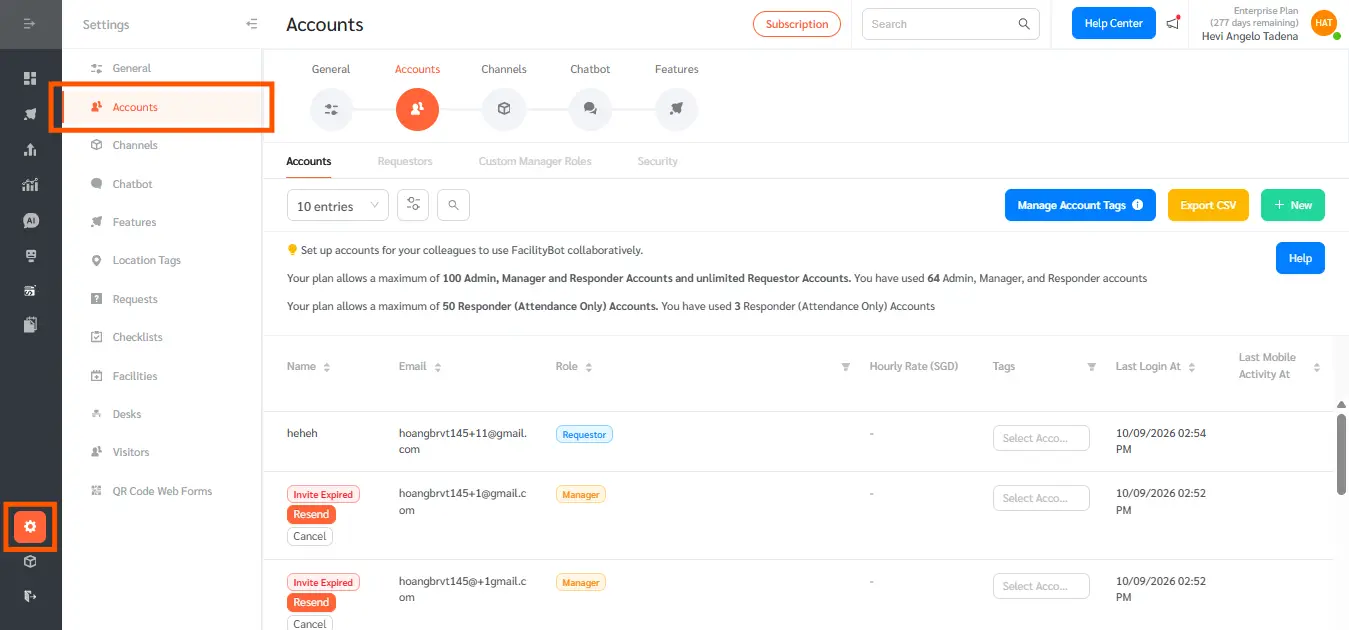
- Go to Settings, then Accounts.
- Hover your mouse over the account you want to update. A pencil (edit) icon and a trash (delete) icon appear on the right side of that row — click the pencil icon.
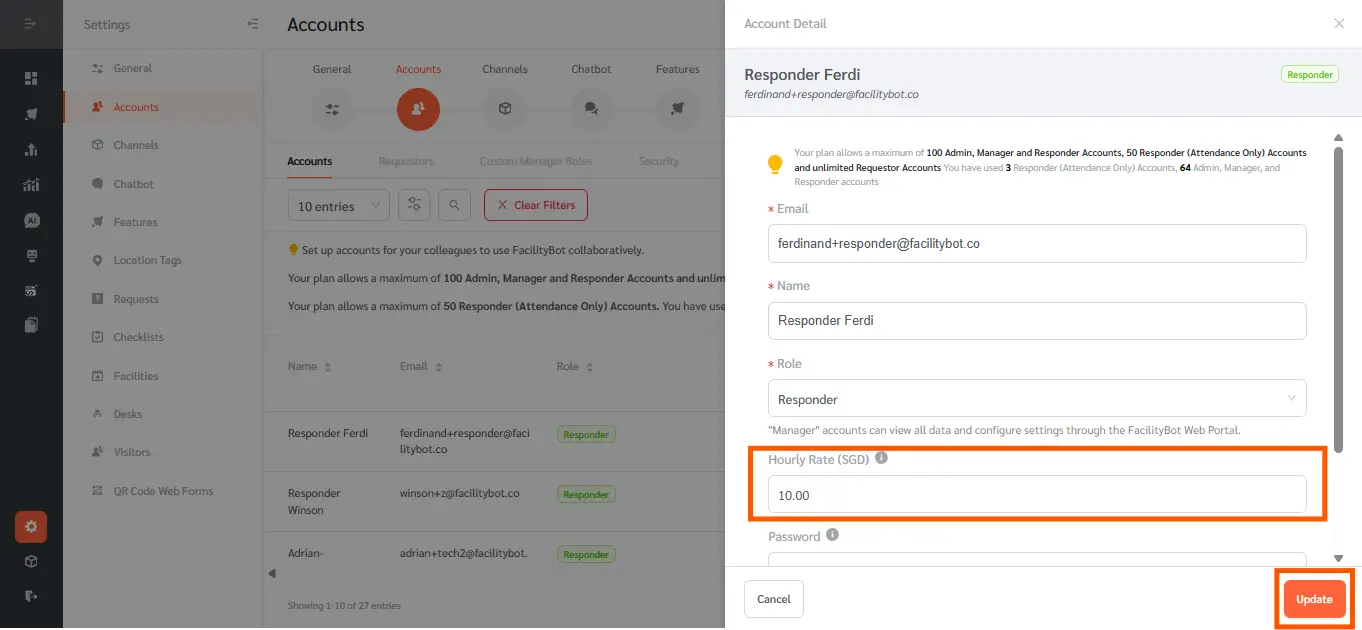
- The Account Detail panel slides in from the right. Scroll down to the Hourly Rate (SGD) field and enter the account’s hourly rate, then click the orange Update button at the bottom of the panel to save.
- Go to Features, then Parts.
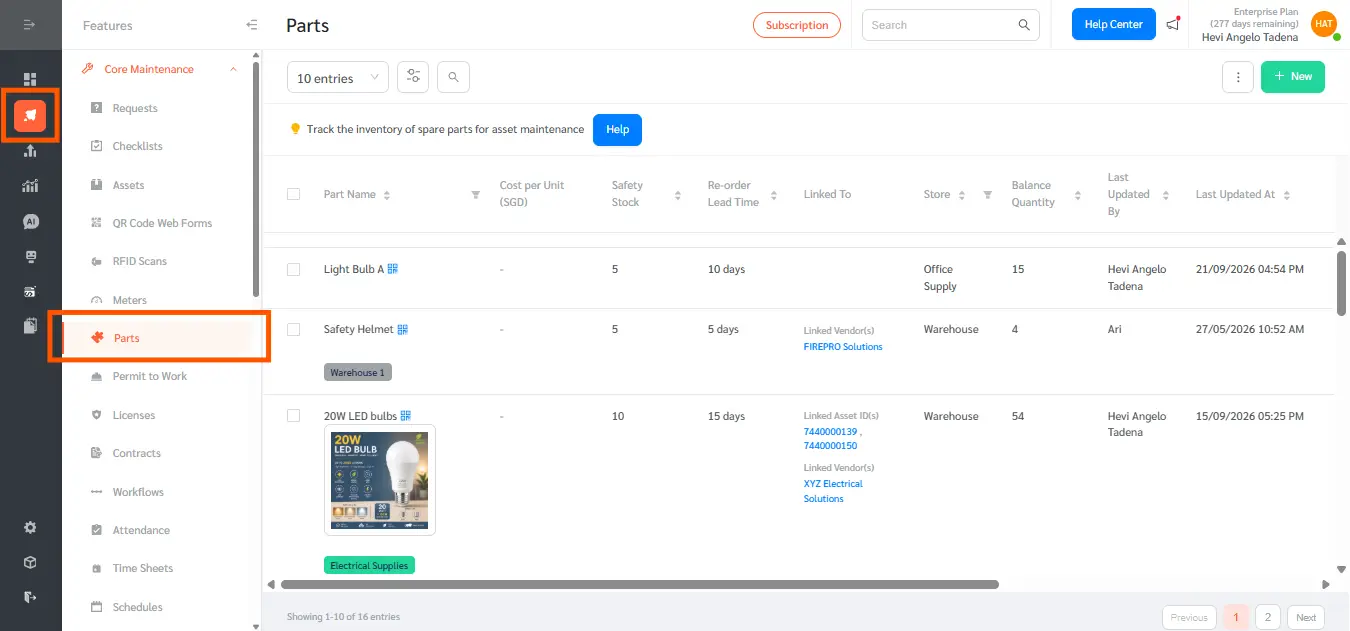
- Hover your mouse over the part you want to update. A small row of icons appears on the right side of that row — click the pencil (edit) icon.
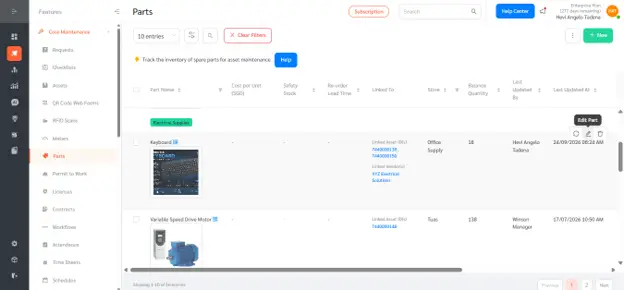
- The Edit Details panel slides in from the right. Enter a value in the Cost per Unit (SGD) field, then click the orange Complete button at the bottom of the panel to save.
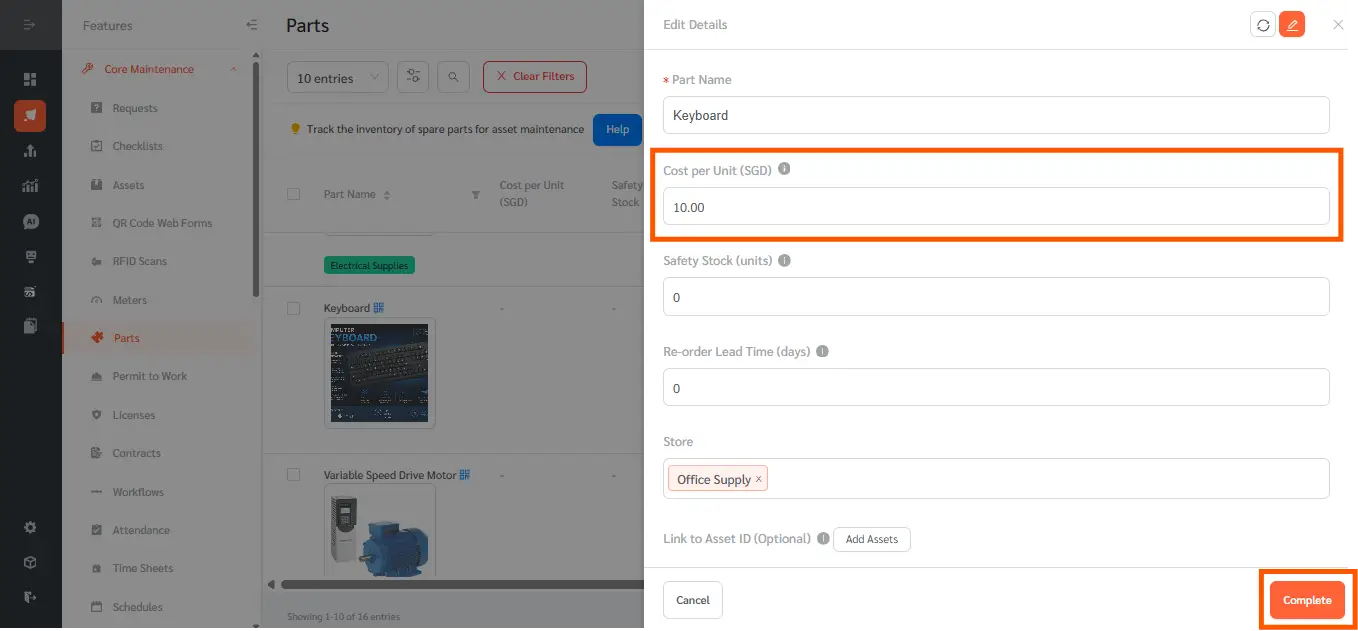
Log Labor Hours in Time Sheets
- Go to Features, then Time Sheets.
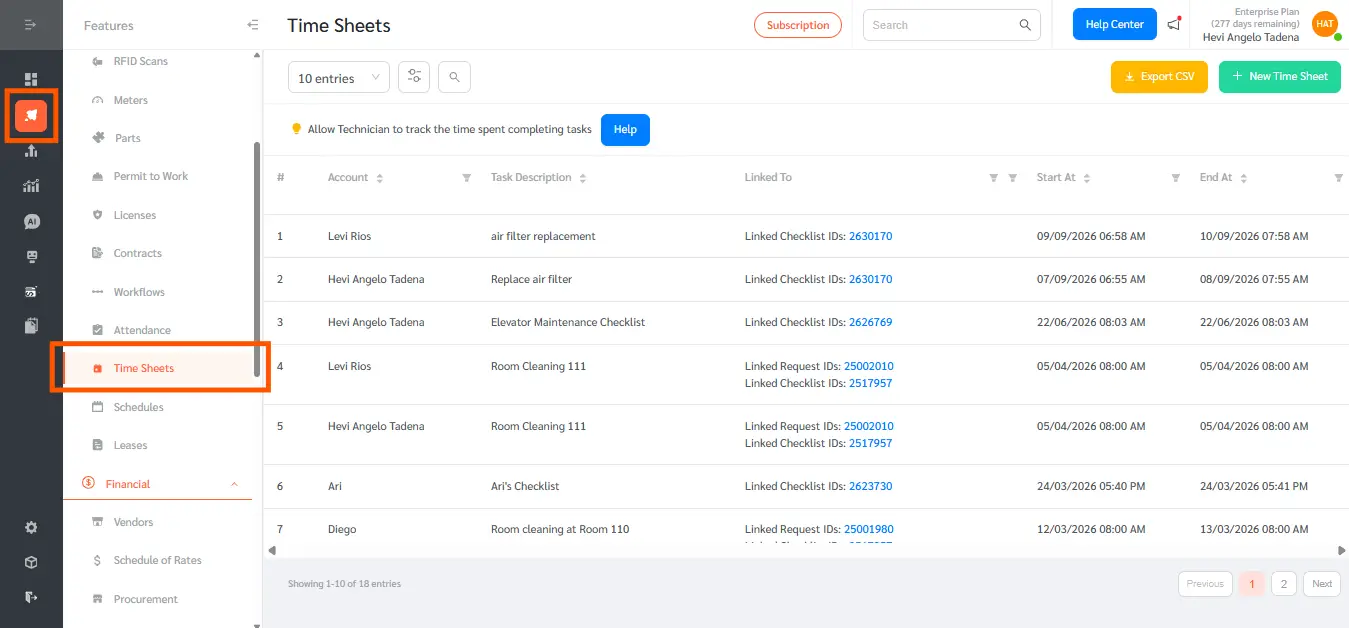
- Click the green New Time Sheet button in the top-right corner.
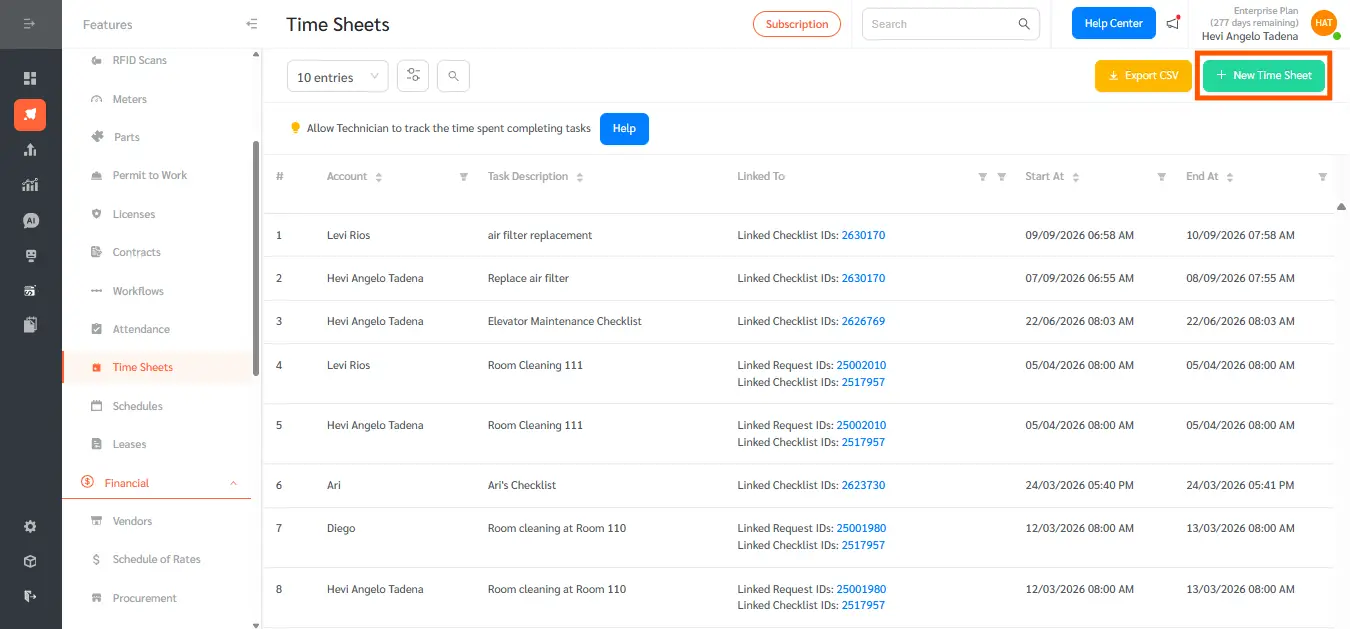
- In the Accounts field, select the account that performed the work.
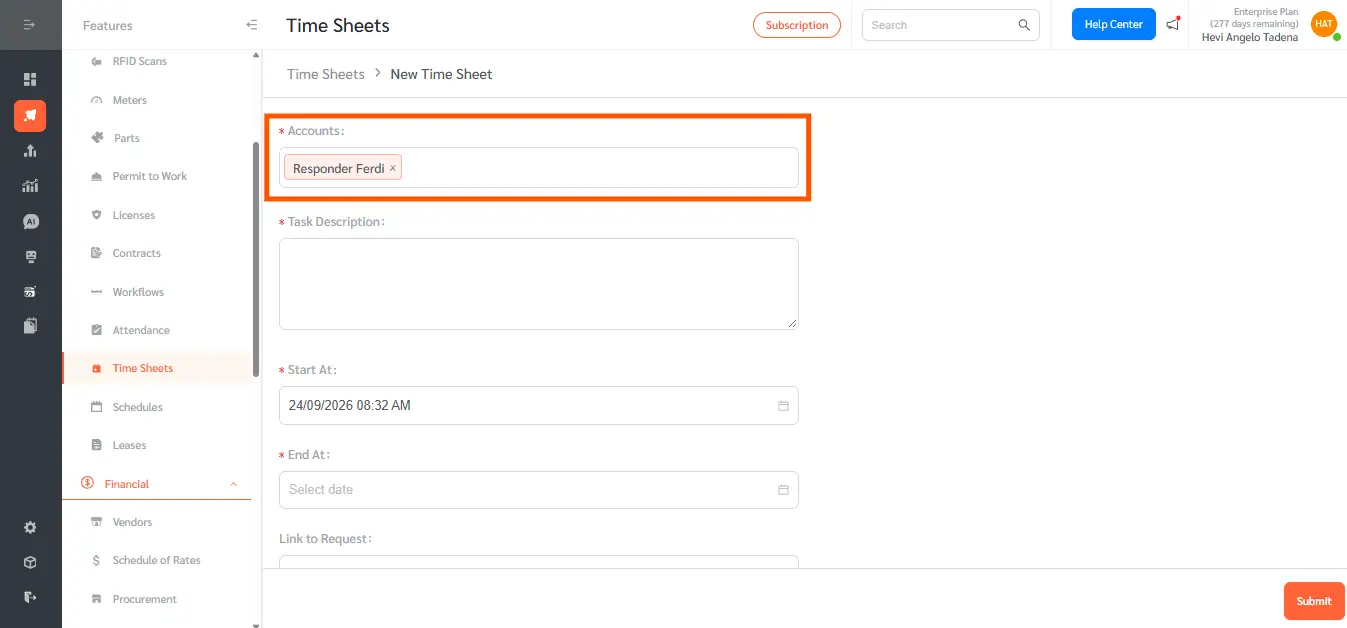
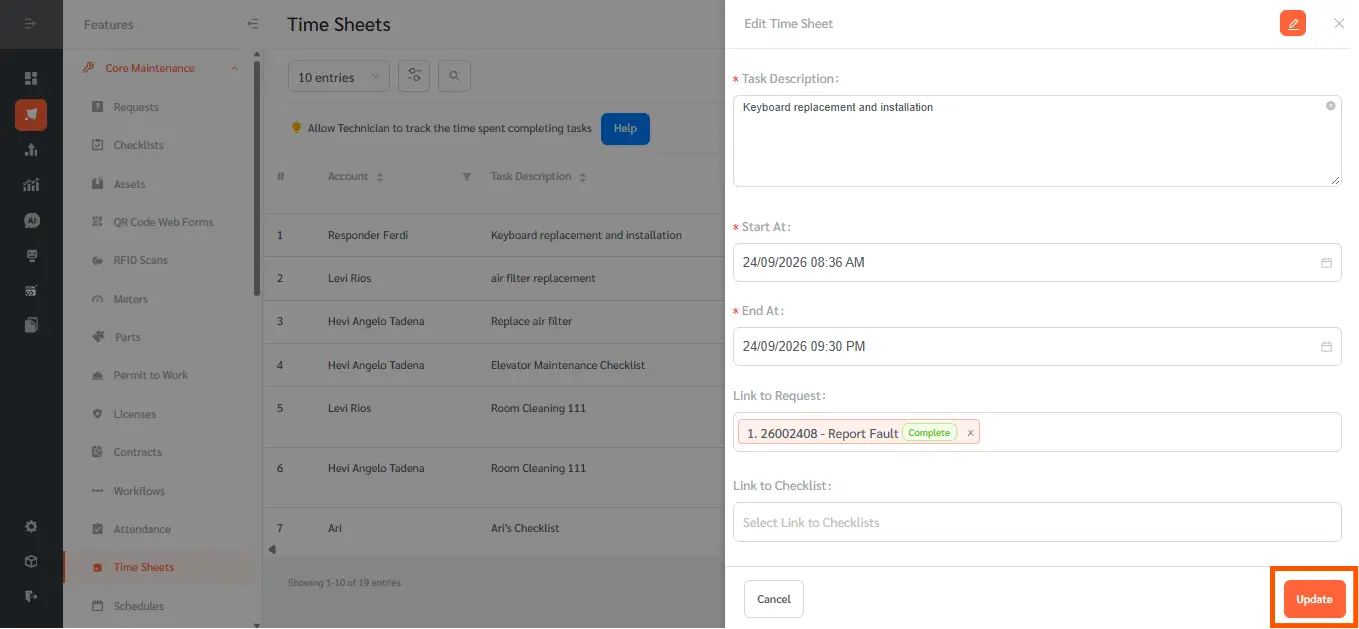
- Enter a Task Description, then set the Start At and End At date and time.
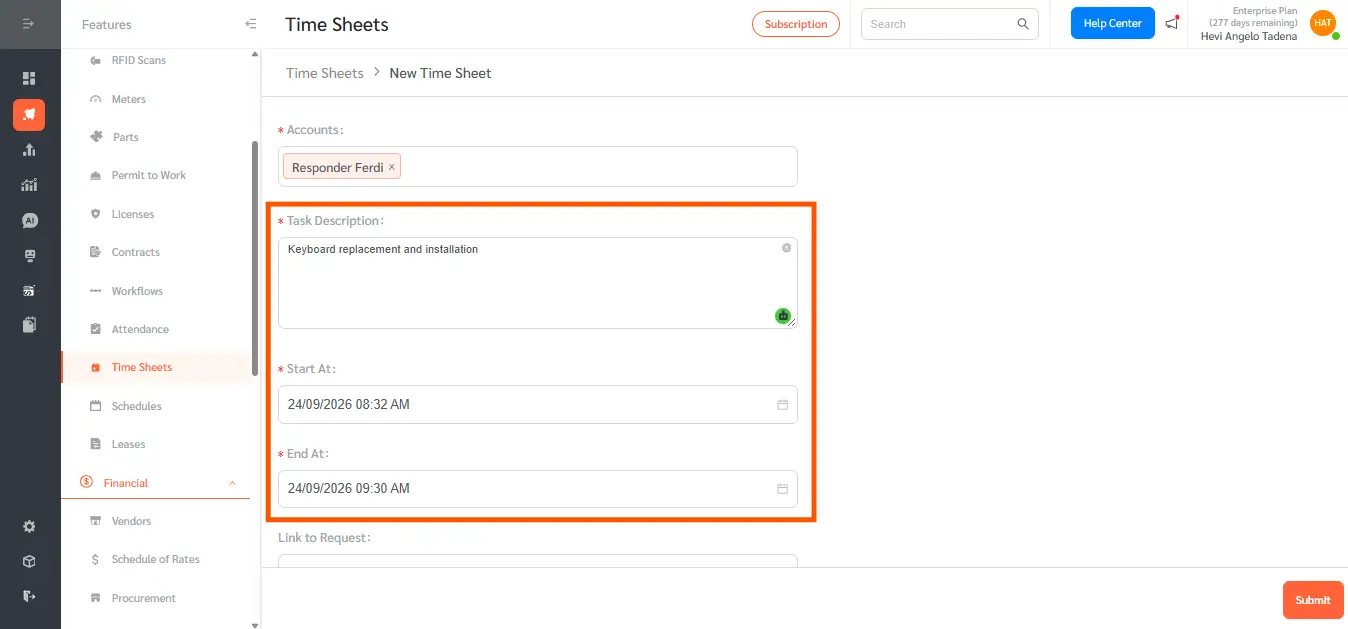
- (Optional) Use the Link to Request or Link to Checklist field to tie this entry to the maintenance activity the time was spent on.
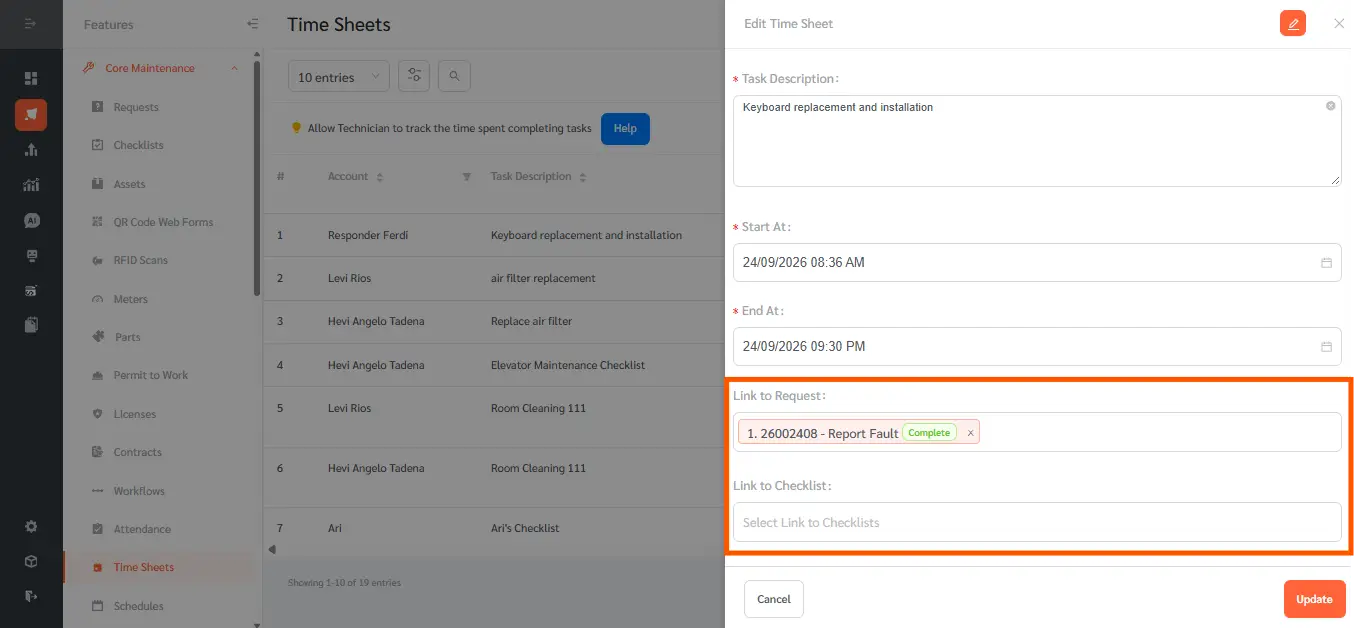
- Click the orange Submit button at the bottom right of the form. FacilityBot uses the account’s Hourly Rate and the logged duration to calculate the Cost of this entry automatically — you don’t need to enter a cost yourself.
View Asset Maintenance Cost in Asset History
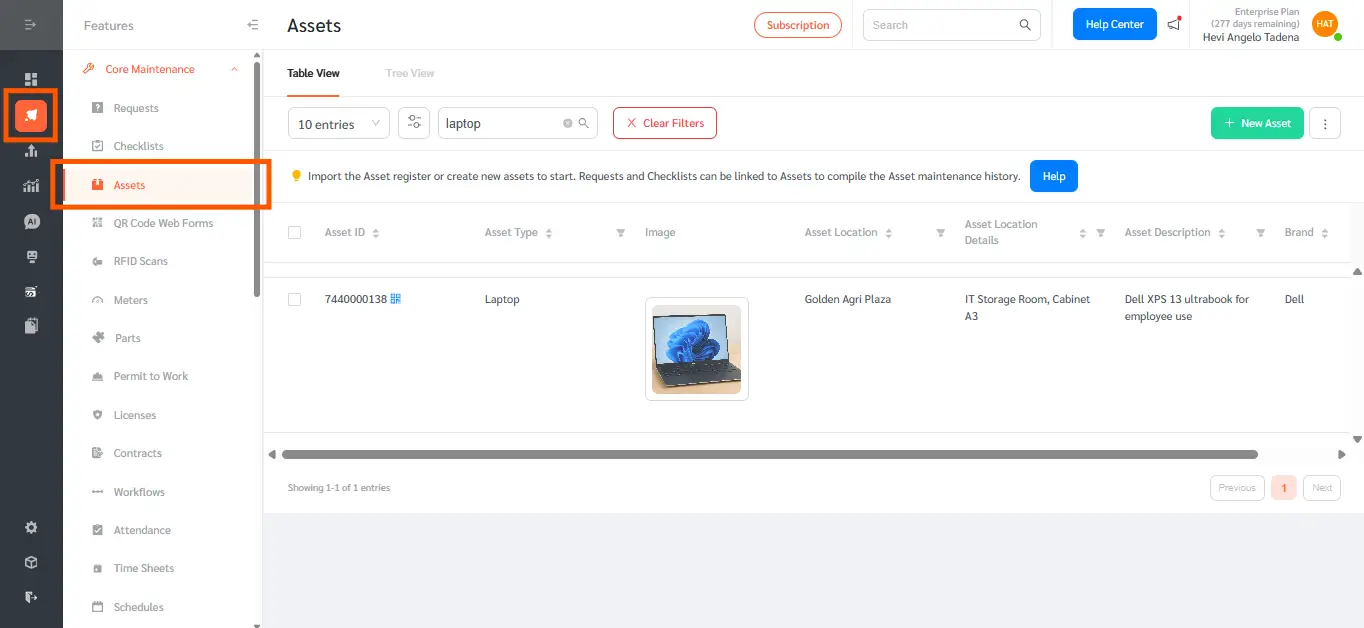
- Go to Features, then Assets.
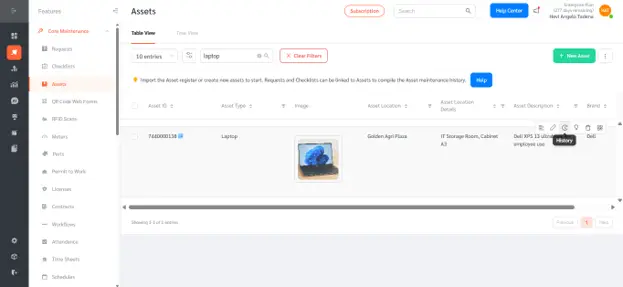
- Hover your mouse over the asset you want to review. A row of icons appears on the right side of that row. Click the clock icon — the third icon from the left — to open the History panel for that asset.
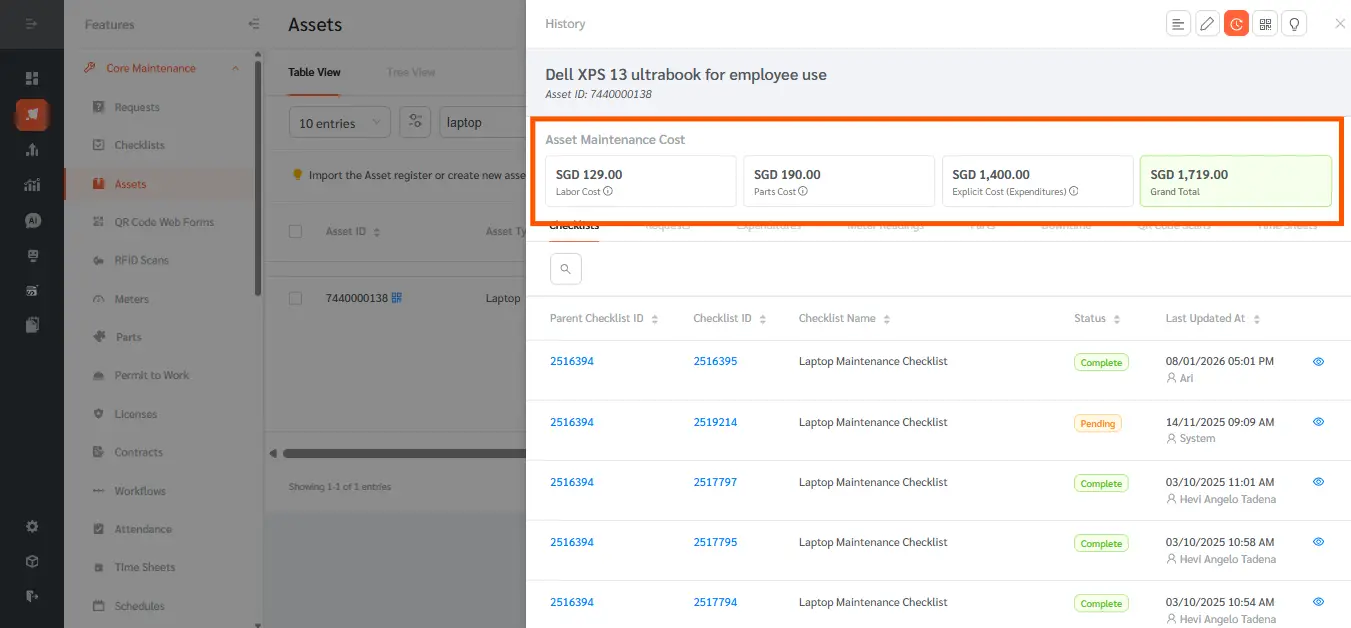
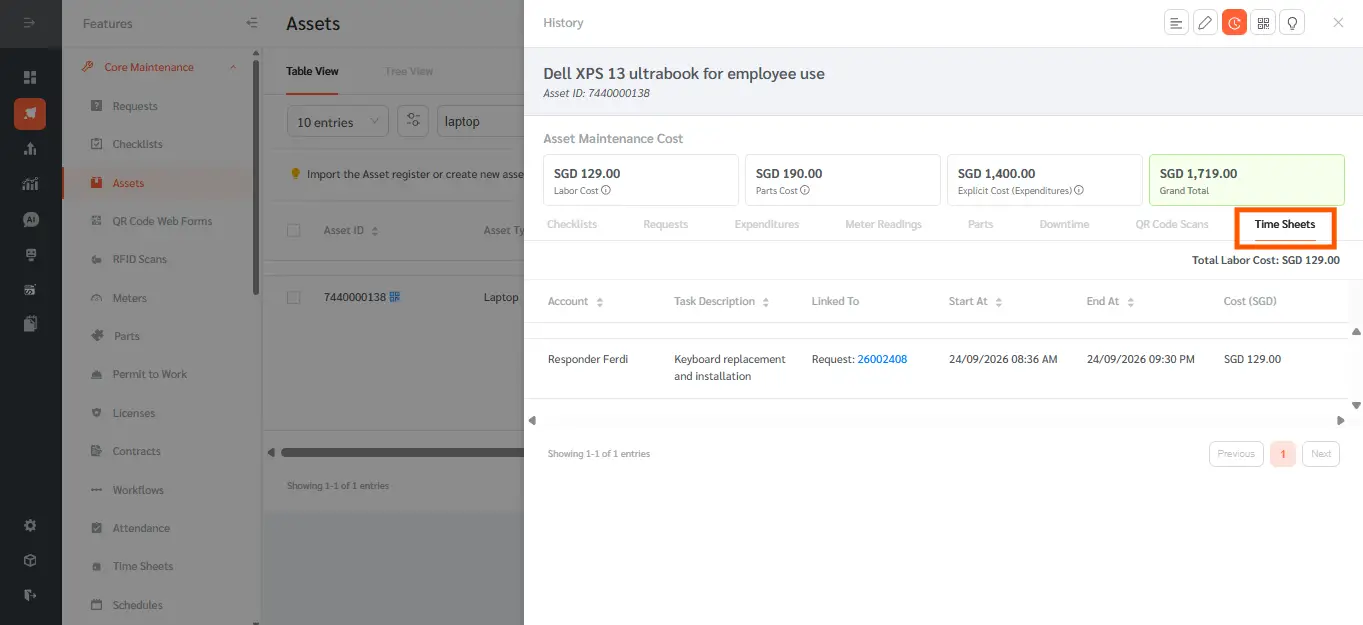
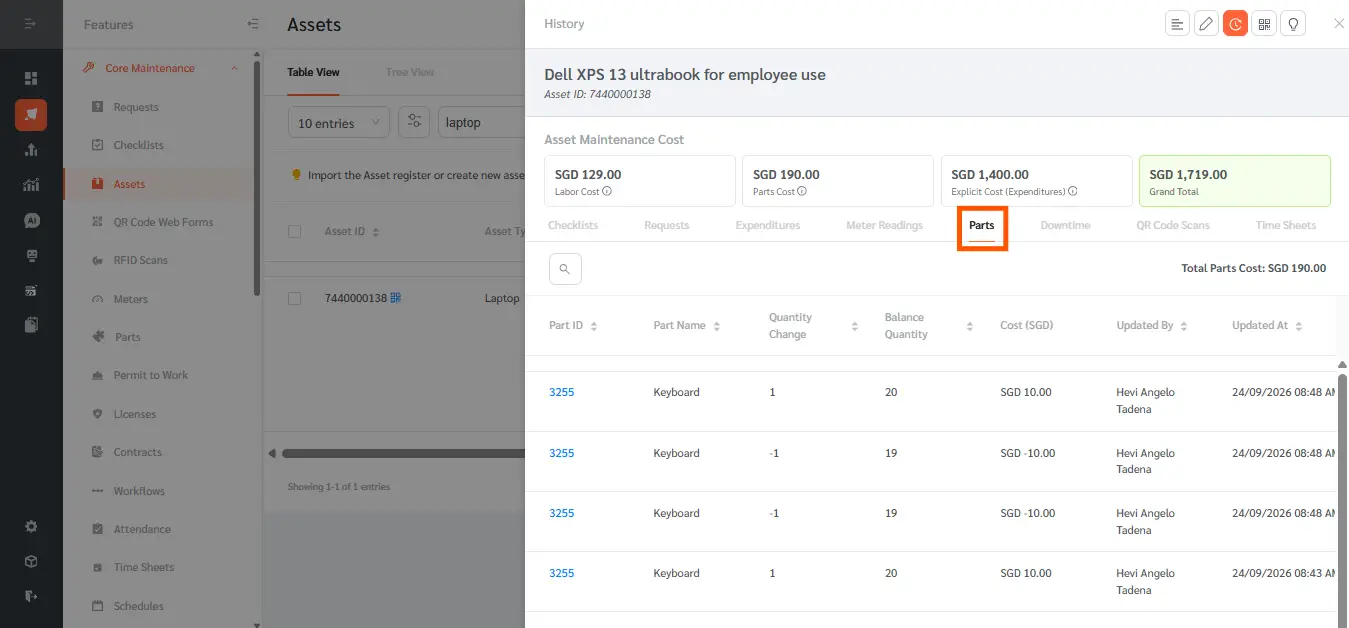
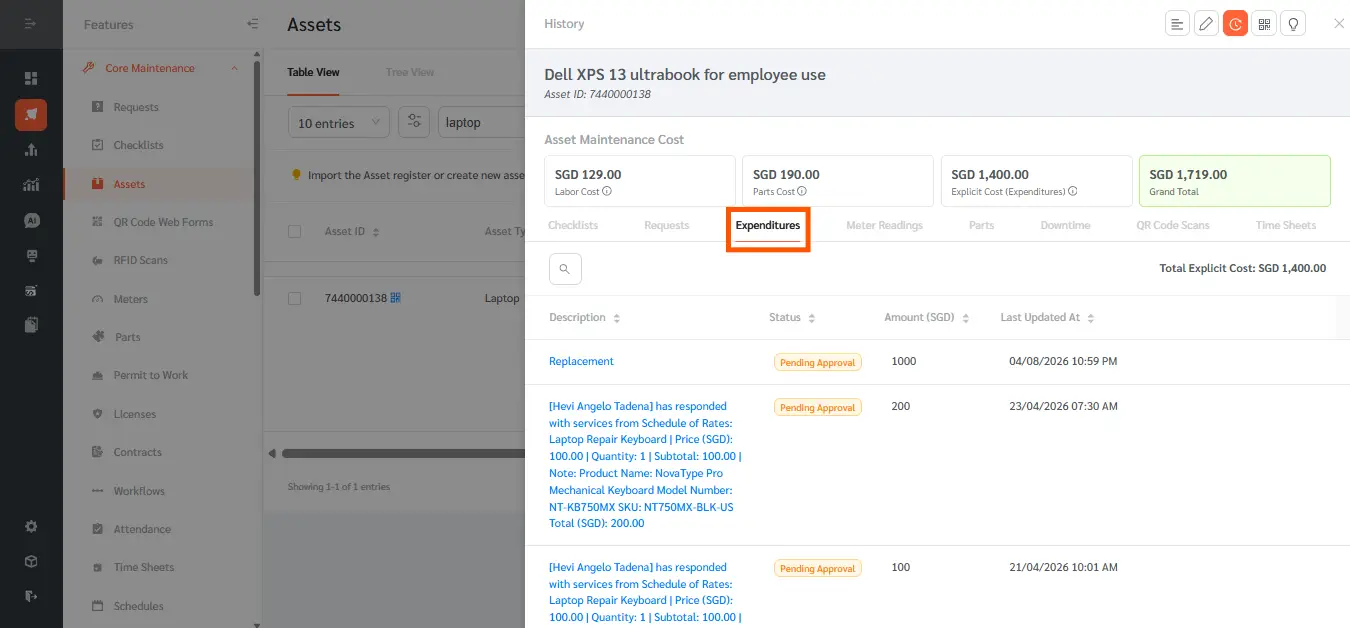
- At the top of the History panel, review the Asset Maintenance Cost summary: four cards showing Labor Cost, Parts Cost, Explicit Cost (Expenditures), and the Grand Total of all three, highlighted in green.
- Click the Time Sheets tab (in the row of tabs below the summary cards) to see the Total Labor Cost and the Cost of each individual time entry logged against this asset.
- Click the Parts tab to see the Total Parts Cost and the Cost of each part used on this asset.
- Click the Expenditures tab to see the Total Explicit Cost and the Amount (SGD) of each expenditure record for this asset.
Asset Man-Hours and Cost Tracking gives facility teams the full cost picture for every asset, not just what they pay vendors. By capturing Hourly Rate and Cost per Unit once and letting FacilityBot calculate Labor Cost and Parts Cost automatically from Time Sheets and Parts usage, the Asset Maintenance Cost summary brings implicit and explicit costs together in one place with a single Grand Total. Common use cases include justifying repair-versus-replace decisions with real internal labor and parts costs, benchmarking maintenance spend across similar assets, and building more accurate budgets that account for staff time, not just vendor invoices.