
Introduction
FacilityBot now supports integration with HYTRON, the autonomous restroom-cleaning robot by Primech AI.
FacilityBot connects Hytron robots through the Sensors integration. Each robot is set up as a sensor, and Hytron publishes a cleaning report to it over MQTT after every mission. A report contains the mission’s completion rate and every landmark the robot visited (toilet bowls, urinals, sinks, cubicle doors and floor routes), with each landmark’s status and cleaning time. This data can then feed Meters, Workflows, Reports and the Hytron tab of the Robot Dashboard.
How It Works
Create a Sensor for the Hytron Robot
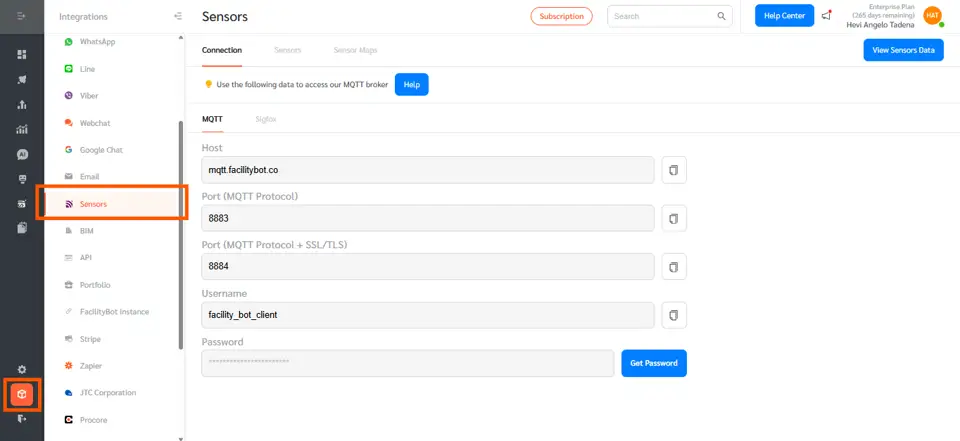
- Log in to the FacilityBot Web Portal and go to Integrations > Sensors.
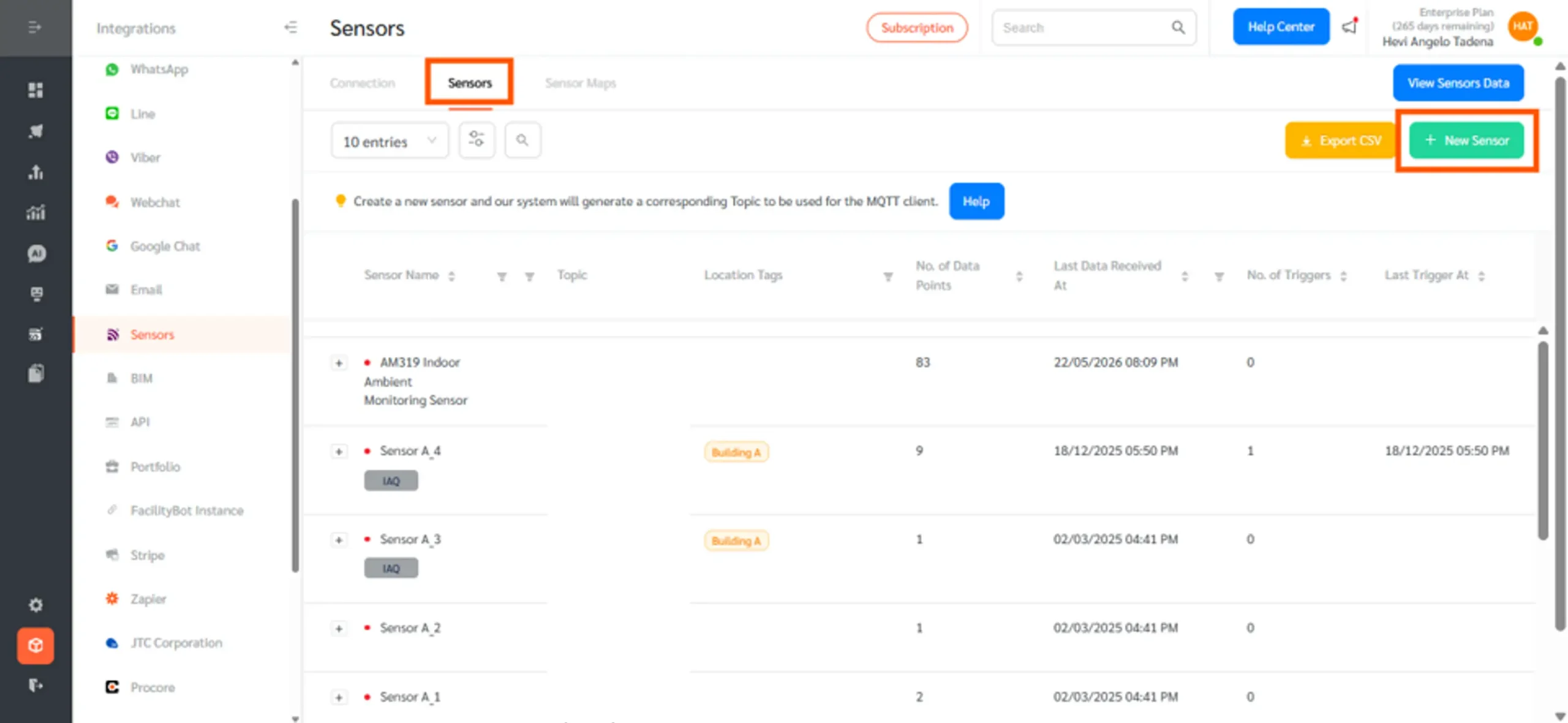
- Open the Sensors tab and click the green New Sensor button.
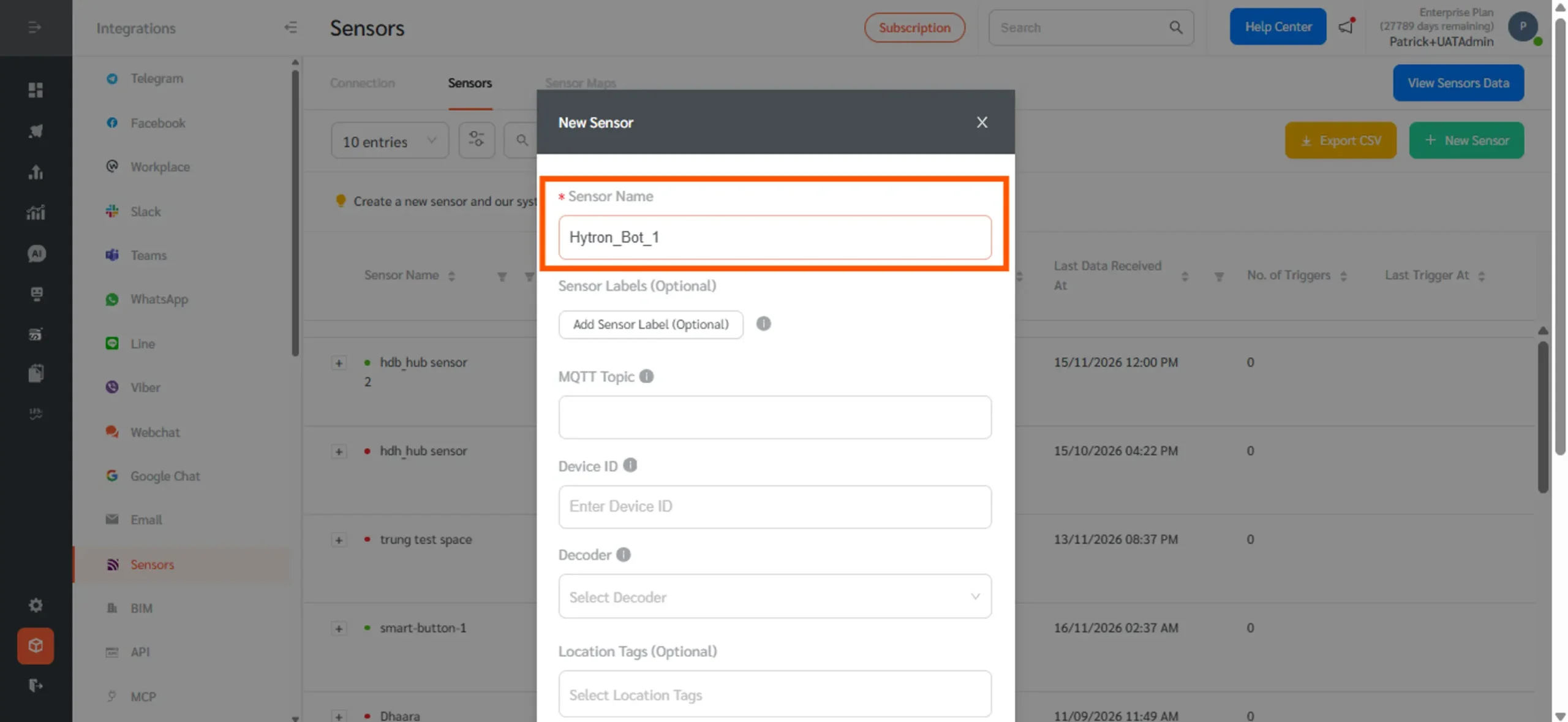
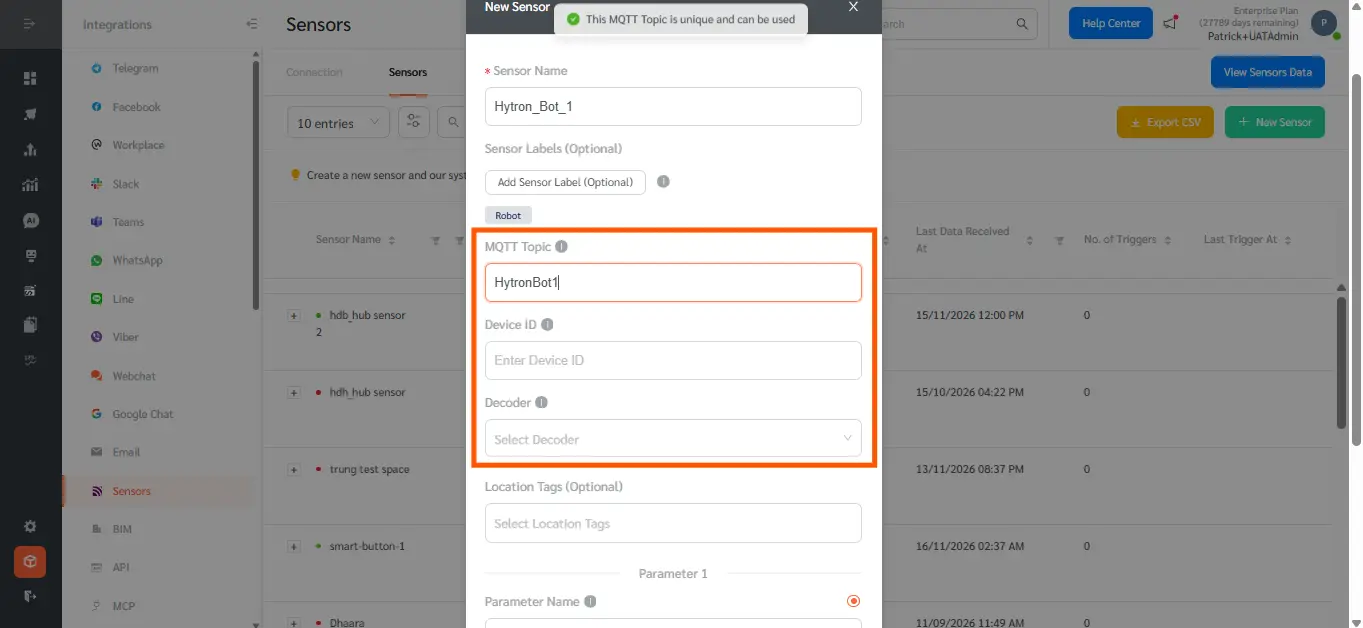
- Enter a Sensor Name that identifies the robot and includes the word Hytron, for example Hytron_Bot_1. The Hytron tab of the Robot Dashboard picks up every sensor whose name contains “Hytron”.
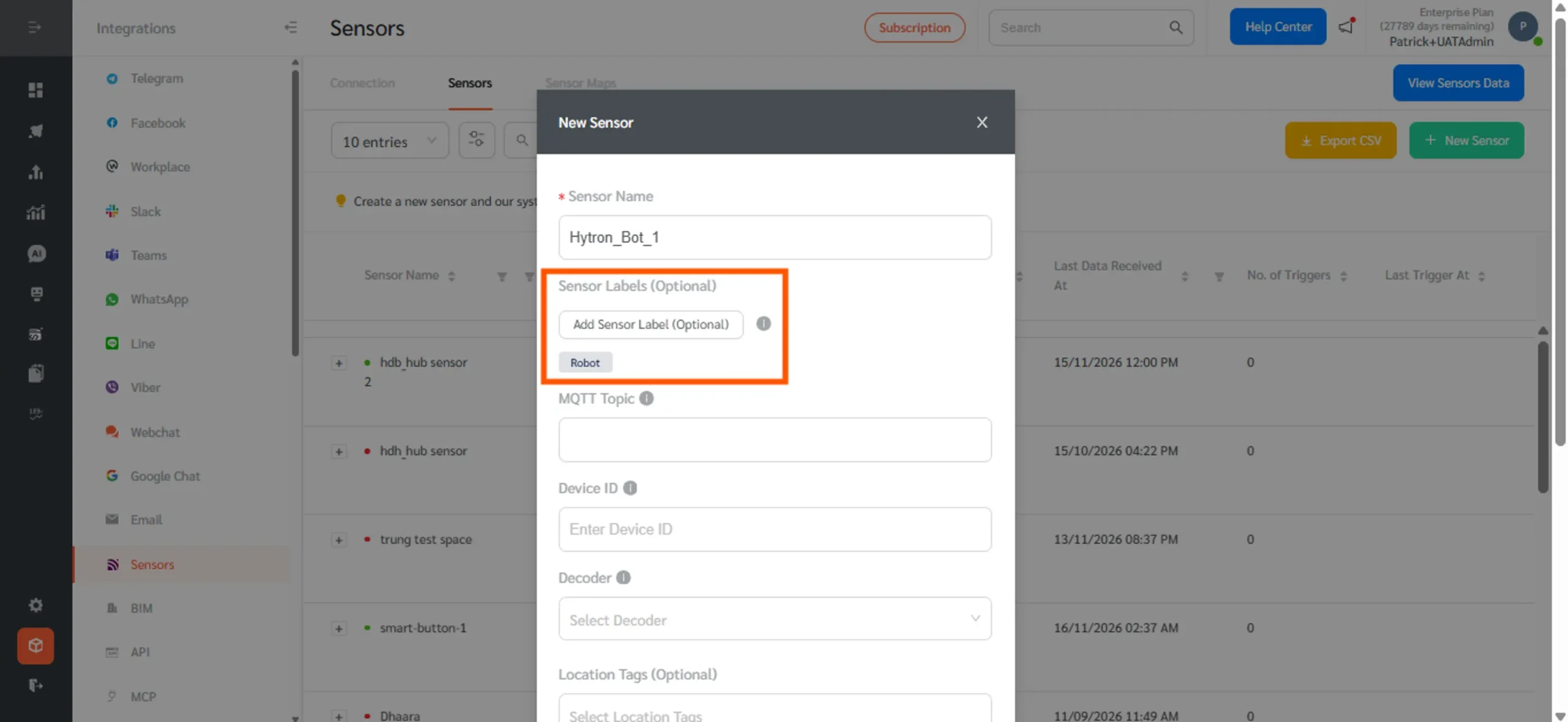
- Under Sensor Labels, add the Robot label.
- Enter the robot’s ID as the MQTT Topic, for example HytronBot1. In the sensor list it appears as fcb_topic/HytronBot1. Leave Device ID and Decoder blank.
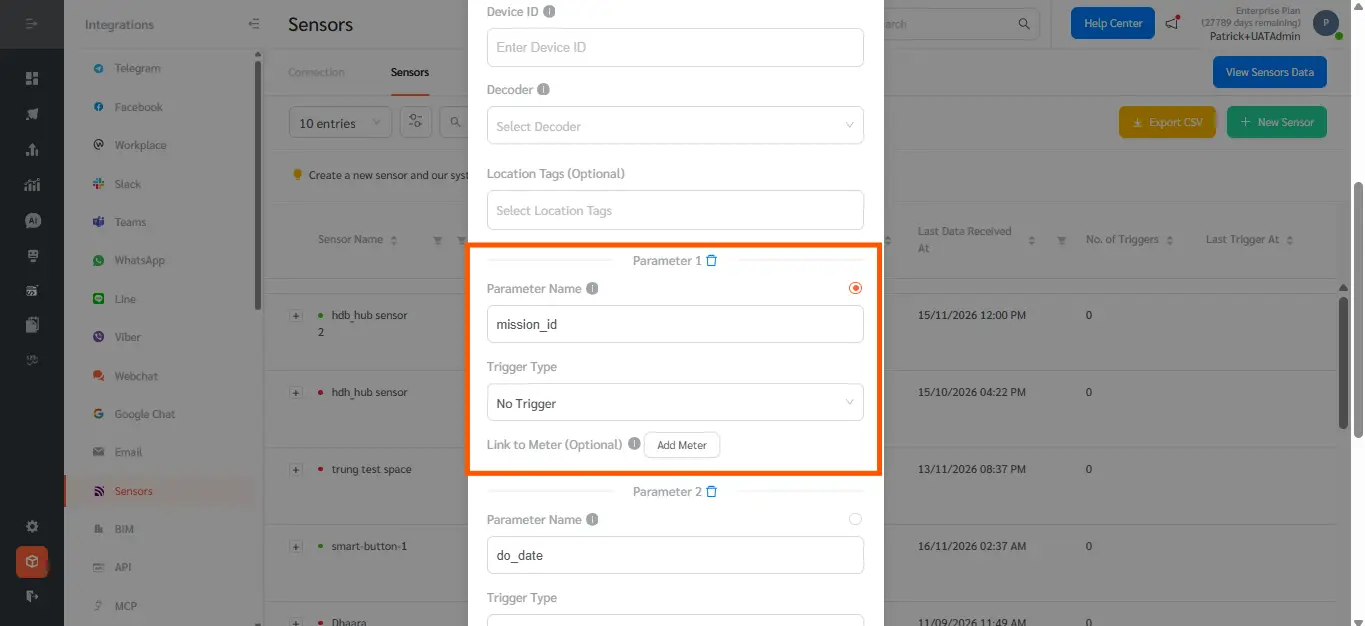
- Add one parameter for each data point. Parameter names must exactly match the field names in Hytron’s report: mission_id, do_date and percent (mission completion rate). The landmark details (lm_details) stay in the report itself and feed the Robot Dashboard.
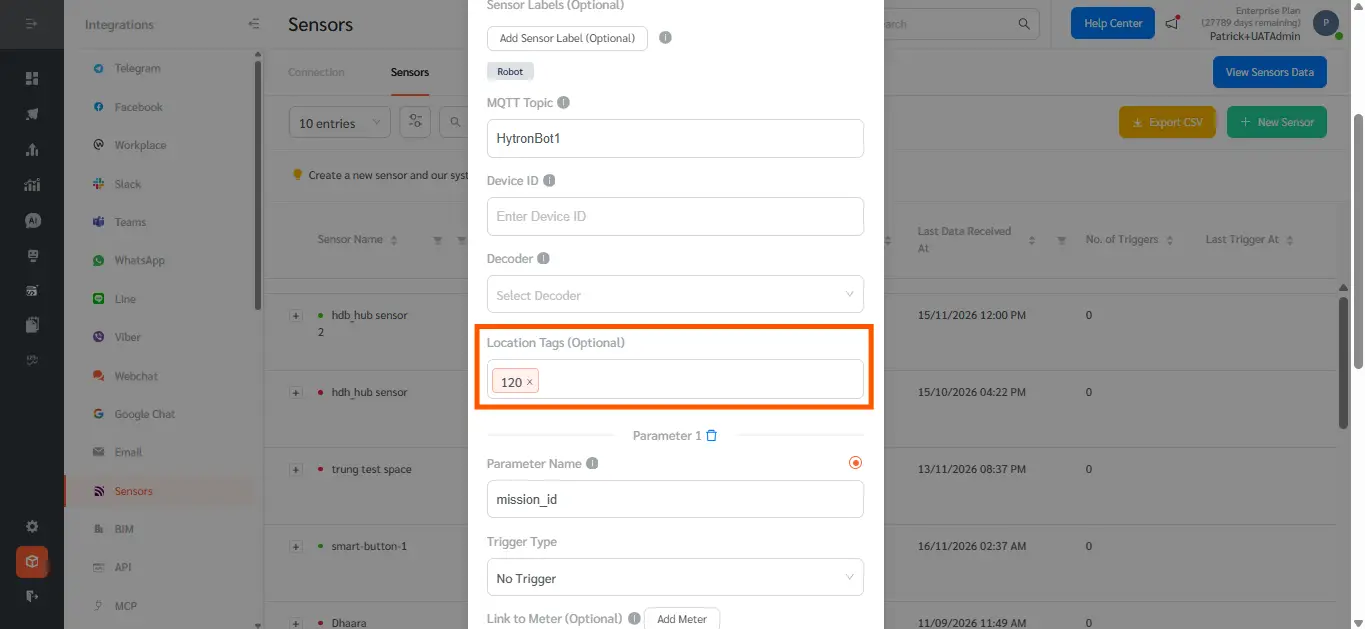
- Optionally set Location Tags for the block and level the robot serves, then submit.
Connect the Robot and Verify That Data Is Coming In
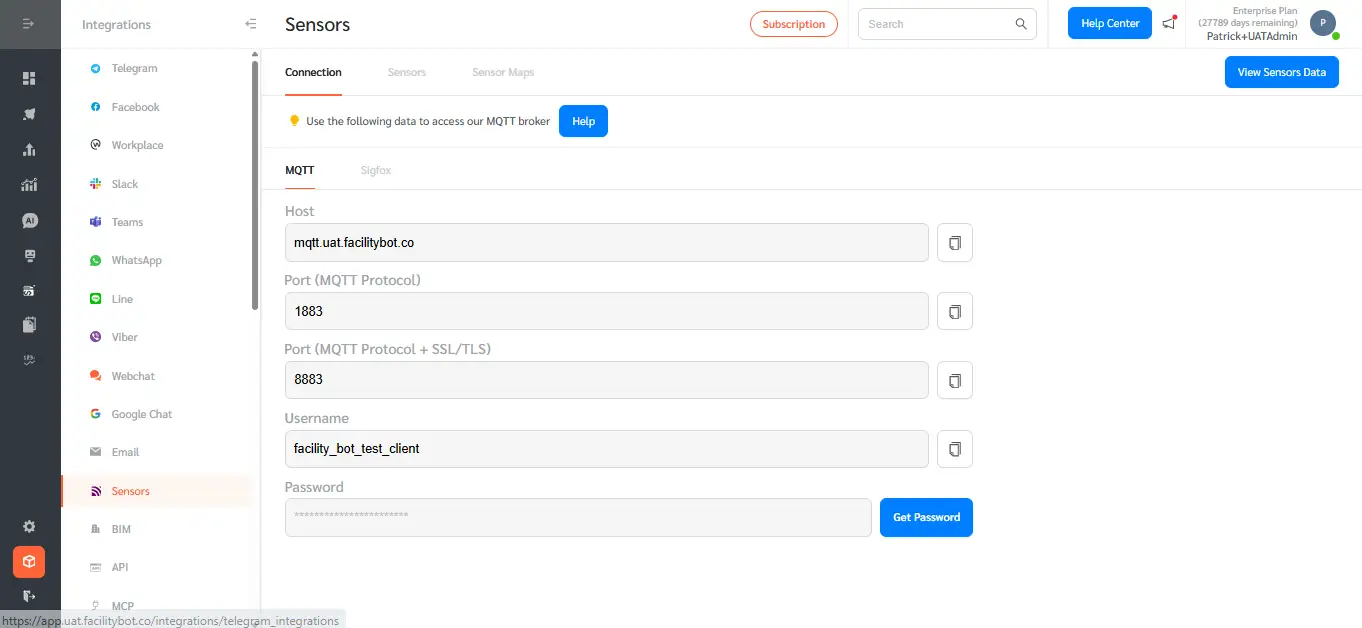
- Open the Connection tab and give your Primech AI / Hytron administrator the MQTT broker details (Host mqtt.facilitybot.co, Port, Username, and the Password shown by clicking Get Password) together with the sensor’s topic. They configure the robot to publish a report after each mission.
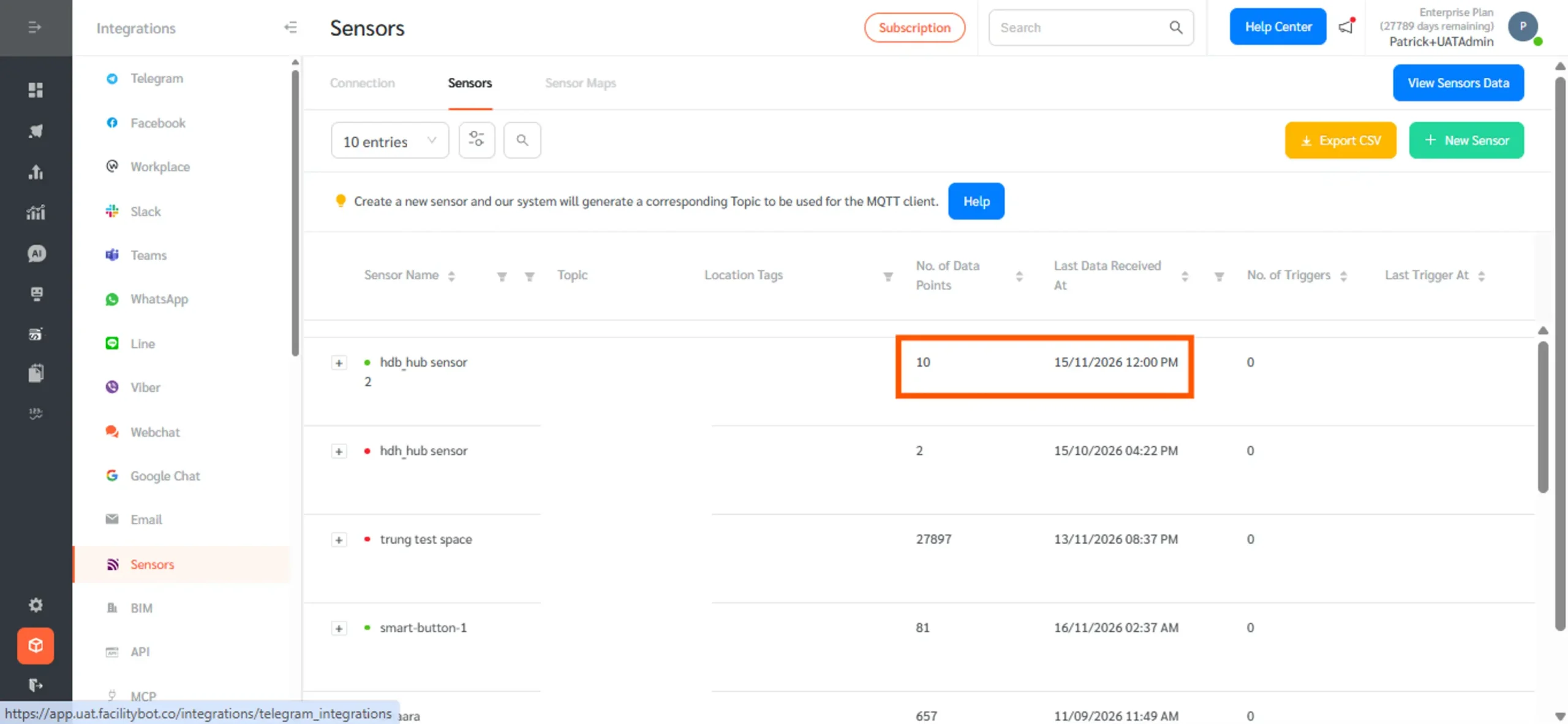
- After the robot’s next mission, check No. of Data Points and Last Data Received At in the Sensors list.
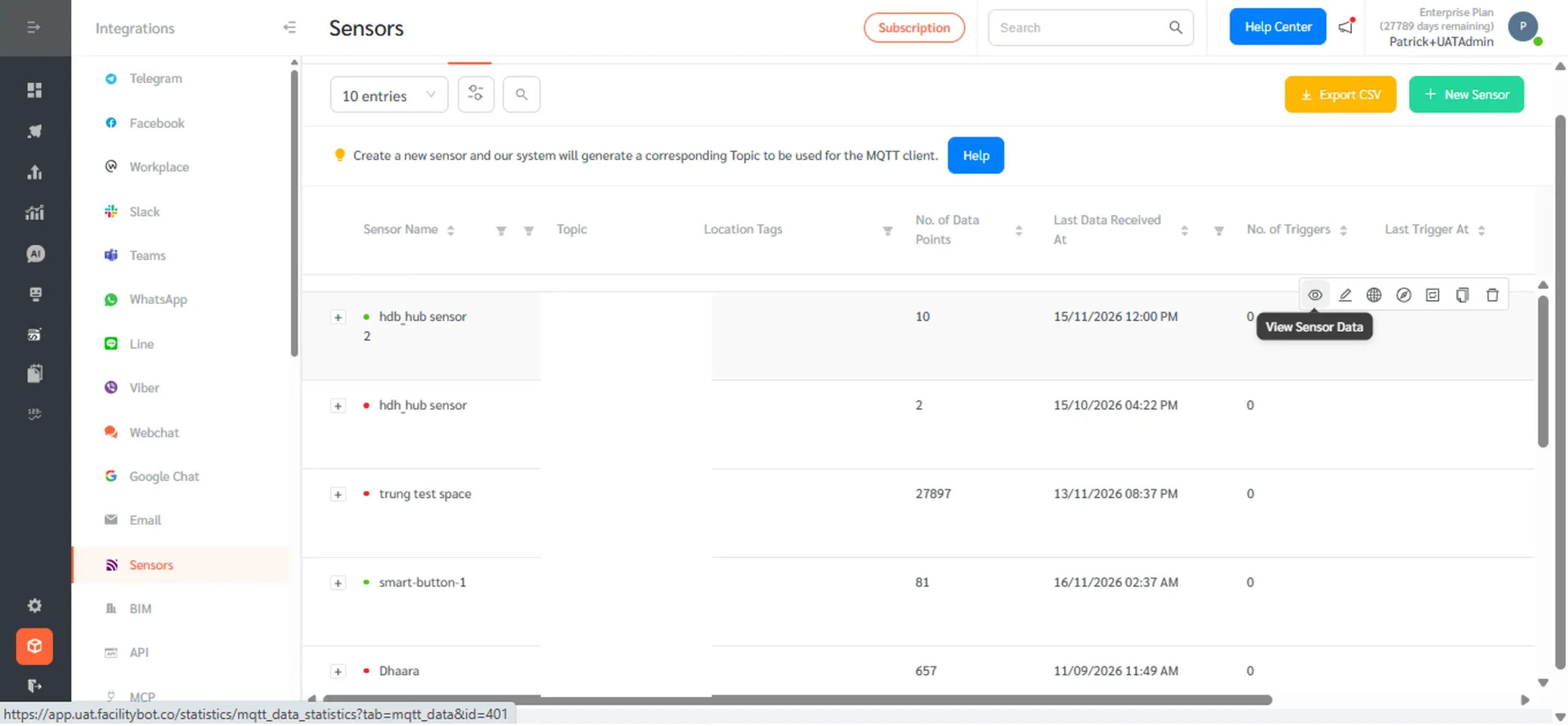
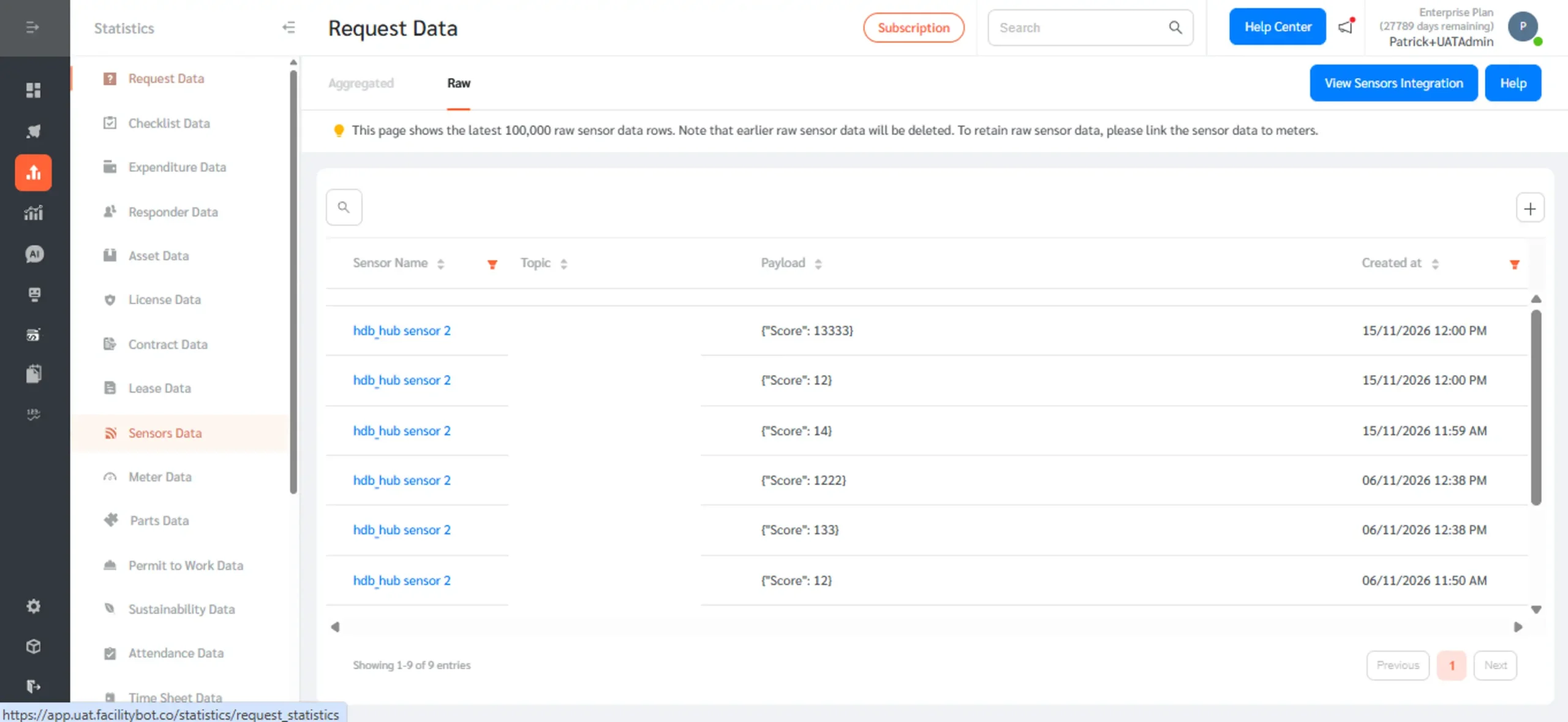
- Click View Sensors Data, go to the Raw tab and search for the sensor.
Link Robot Data to Meters
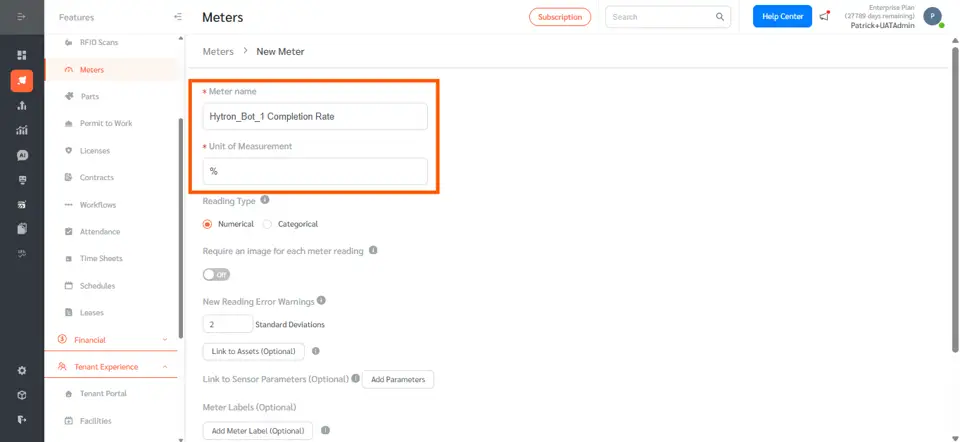
- Go to Features > Meters and click + New.
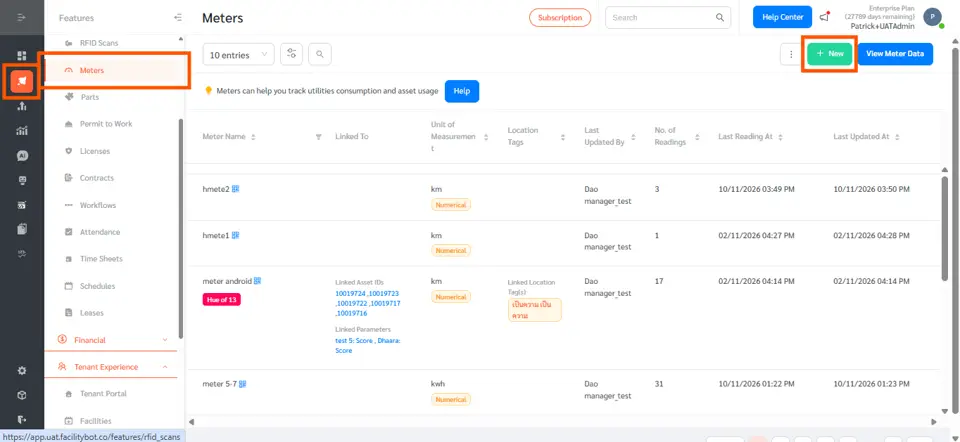
- Enter the meter name (for example Hytron_Bot_1 Completion Rate), the unit (%) and the reading type (Numerical).
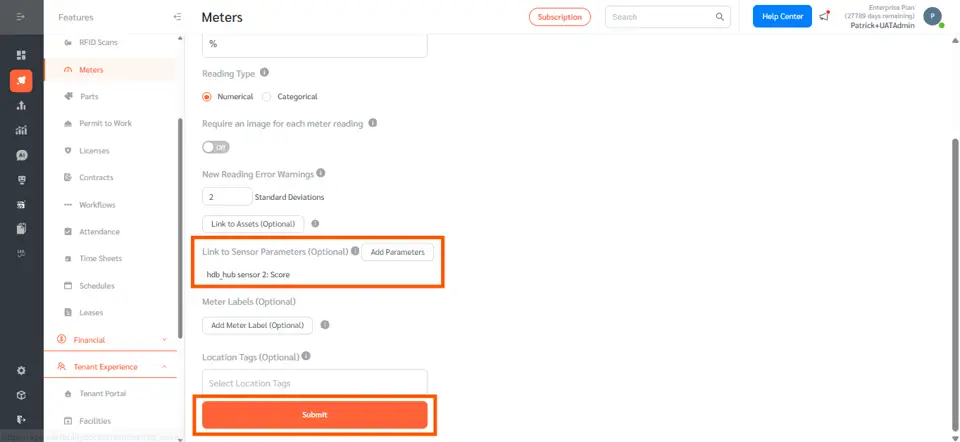
- Under Link to Sensor Parameters, add the Hytron sensor and the percent parameter, then submit.
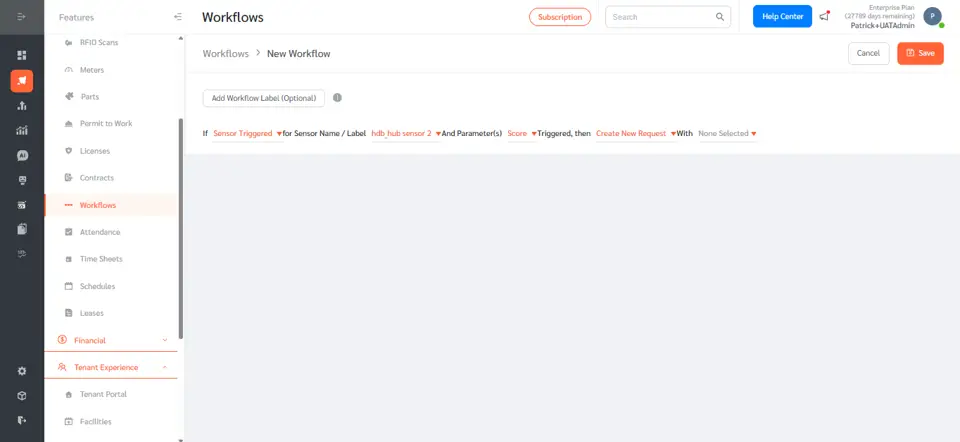
- Repeat for each robot you want to trend. To follow up automatically, set up a workflow to create a request when a sensor is triggered, for example when a mission’s completion rate falls below a threshold you set.
View Robot Performance in the Analytics Dashboard
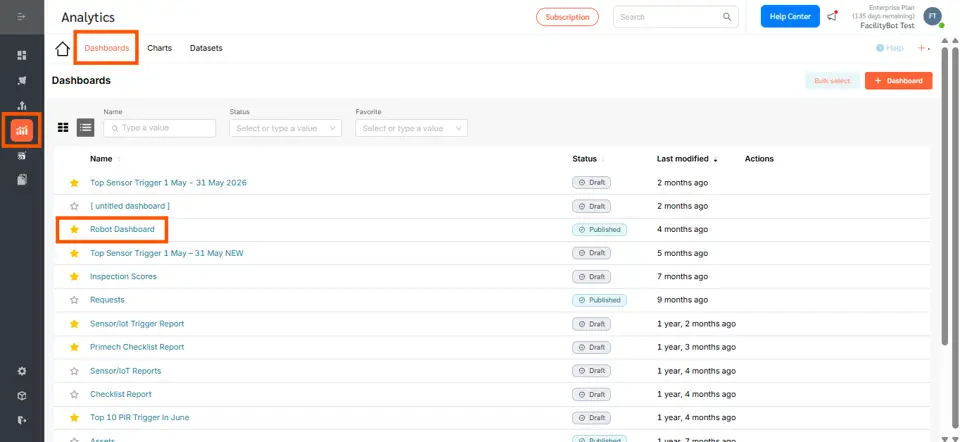
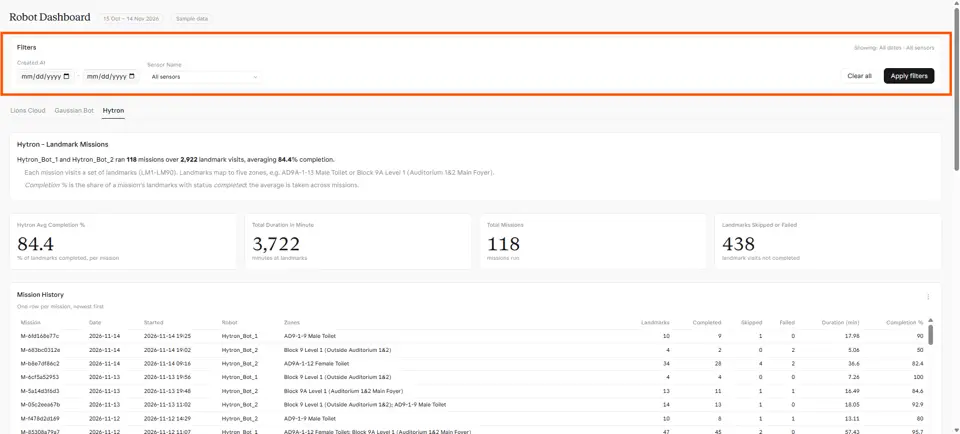
- Open Analytics > Dashboards > Robot Dashboard, then the Hytron tab.
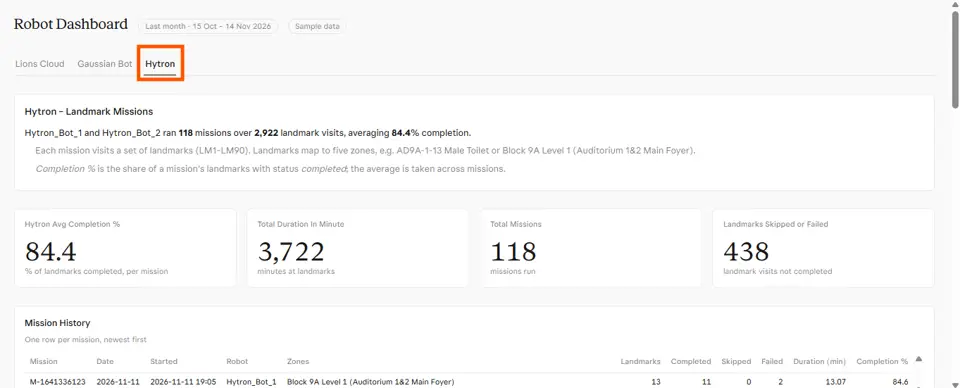
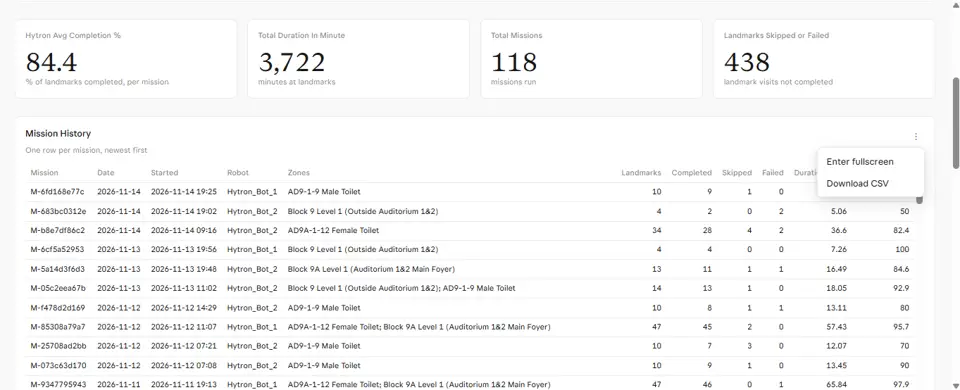
- KPI cards: Hytron Avg Completion % and Total Duration In Minute.
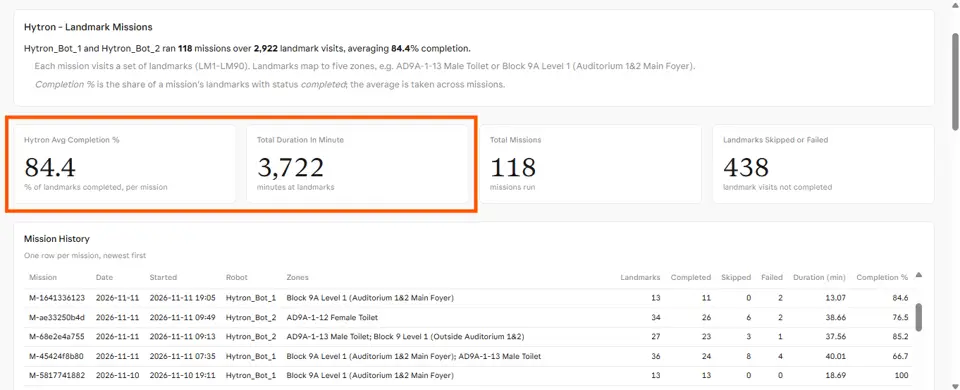
- Mission History: one row per mission with its date, robot, landmarks visited and completion rate.
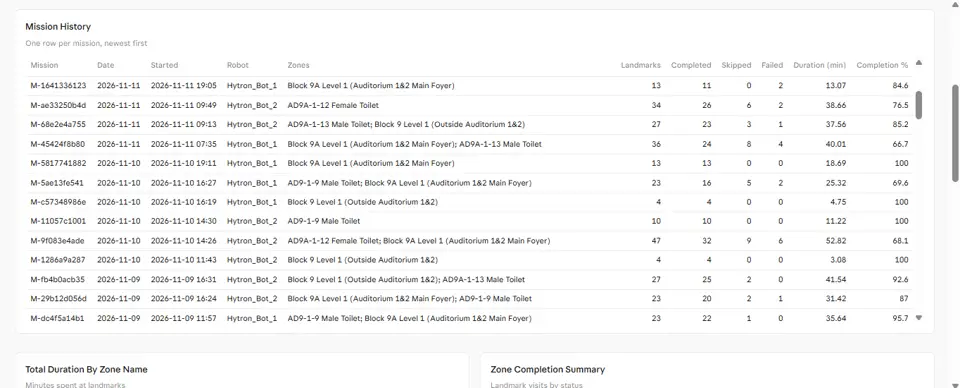
- Zone charts: Total Duration By Zone Name and Zone Completion Summary show where cleaning time goes and how each zone’s landmarks were completed.
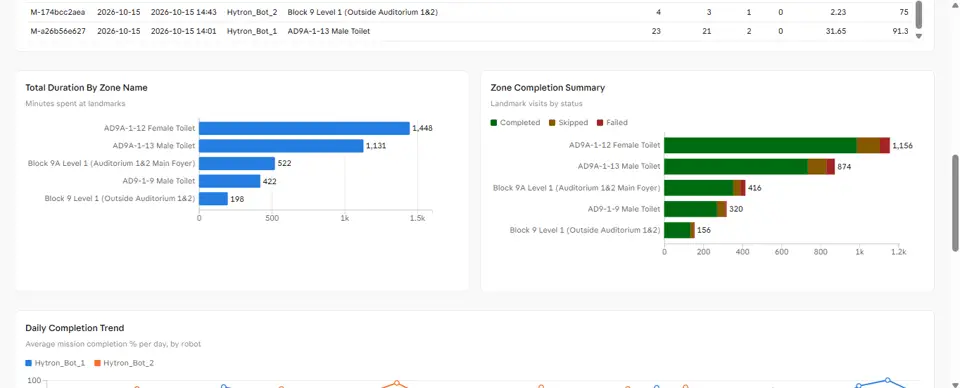
- Trend chart: Daily Completion Trend shows completion day by day.
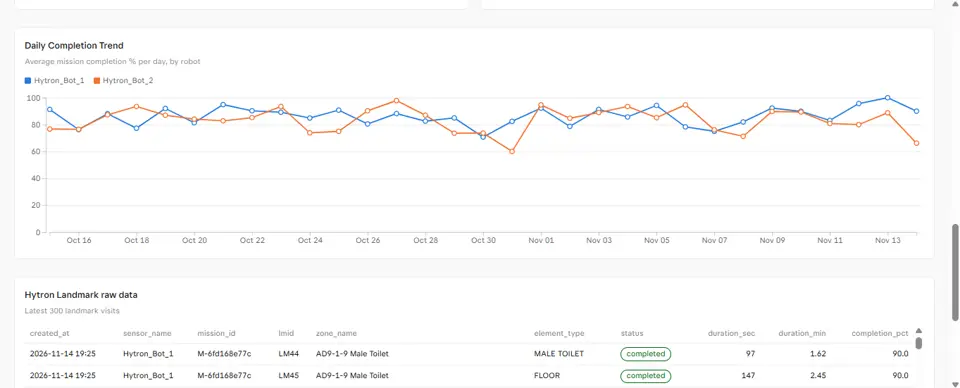
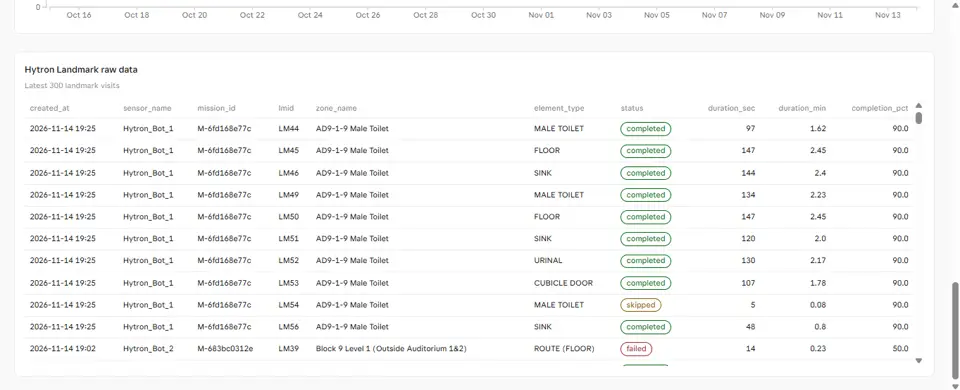
- Hytron Landmark raw data: every landmark visit, with its zone, element type (floor, sink, urinal, toilet, cubicle door), status and duration, at the bottom of the page.
- Filters panel: set a Created At range and a Sensor Name, then click Apply filters. Click Clear all to reset them.
- Use the three-dot menu on any chart or table for a fullscreen view, the underlying data table, or a CSV export.
The Hytron Robot Integration brings restroom-cleaning results into FacilityBot automatically, with one sensor per robot, mission data linked to Meters, and performance shown on the Hytron tab of the Robot Dashboard. Facility teams can see which washrooms and fixtures were cleaned, track completion and cleaning time, compare robots, and spot the zones that need attention.