Introduction
FacilityBot’s Visitors feature now supports Location Tagging, letting you associate each visit with a specific location (site) and configure the visitor experience differently for each one. When creating or signing in a visitor, you can select a Location Tag so the visit is tied to the correct site, and the Visitors list shows a Location Tags column so you can see, at a glance, which site each visit belongs to. In Visitors Settings, a Global Default configuration applies to all locations, while a Customized mode lets you override the Invitation Flow, Sign-In Flow, Sign-Out Flow, and Email Content for an individual site. This means organisations that manage multiple sites can tailor sign-in forms, invitation details, and visitor email alerts (including the host arrival notification) to each location.
How It Works
Configure Site-Specific Settings (Global Default vs Customized)
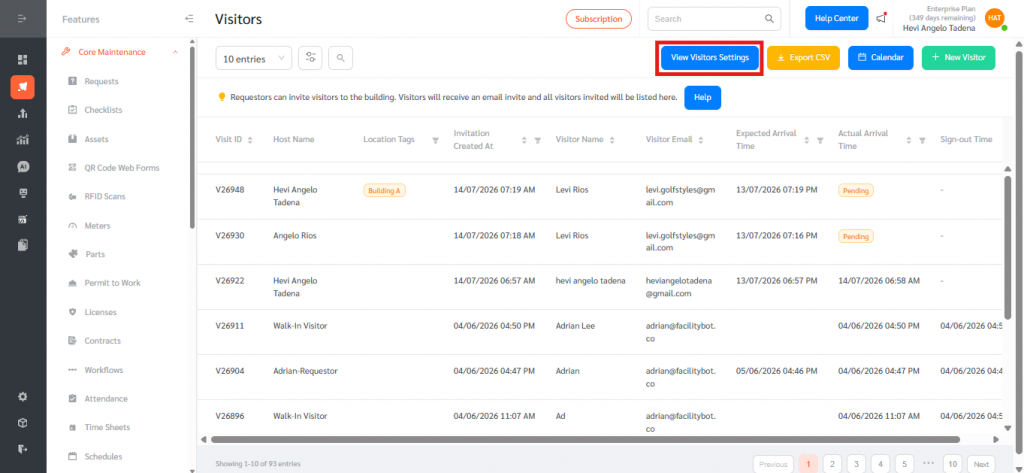
- On the Visitors page, click View Visitors Settings at the top right.
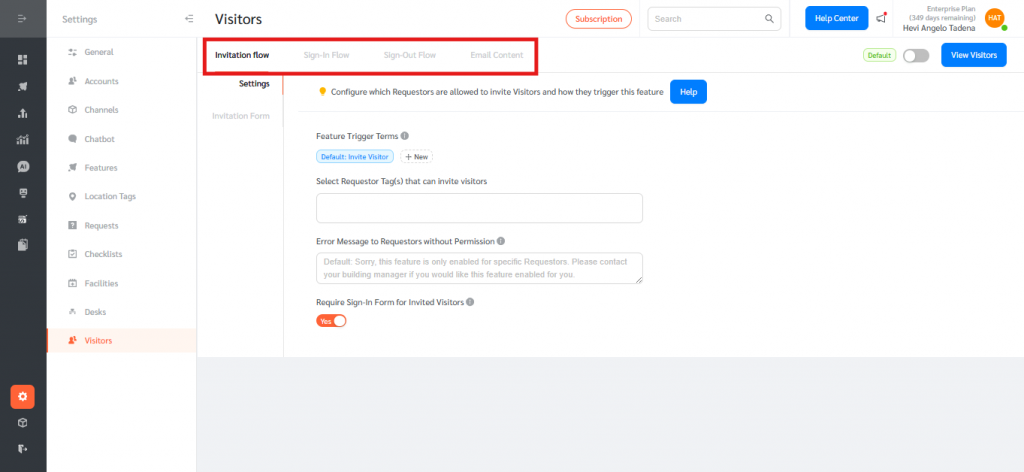
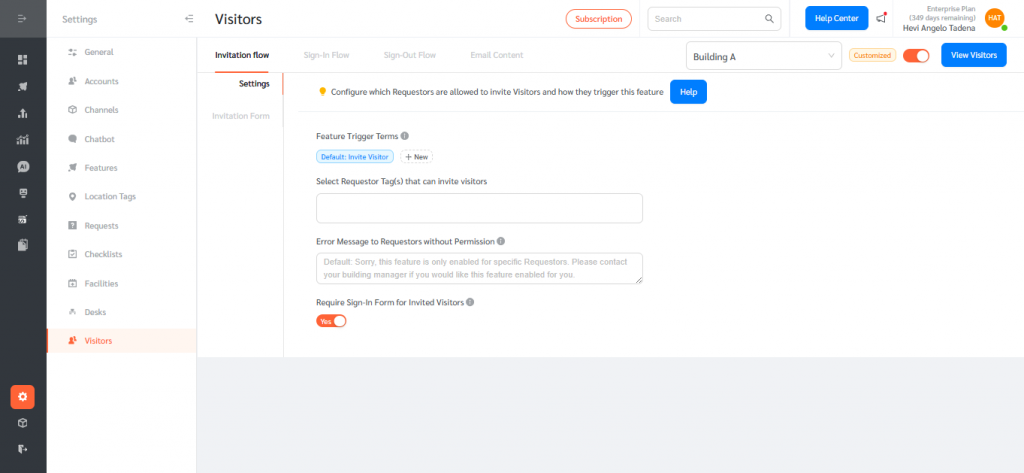
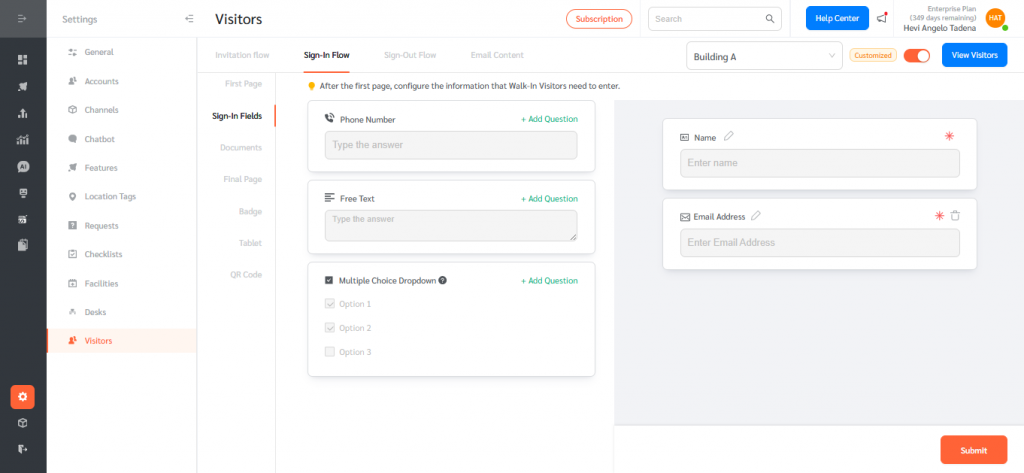
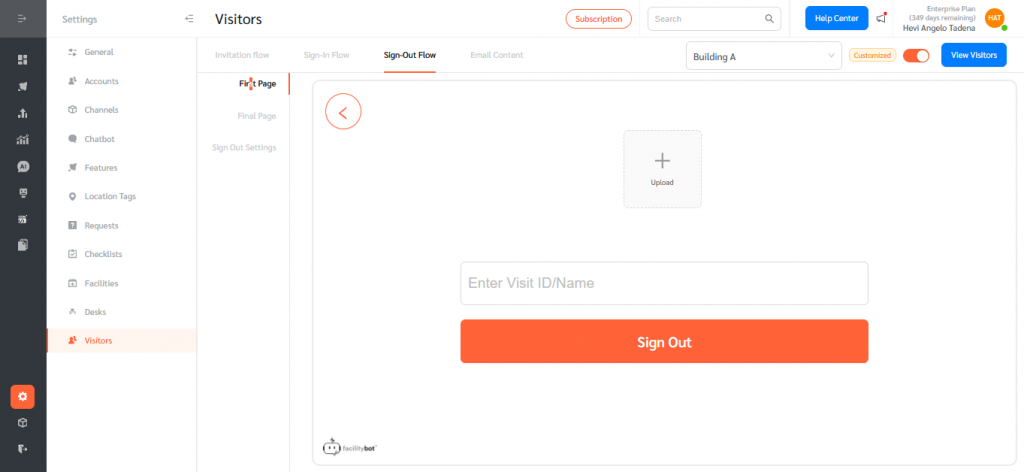
- The settings page opens with four configurable areas shown as tabs: Invitation Flow, Sign-In Flow, Sign-Out Flow, and Email Content.
- At the top right, use the Default toggle to control how the settings apply. Leave it off (green Default badge) to apply a single Global Default configuration across all locations.
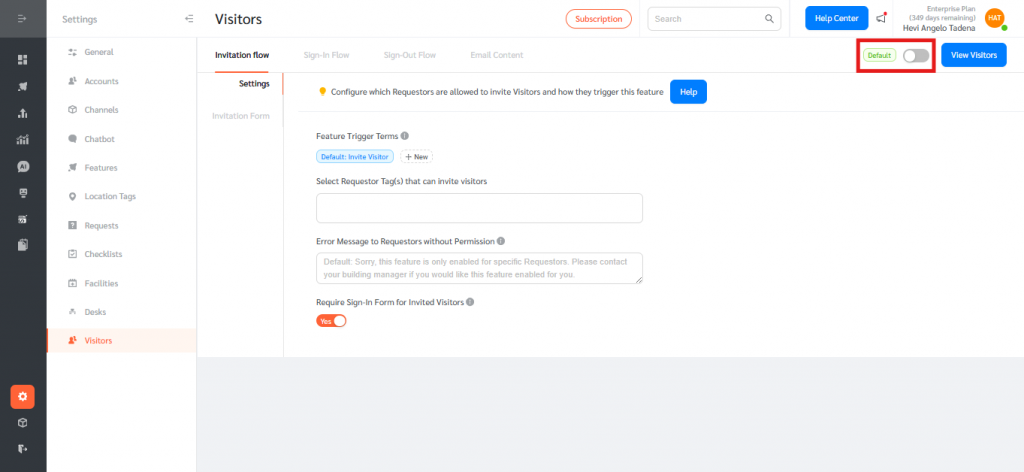
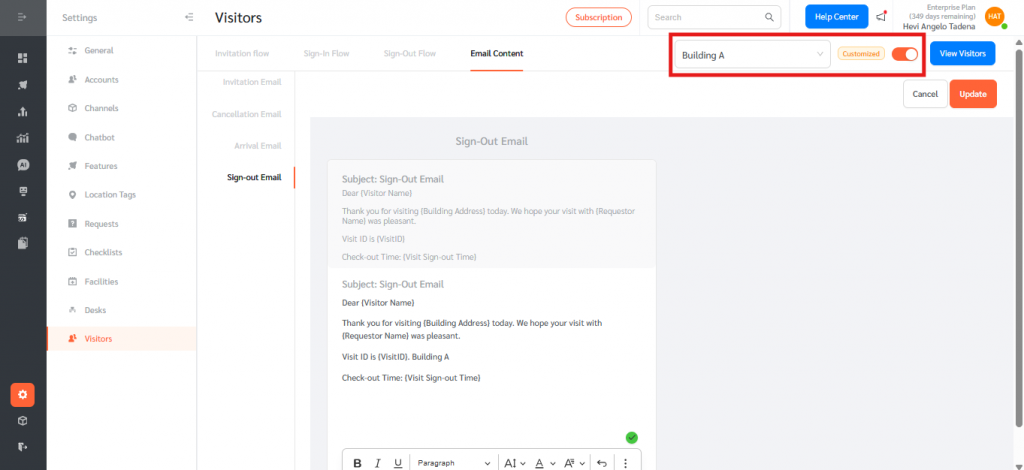
- Turn the toggle on (orange Customized badge) to override the settings for a specific site, then choose the site from the Select Location Tags dropdown.
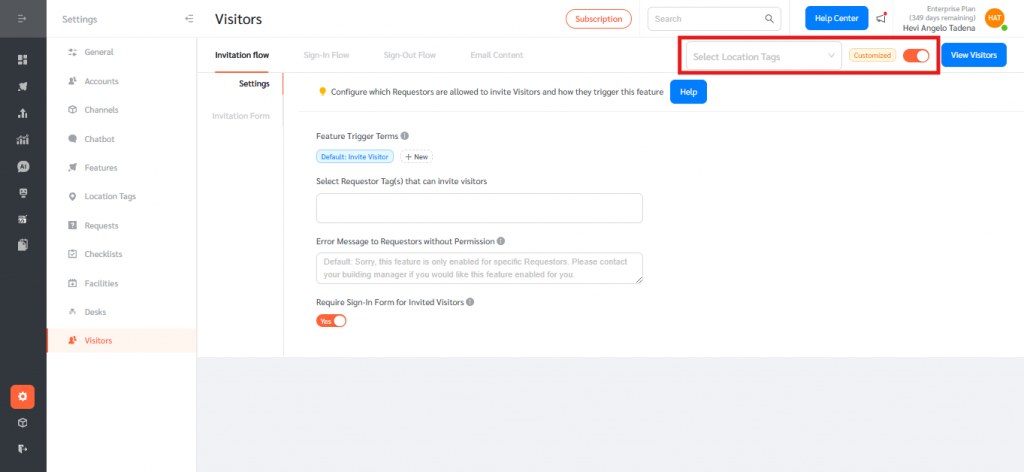
- Configure the Invitation Flow, Sign-In Flow, Sign-Out Flow, and Email Content for the selected site, and repeat for each site that needs its own configuration.
Configure Visitor Emails and Alerts per Site
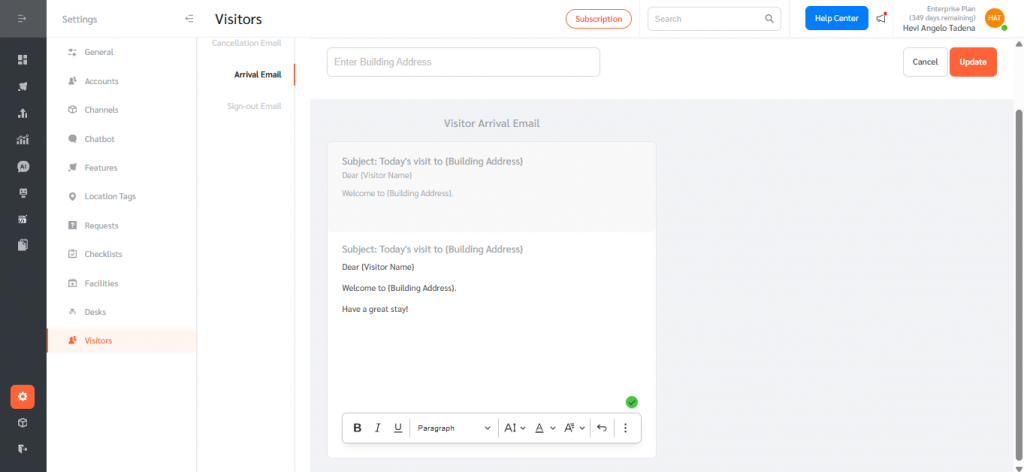
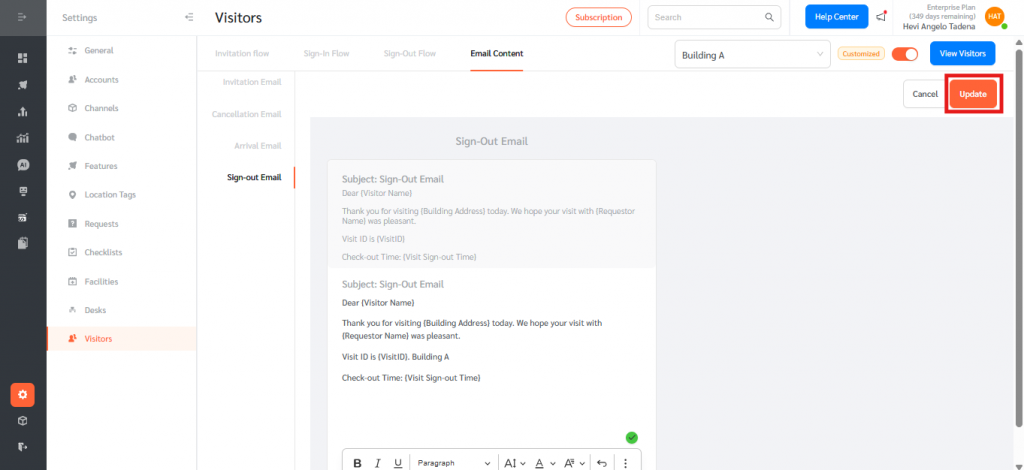
- In Visitors Settings, open the Email Content tab. It contains the Invitation Email, Cancellation Email, Arrival Email, and Sign-out Email.
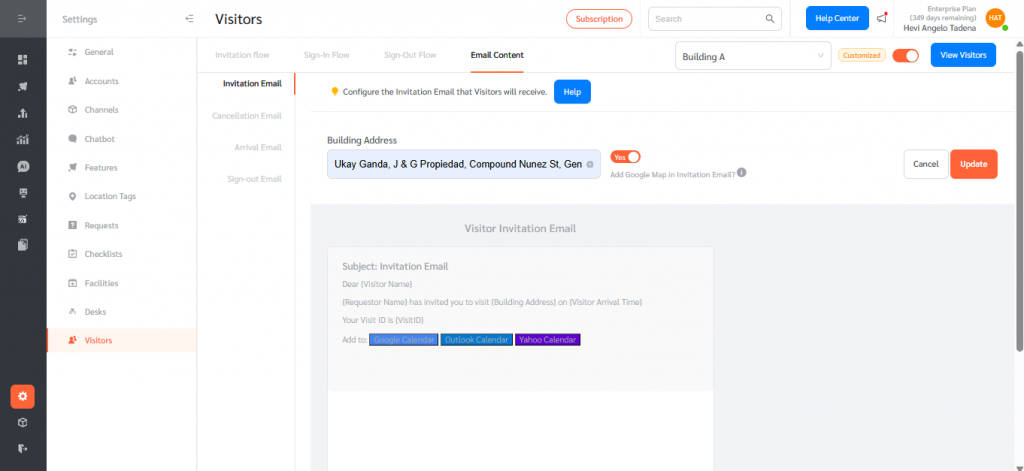
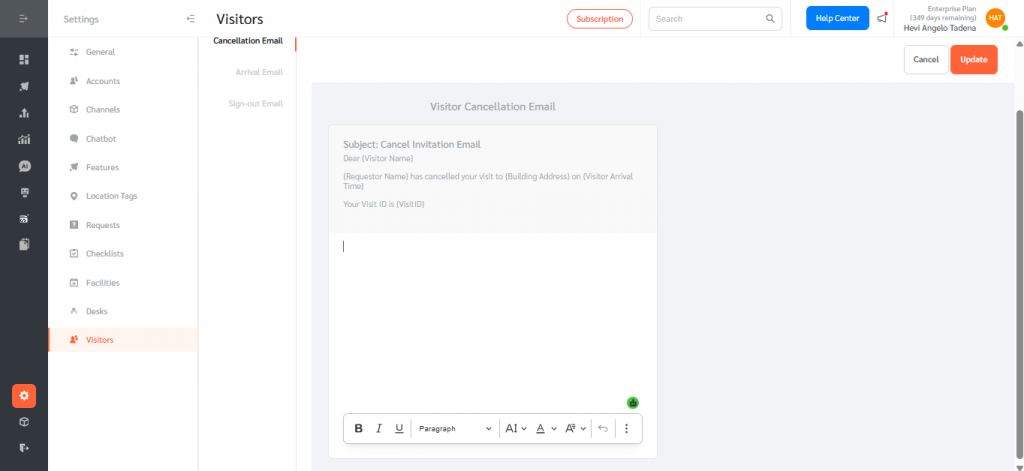
- Edit each email using the rich text editor. The Arrival Email is the alert sent to the host when their visitor arrives on site.
- To make an email specific to a site, first turn on the Customized toggle and select the site, then edit the email content for that location.
- Click Update to save your changes.
Tag a Visitor to a Location
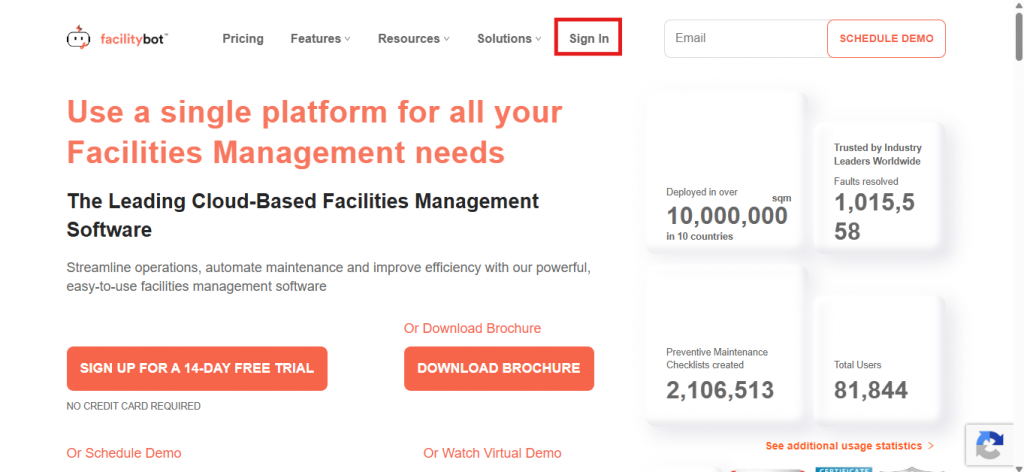
- Log in to the FacilityBot Web Portal.
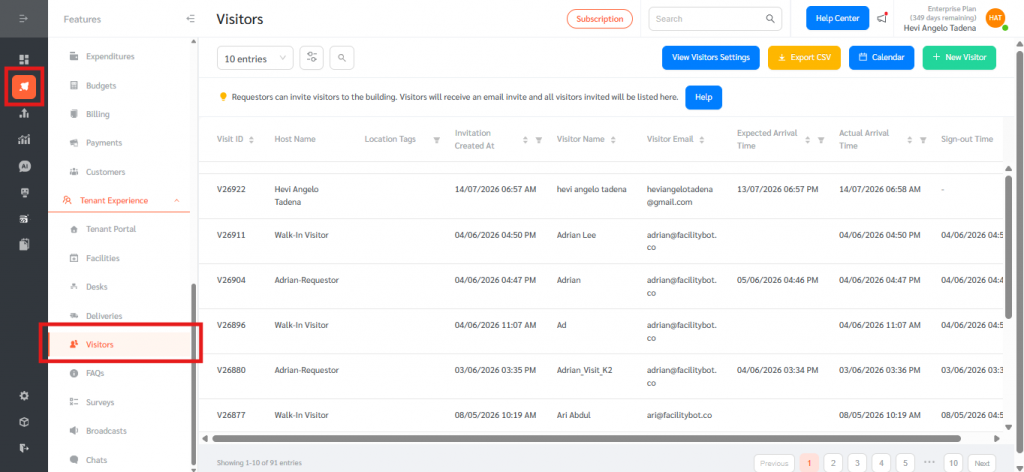
- Go to Features, then Visitors under Tenant Experience.
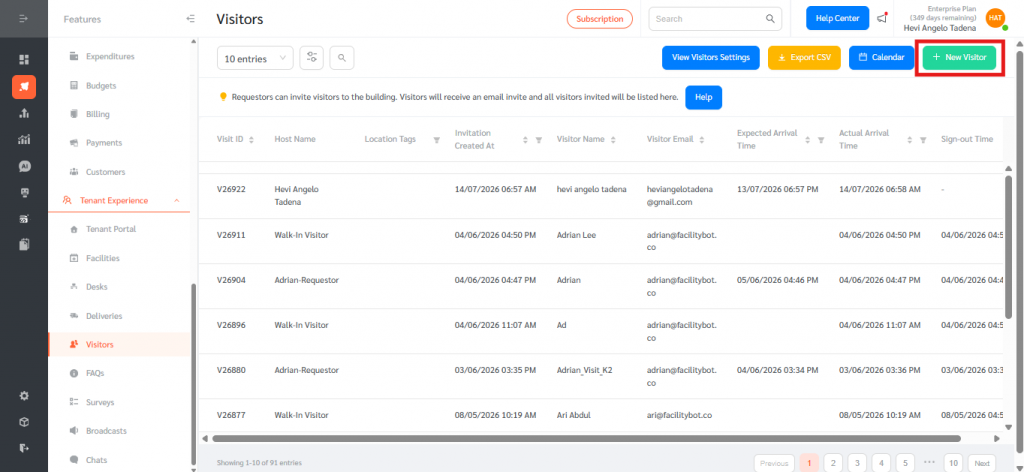
- Click + New Visitor at the top right of the Visitors page.
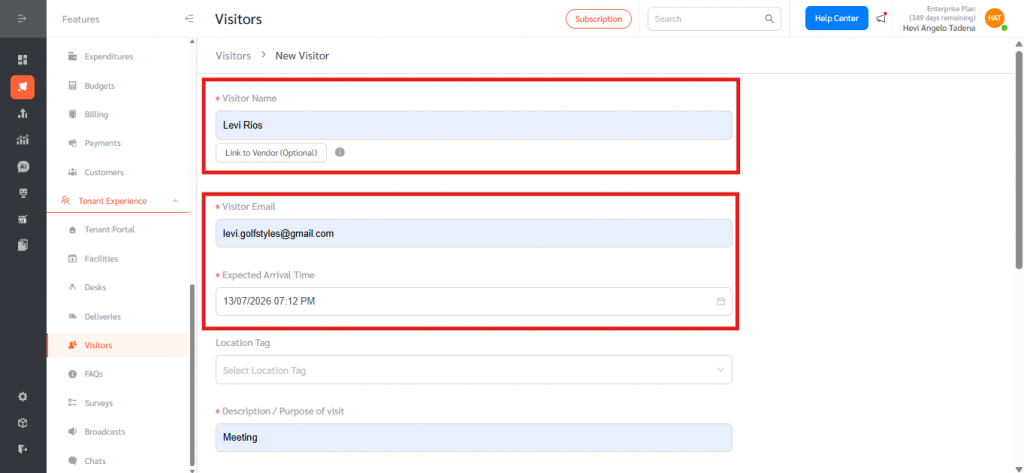
- Enter the Visitor Name, Visitor Email, and Expected Arrival Time.
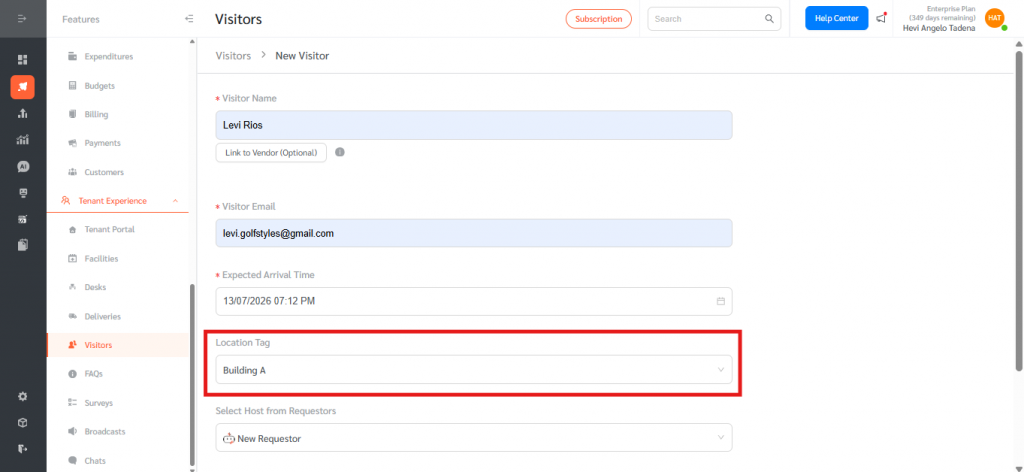
- Under Location Tag, select the location (site) this visit belongs to. This tags the visit to that site.
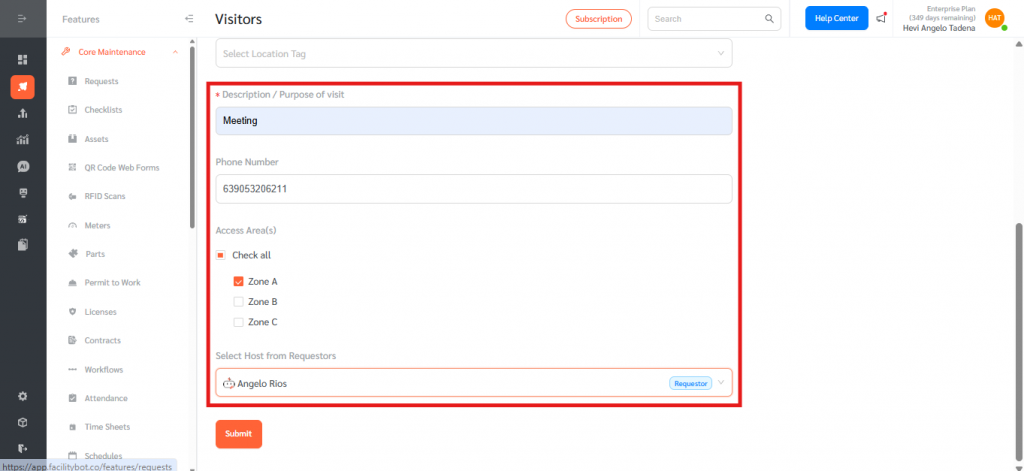
- Complete the remaining details – Description / Purpose of visit, Phone Number, Access Area(s), and the Host – then submit the invitation. Visitors can also be tagged to a location when they sign in through the webview or tablet, when the Location Tags field is enabled in the Sign-In flow.
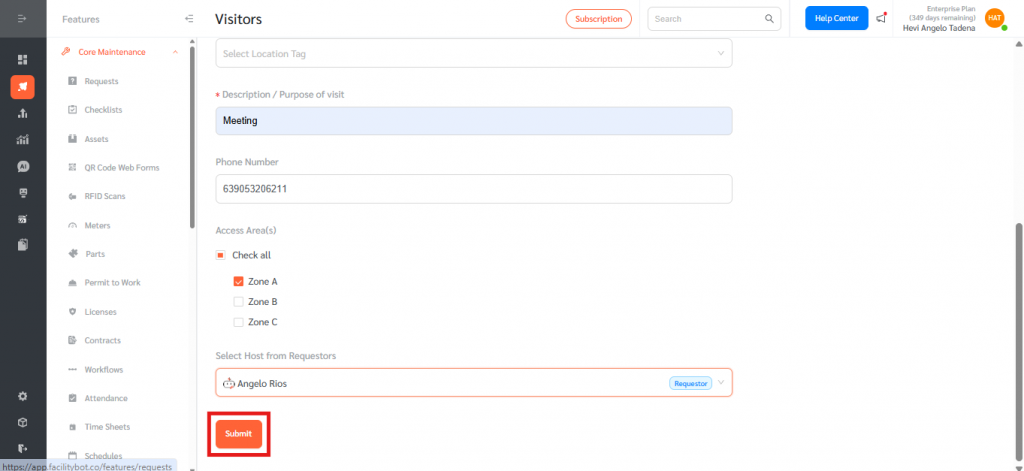
- Click submit.
View Location Tags in the Visitor List
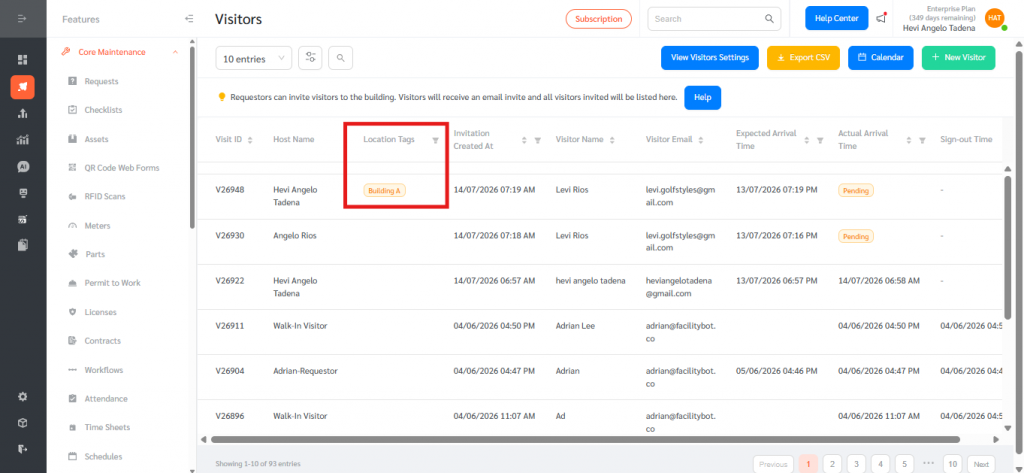
- On the Visitors page, note that the list includes a Location Tags column showing the site each visit is associated with.
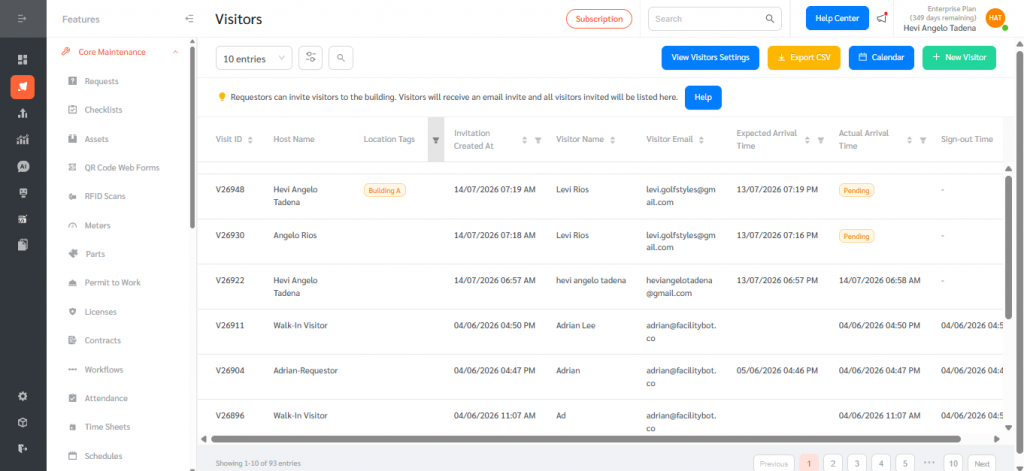
- Use this column to identify and organise visits by site across all of your locations.
Location Tagging for Visitors gives organisations that operate across multiple sites precise control over how visits are recorded and how visitors are handled at each location. Tagging visits to a site keeps the visitor log organised and easy to filter, while the Global Default and per-location Customized settings let administrators reuse a single configuration where it makes sense and override the invitation, sign-in, sign-out, and email content wherever a site needs something different. Because the visitor emails – including the host arrival alert – can be tailored per site, hosts and visitors receive information that is accurate and relevant to the location they are visiting, improving both the visitor experience and on-site security across every site.