Introduction
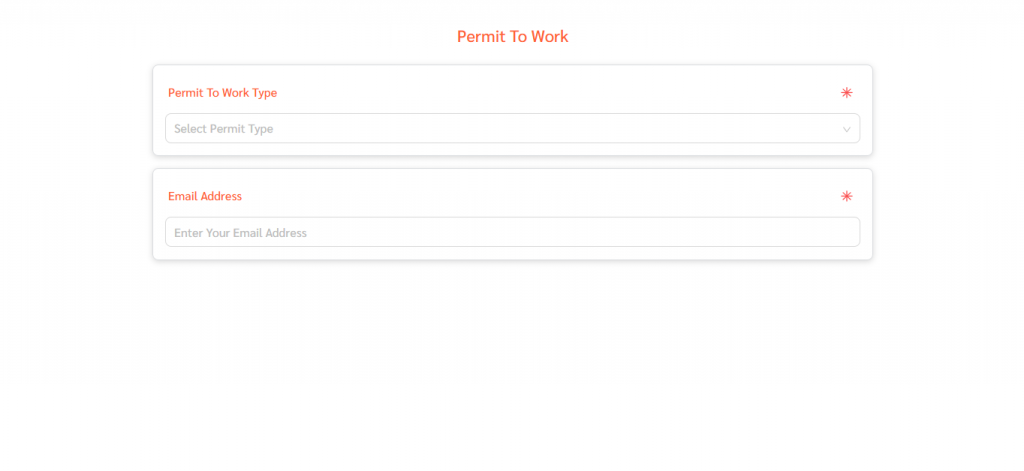
FacilityBot’s Permit to Work (PTW) feature lets organizations control high-risk activities by requiring applicants to submit a permit application for review and approval before work begins. To apply for a new PTW, an administrator starts a New Permit Application and shares an application link with the applicant – either by emailing a specific applicant or vendor, or by generating a Generic Application URL that can be shared with anyone. The applicant then opens the link, selects the Permit to Work Type (if allowed), fills in the required details, and submits the application, which then appears on the Permit to Work page and moves through the configured approval workflow.
How It Works
Start a New Permit Application
- Log in to the FacilityBot Web Portal.
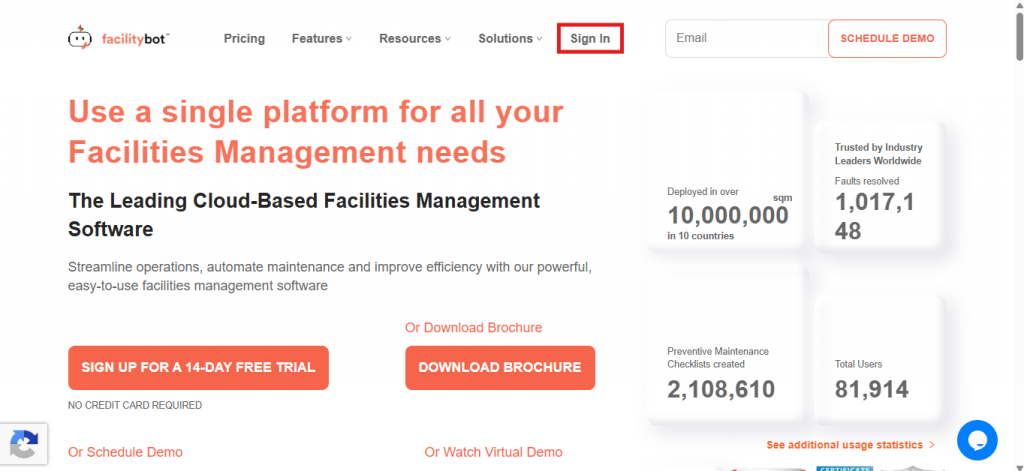
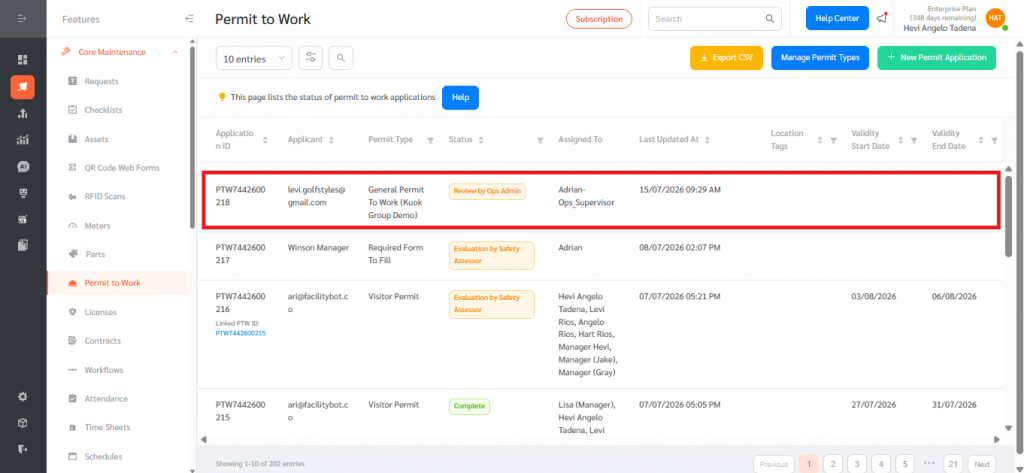
- Go to Features, then Permit to Work under Core Maintenance.
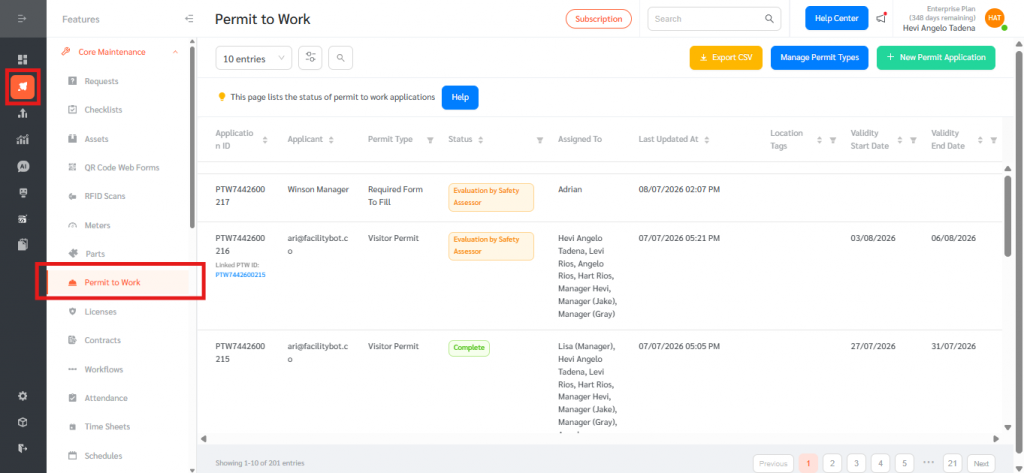
- Click New Permit Application at the top right of the Permit to Work page.
- Under Permit Type, either select a specific Permit to Work Type, or leave Allow applicant to select Permit Type so the applicant can choose the type themselves.
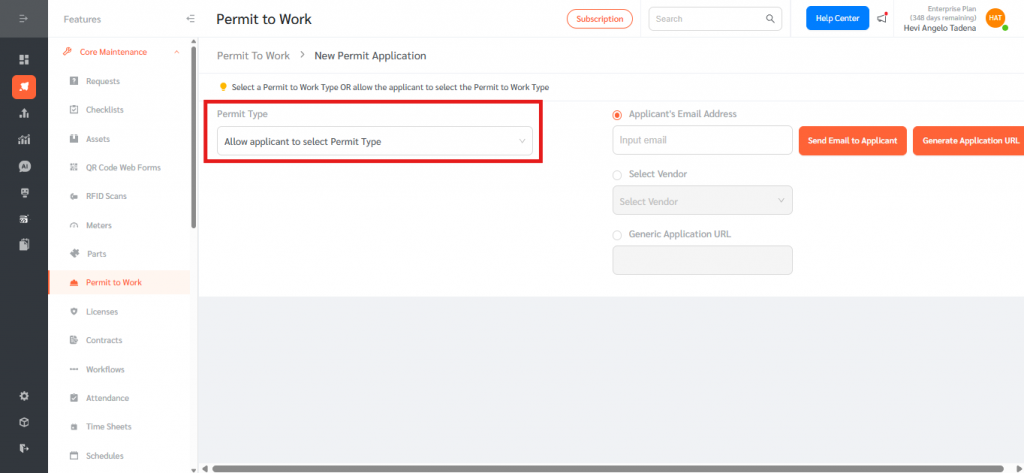
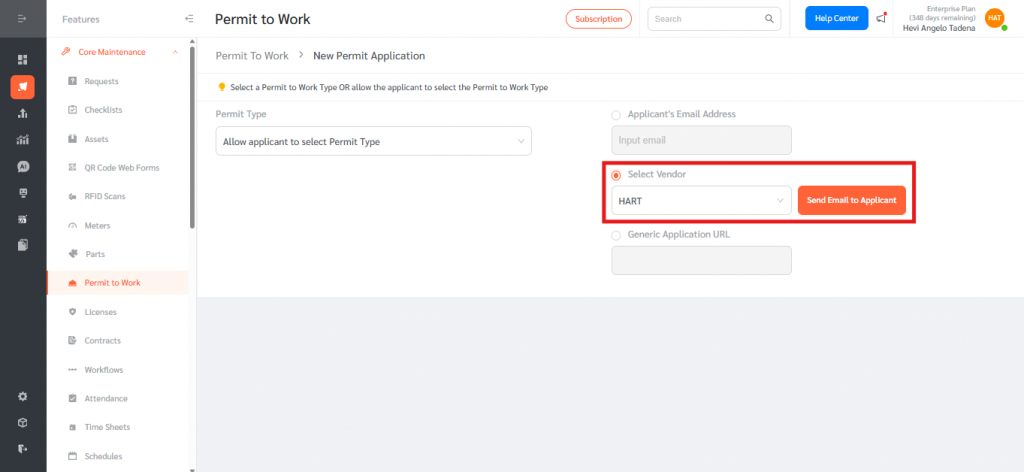
- Choose how to send the application to the applicant using one of the three options on the right: Applicant’s Email Address, Select Vendor, or Generic Application URL.
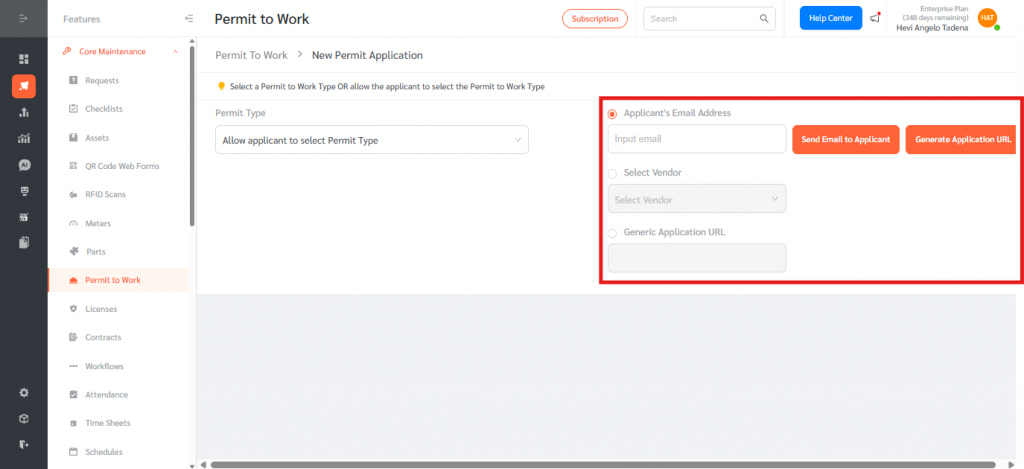
Send the Application to a Specific Applicant or Vendor
- Select Applicant’s Email Address, enter the applicant’s email, then click Send Email to Applicant to email them the application link – or click Generate Application URL to create a link you can share directly.
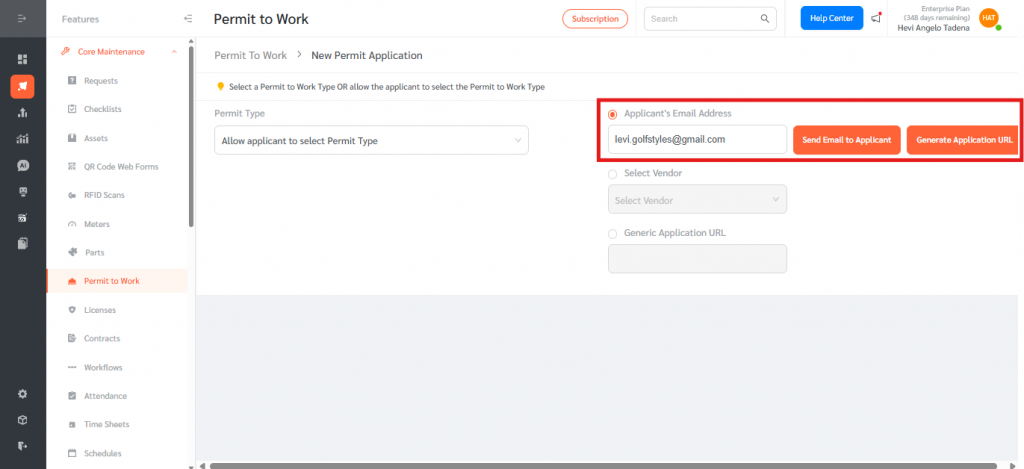
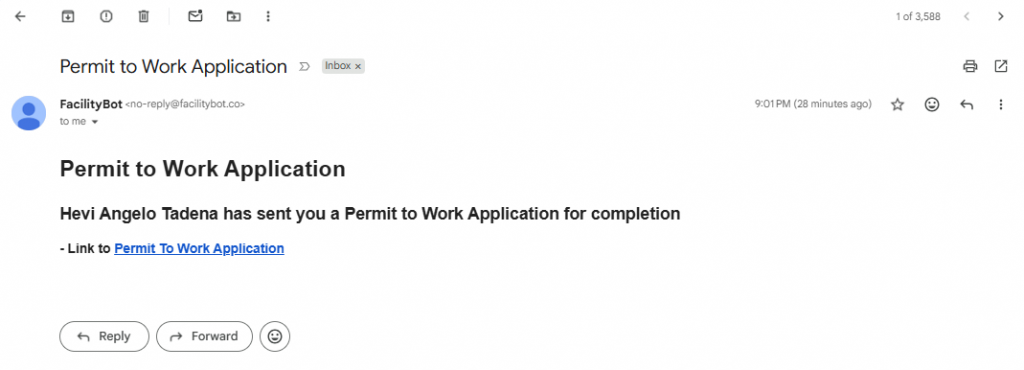
- Alternatively, select Select Vendor and choose a registered vendor to send the application to the email on their vendor record.
Share a Generic Application URL
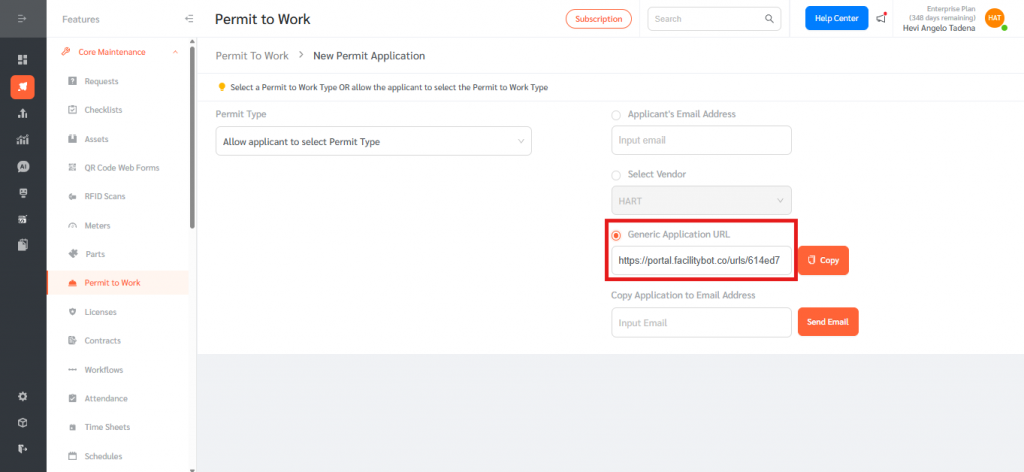
- Select Generic Application URL. FacilityBot generates a reusable public link, for example https://portal.facilitybot.co/urls/614ed7
- Click Copy to copy the link and share it through any channel, or enter an address under Copy Application to Email Address and click Send Email.
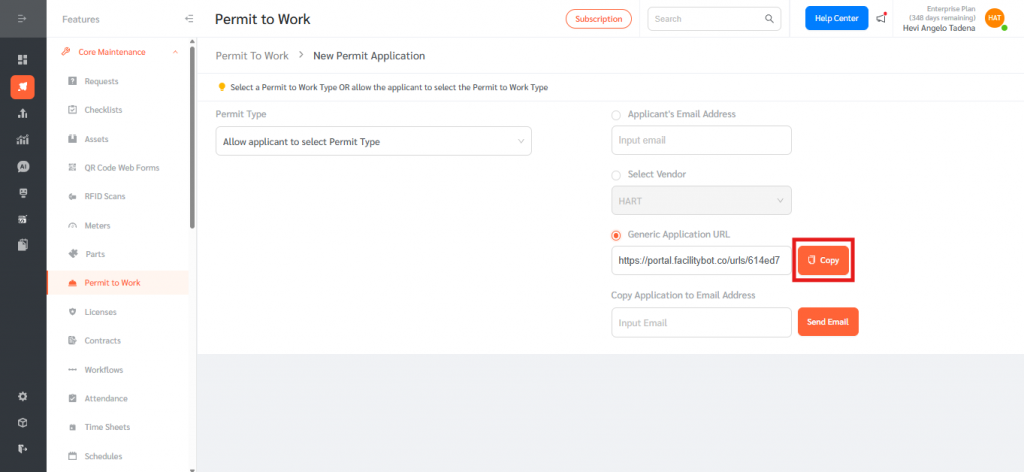
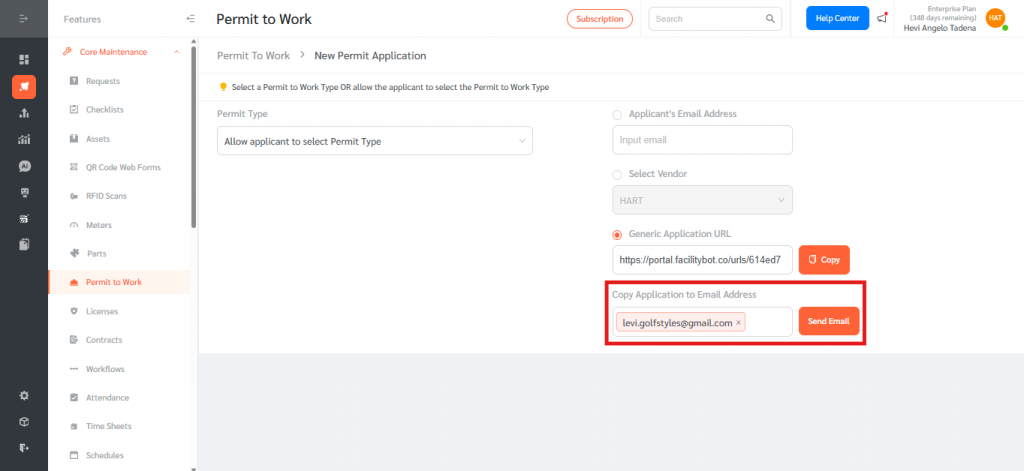
- Anyone who opens this link can apply for a new PTW, which makes it ideal for contractor onboarding, notice boards, or QR codes.
Complete and Submit the Application
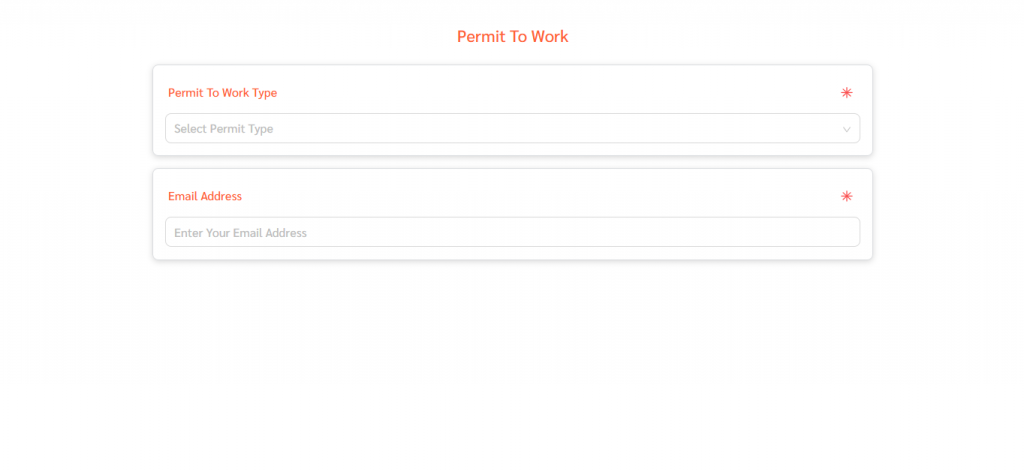
- The applicant opens the application link. If Allow applicant to select Permit Type was used, they first choose the Permit to Work Type.
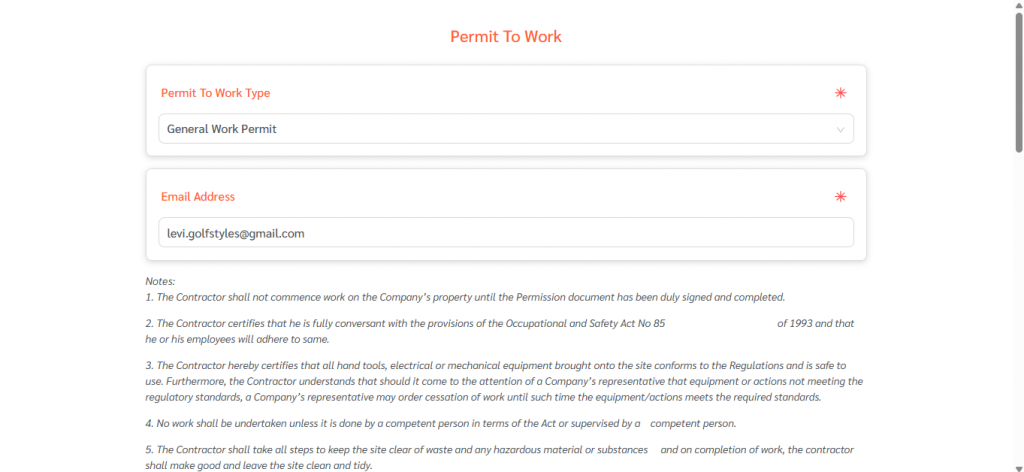
- The applicant fills in the required application details, such as the work description, validity start and end dates, location, and any required documents or safety information.
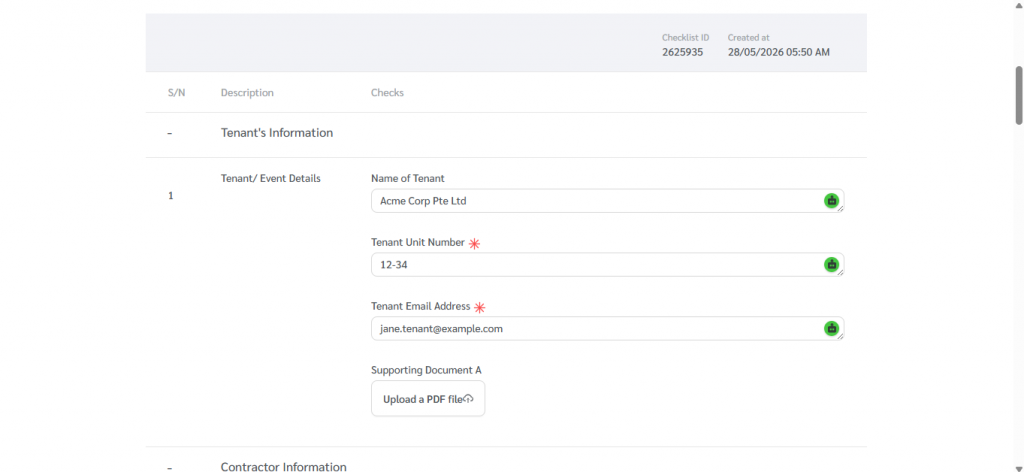
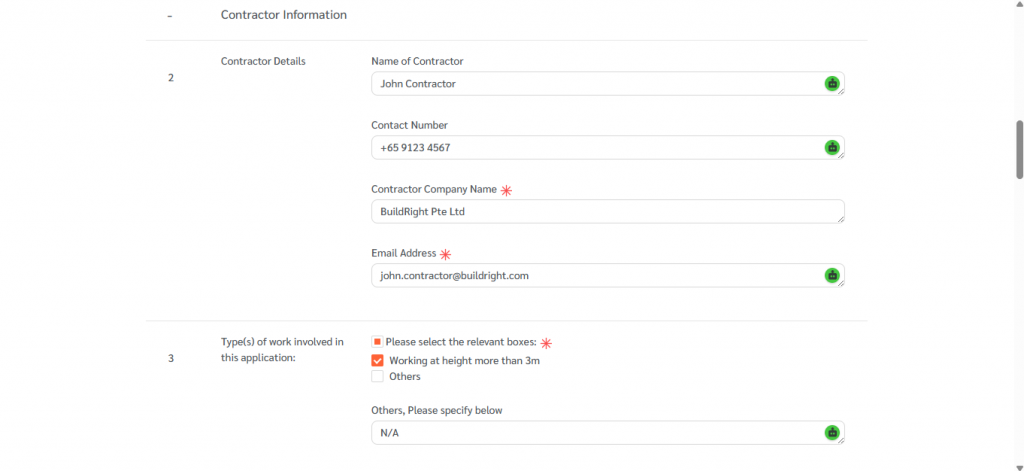
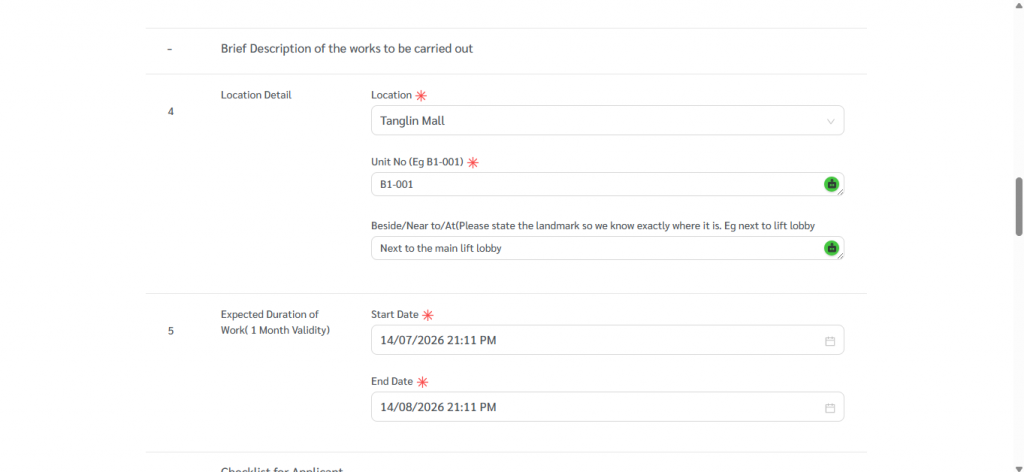
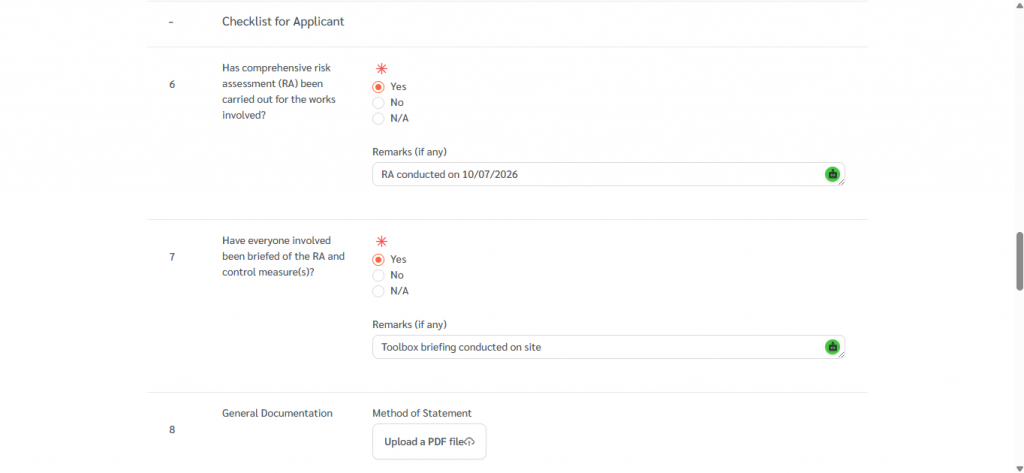
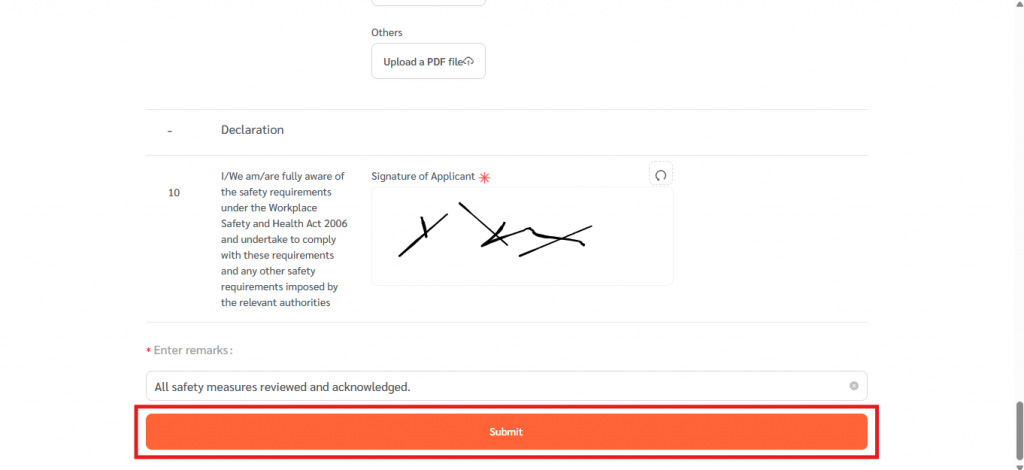
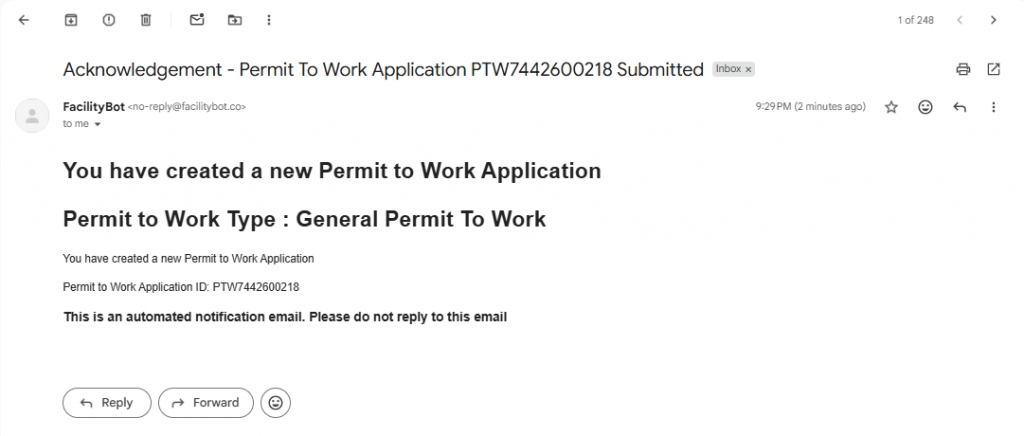
- The applicant submits the application. The new PTW then appears on the Permit to Work page with its Application ID and Status, and moves through the configured approval workflow.
Applying for a new Permit to Work in FacilityBot is straightforward once you know where the application starts. From the Permit to Work page, a New Permit Application can be sent directly to an applicant or vendor by email, or shared as a Generic Application URL that any applicant can use – which is ideal for contractors, notice boards, or QR codes. Because the application link can either fix the Permit Type or let the applicant choose it, and because every submission flows into the same review and approval process, organisations get a consistent, auditable way to authorise high-risk work while making it easy for applicants to apply from anywhere.