
FacilityBot’s Procurement feature allows building managers to create Request for Quotations (RFQs) and email it to your selected vendors. RFQs can be created directly or from requests.
Creating an RFQ
- Log into FacilityBot manager portal and go to Procurement.
- Click on the + New RFQ button to create a new request for a quotation.
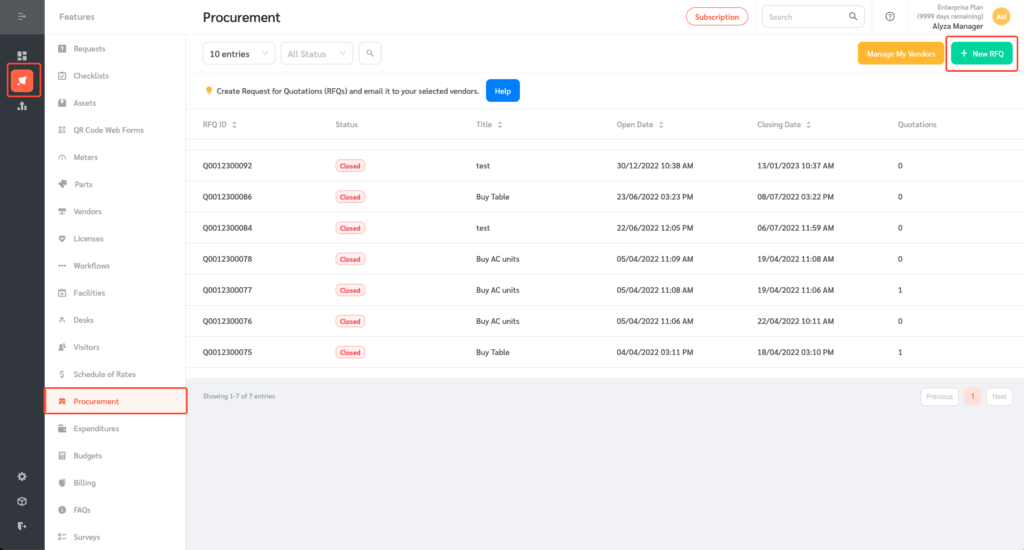
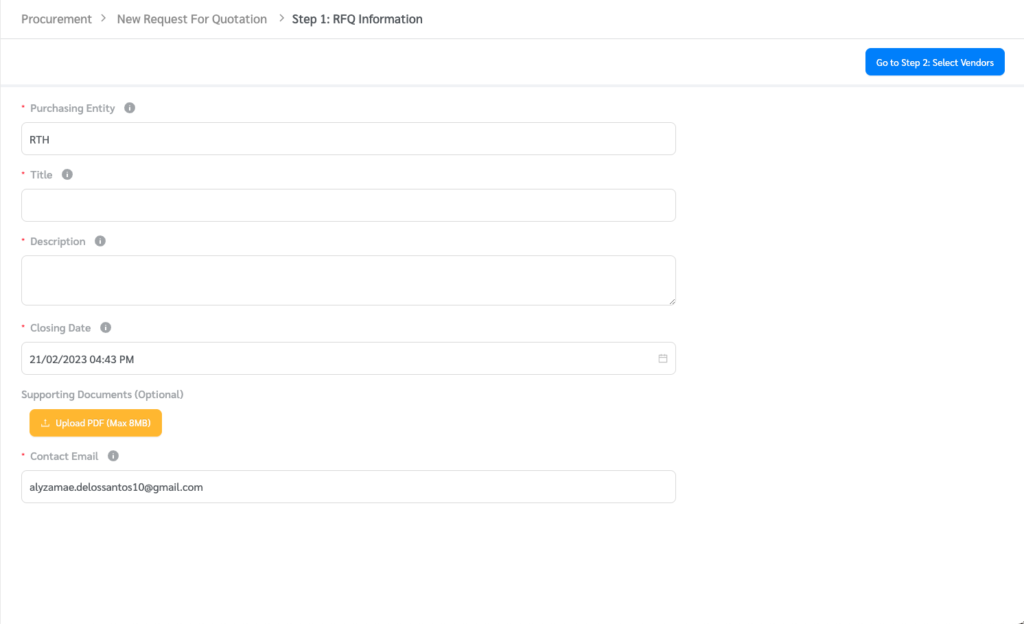
- Enter the title and description, set the closing date for the RFQ and attach the required documents.
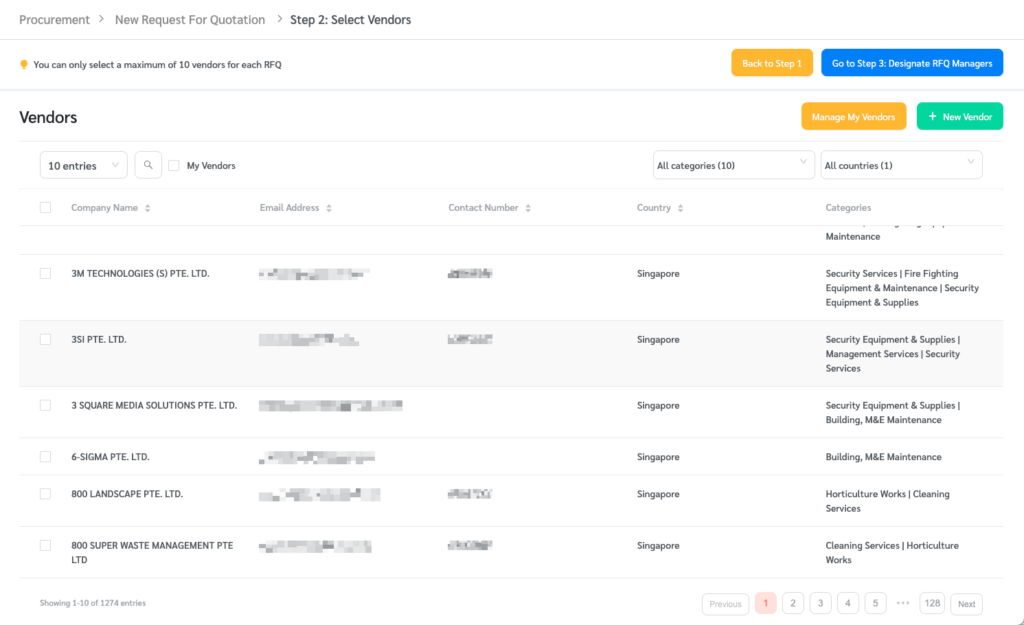
- FacilityBot gives you the option to select vendors from our pre-populated list or your list of vendors.
(Note: You can only select a maximum of 10 vendors for each RFQ.)
- Tick the box to view your list of vendors. You can also filter the list of vendors by selecting a category from the dropdown.
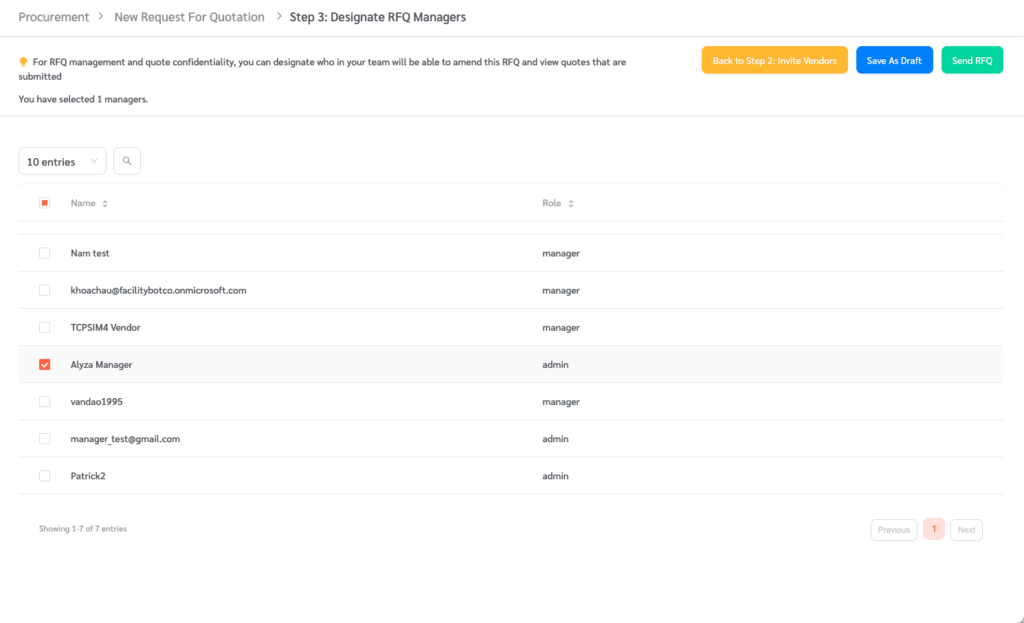
- For RFQ management and quote confidentiality, you can designate who in your team will be able to amend this RFQ and view quotes that are submitted.
- Send the request for quotation or save it as draft.
- Once sent, the vendor will receive an email with a link to submit their quote. PDF Quotations submitted using this link will be captured in FacilityBot.
Managing Vendors
- To add a new vendor, click on the Manage My Vendors button.
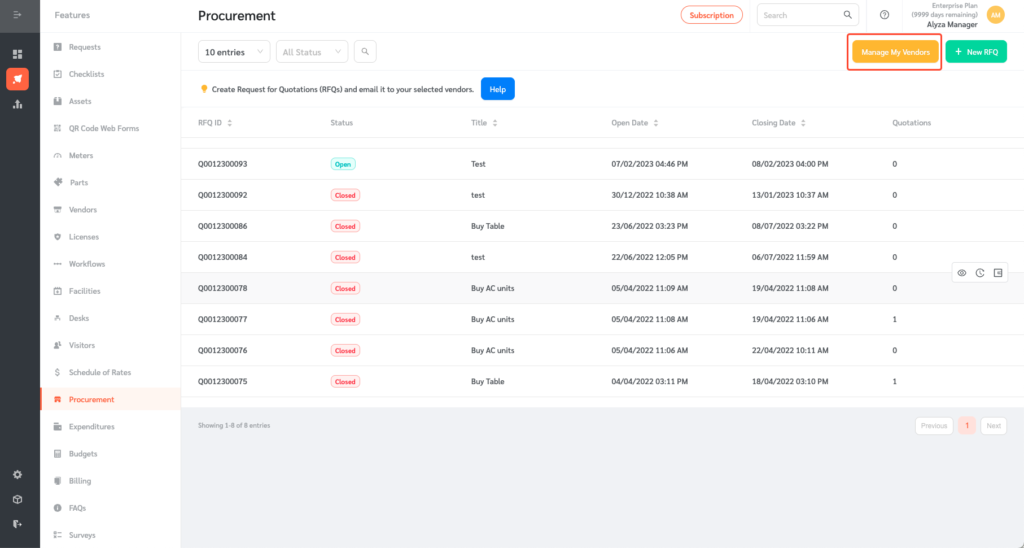
- You can view the list of your vendors.
- Enter the vendor’s information on the floating editing panel. You can enter the company name, country, address, email address, category, and contact number.
- Once all necessary information has been entered, click Ok.
Managing RFQs
- You can view the detail of the request and its history or create an expenditure request from the quotation.
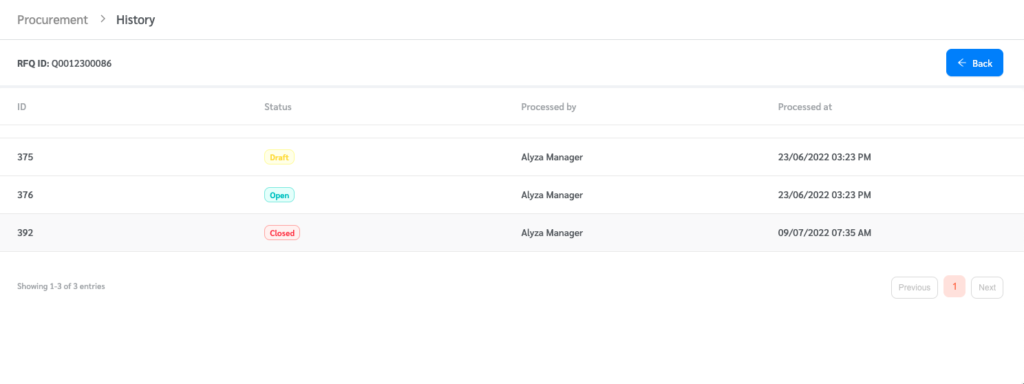
Ability to Extend Closing Date and Invite Vendors After RFQ is Created
Once an RFQ has been sent and is in Open status, you can extend its closing date or invite additional vendors without having to create a new RFQ. Only the person who created the RFQ can do this; other designated RFQ managers will not be able to extend the closing date or invite more vendors.
Extending the Closing Date
- Go to Procurement, hover over an RFQ with Open status and click the eye icon to view the Request For Quotation Details.
- Click the Extend Closing Date button at the top right of the page.
- The Current Closing Date is shown in the pop-up. Select the New Closing Date Time. The new closing date must be later than the current closing date.
- Review the summary, which shows the change in closing date and confirms that an email with the new closing date will be sent automatically to all invited vendors.
- Click Confirm Extension.
Inviting More Vendors
- On the Request For Quotation Details page of an Open RFQ, scroll down to Invited Vendors and click the + Add Invited Vendors button.
- Search for vendors, tick My Vendors to view your own list of vendors, or filter by category and country. Tick the box beside each vendor you want to invite.
- Click the Invite Vendors button. An RFQ invitation email will be sent automatically to each selected vendor.
- The Invited At column in the Invited Vendors table shows the date and time each vendor was invited.